
Monitors
A monitor runs a collection (or chosen folders and requests), or a test file or flow under tests/, on a schedule, every 1 minute to 7 days, like a Postman monitor. Each run is a normal collection run (or test run), with scripts, assertions and reports. The monitor keeps a history of results, so you can see when a check started failing.
In the app
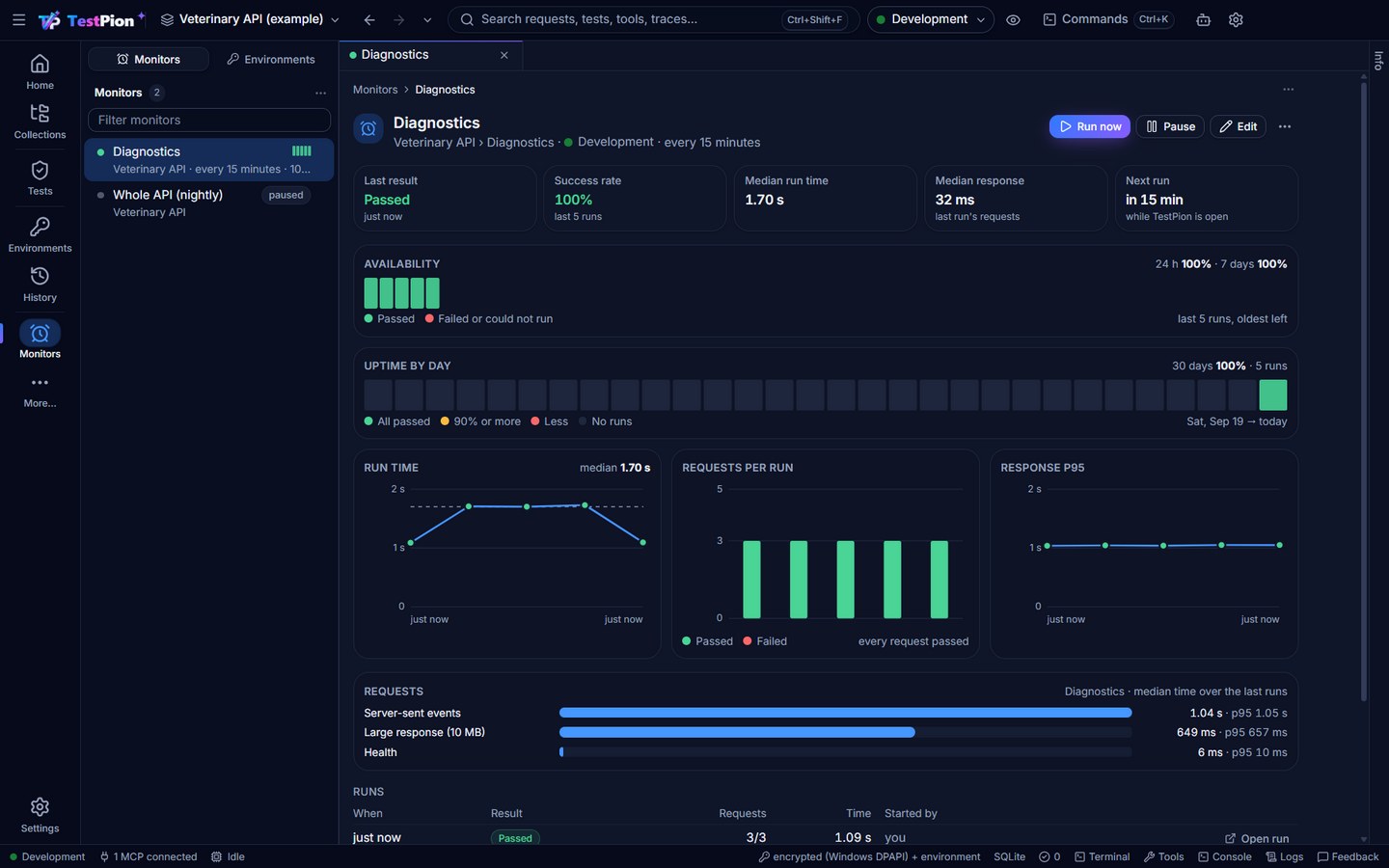
Open Monitors (the rail's More…, or Ctrl+K ▸ Go to Monitors) and click New monitor. You can also right-click a collection or folder and choose Monitor on a schedule…, or use File ▸ New ▸ Monitor…. Then choose:
- Runs: A collection or A test file or flow, then the Collection (or the Test file, from
tests/) and the Environment (the same picker as the top bar; production is marked in red). A flow's Deploy ▸ Schedule opens this editor with its file already picked. - Run every: minutes, hours or days.
- What to run (a collection): tick folders or requests. Tick nothing to run the whole collection. A test file always runs as a whole, its steps in order like
testpion test(a suite runs its files). - Stop at the first failure, if later requests depend on earlier ones.
A monitor on an environment marked as production asks when you save it whether it may change data there: with your yes its data-changing requests run on the schedule; without it its reads run and its writes fail. The first run starts as soon as the monitor is saved; after that it runs whenever it is due. For each monitor the page shows:
- the last result, the success rate and the median run time;
- when it runs next;
- a bar per recent run (height is the run time, red for a failure);
- a list of runs. Open run shows the requests and checks in the Tests view; a failed run's ⋯ there (and the failing monitor in the Problems panel) has Explain and fix failures with AI…, which groups its failures by cause and proposes verified fixes (triage).
Run now runs it immediately. Pause stops the schedule until you resume it.
When a monitor starts failing, or passes again, TestPion shows a notification.
Alerts to Slack, Teams, Discord or any URL
Give a monitor an Alert webhook (or testpion monitor add … --webhook <url>; Send test alert checks it) and TestPion posts to it when the monitor starts failing and when it passes again, not on every run. The JSON has a text field (Slack and Microsoft Teams incoming webhooks show it), content (Discord), and the details for any other receiver: monitor, status, total, passed, failed, errors, p50Ms, p95Ms, startedAt, runId, error and reason.
A Response time limit (or --max-p95 <ms>) makes a run fail when the p95 response time of its requests is over it, even when every check passes: the run shows Too slow with the reason (for example "p95 830 ms is over the 500 ms limit") and alerts like any other failure. The Response p95 chart shows each run's p95 with the limit as a dashed line.
To be warned before a certificate expires, set the monitor's Certificate warning (or --min-cert-days 21): a run fails, and alerts, when the certificate of any host it calls expires within that many days, and the monitor shows the days left on the first to expire. For one request only, use the Certificate valid for (days) check (type: certificate, min: 21). Every HTTPS response also records its host's certificate: when the app starts it reminds you (once a day) of those that expire within 7 days, Home lists the ones that expire first, testpion certificates --warn 21 prints them all (and exits 1 when one expires within 21 days, for cron or CI; --check host … connects and checks hosts directly, including whether they are trusted), and agents use the list_certificates MCP tool.
Requests lists each request of the monitor over its latest runs, slowest first: the median time as a bar, the p95, and how often it failed (red), so you see which request makes a monitor slow or fail. testpion monitor requests "API health" and the monitor_requests MCP tool give the same.
Uptime by day shows the last 30 days like a status page: one block per day, green when every run passed, amber at 90% or more, red below that and grey when nothing ran; hover a day for its runs and its slowest p95. testpion monitor uptime "API health" -w my-workspace [--days 90] [--json] prints the same, and the monitor_uptime MCP tool returns it to agents.
{ "text": "🔴 Monitor \"Checkout\" failed: 3 of 4 requests", "status": "failed", "total": 4, "passed": 1, "failed": 3 }A webhook URL is a credential: write it as a {{variable}} (for example {{alertWebhook}}) and keep the value in a secret variable of the monitor's environment. Alerts are sent by whichever host runs the monitor: the app while it's open, testpion monitor start, or testpion monitor run --due from cron.
While the app is open
The app runs monitors only while it is open. To run them all the time, use the CLI on a server, or schedule them in CI (see below).
Where monitors are stored
- Definitions are saved items of the workspace (
library/monitors.json), so they are shared, and they are included when you export the workspace. - Results stay on the machine that ran them (
runs/monitors/<id>.jsonl, the newest 500 to 1000). Every run is also inruns/with its reports. - Secret variables come from the machine that runs the monitor. In the app that is the OS keychain; for the CLI it is
TESTPION_SECRET_*environment variables.
From the terminal
testpion monitor add "API health" --collection "Veterinary API" --folder Diagnostics --every 5m -e Development -w my-workspace
testpion monitor add "Checkout flow" --test-file flows/checkout.yaml --every 15m -e Staging -w my-workspace   # a flow on a schedule
testpion monitor add "Prod orders" --test-file orders/new-order.yaml --every 1h -e Production --allow-production -w my-workspace   # may change data in production
testpion monitor list -w my-workspace --json | jq '.data'   # schedule, last result, next run
testpion monitor run "API health" -w my-workspace       # run one now
testpion monitor run --due -w my-workspace              # run the ones that are due (for cron)
testpion monitor results "API health" -w my-workspace   # recent results, newest first
testpion monitor uptime "API health" -w my-workspace    # uptime per day, last 30 days
testpion monitor start -w my-workspace                  # keep running them until Ctrl+C
testpion monitor remove "API health" -w my-workspace
monitor run exits with 1 if a run failed and 3 if one could not run, so a CI job fails too. For example, to check every 15 minutes with cron:
*/15 * * * * cd /srv/api-tests && testpion monitor run --due -w . >> monitors.log 2>&1--every takes minutes (30) or a number with m, h or d (15m, 2h, 1d). A monitor runs either --collection (with --folders) or --test-file (a path under tests/; tests/ in front is fine), never both; monitor list shows which.
For AI agents
The MCP server has save_monitor (add or change one: collection and selection, or testFile; every, environment, webhook), list_monitors (definitions with their last result and next run), monitor_results, monitor_uptime (uptime per day) and run_monitor (which returns the details of failed requests). run_monitor refuses production environments unless the server was started with --allow-production. A monitor on a production environment changes data on its schedule only when it was saved with consent: the app asks when you save it, testpion monitor add … --allow-production gives it from the terminal (Production); save_monitor never gives it, and replacing a monitor with save_monitor keeps the consent it has while its environment stays the same.