
HTTP Debugger
The HTTP Debugger (Debugger under the rail's More…, or Ctrl+K ▸ Go to Debugger; right-click a rail item ▸ Show on the rail to keep it there) shows the traffic of other programs. TestPion runs a local proxy; a program pointed at it sends every request through, and each exchange is listed as it happens with the program that sent it, the status, the size and the timing. A row opens whole: the request and response side by side, and a timing breakdown.
The workbench
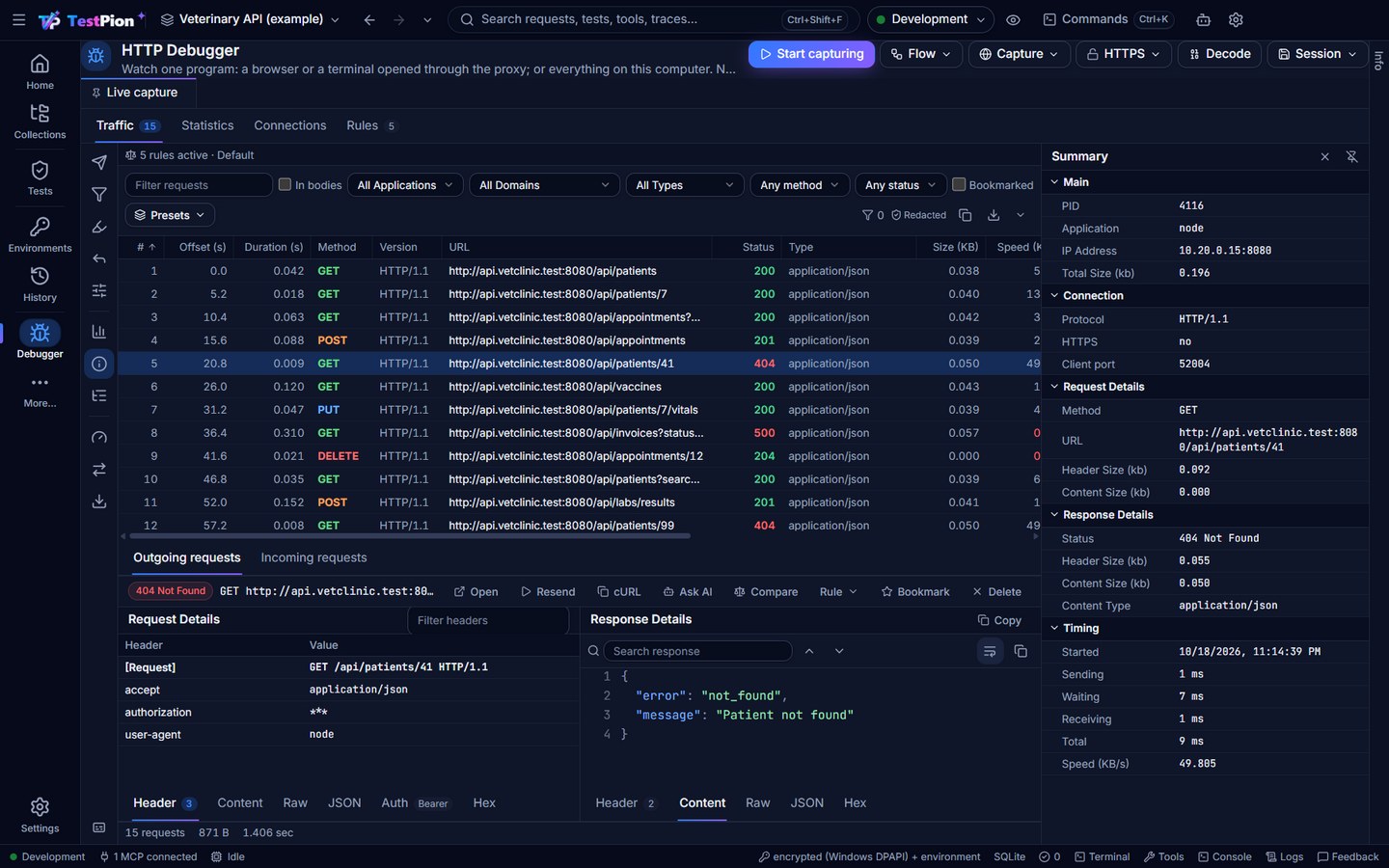
The Traffic tab is laid out like a desktop HTTP debugger:
| Part | What it is |
|---|---|
| Tool rail (left) | Submitter, Filter, Highlight, Auto-Reply, Modify (headers, redirect), Timeline (F5), Summary, Structure (F6), Performance, Convert, Export / Import. Hover one for what it does; a click opens its panel in the dock, a second click closes it. The button at the foot of the rail shows each tool's name under its icon (remembered). |
| Filter bar | The text filter first (In bodies searches headers and bodies too), then All Applications, All Domains, All Types, method, status, Bookmarked, saved Presets, and the number of Filter Out / Capture Only rules on (click it for the Filter panel). |
| Grid | #, Offset (seconds since the session's first request), Duration (s), Method, Version, URL, Status, Type, Size (KB), Speed (KB/s), Application (the program behind the connection, found while it is open; one that exits within milliseconds, such as a single curl, may show none), Domain, IP Address, User (the account the program runs as), and PID on demand. Click a header to sort, again to reverse; the columns button shows or hides columns (remembered). Ctrl+click and Shift+click select several. |
| Outgoing / Incoming | Outgoing is what programs sent through the proxy; Incoming requests lists what your programs sent to TestPion's own mock servers (a collection's Mock tab), with the example that answered; click one for its headers and body and the mock's answer in the same panes (Open makes it a request tab). |
| Request Details / Response Details | Side by side under the grid once a row is selected (until then, a one-line hint). Each is a header table with the start line first ([Request] POST /pet HTTP/1.1, [Response] HTTP/1.1 404 Not Found) and Filter headers; tabs at the bottom: Header, Content, Raw, JSON, plus Auth and Hex on the request, and Hex, gRPC, Frames or Events on the response when the exchange has them. |
| Dock (right) | One panel at a time, chosen from the rail; its title says which. The pin in its header unpins it: the dock folds into a tab on the right edge and the grid takes the width; hover or click the tab (or a rail button) and the panel slides over the grid, and it slides away when the pointer leaves it, on Esc or on a click elsewhere. Pin it to dock it again (remembered). Its width is dragged at its left edge. |
| Footer | How many requests are listed (or selected), their size and their total time. |
Once HTTPS traffic shows up as tunnels, a one-line notice offers Decrypt HTTPS and Install certificate…. The HTTPS menu in the header holds the same, and its lock says the state: green when decrypted.
The dock's panels
- Filter: Filter Out rules hide what they match (it still goes through); Capture Only rules, when one is on, list only what one of them matches. Each rule has a box to turn it on or off and its Hits (how many requests it acted on in this capture; the reset button counts from zero).
- Highlight and Highlight Rule: the highlight rules, and an editor for one: a rule name, a Column (Status, URL, Method, Domain, Application, Type, Version, IP Address, Duration, Size), an Expression (equals, does not equal, contains, starts with, ends with, is between, greater than, less than, matches), the value (two for is between), Use regex, a colour for the dark theme and one for the light theme, Make bold and Entire row. Status is between 400 and 499 colours client errors; a new rule goes first, so it wins over the built-in ones.
- Auto-Reply: the rules that answer without the server.
- Modify: the rules that change headers and bodies, add a delay, or redirect a host.
- Timeline: the selected request's Sending, Waiting and Receiving as bars, with its total time and size; several selected requests show on one time axis.
- Summary: the selected request in groups: Main (PID, application, user, IP address, total size), Connection (protocol, HTTPS, connection and stream id, client port), Request Details and Response Details (header and content sizes, content types, status), Timing.
- Structure: the listed requests by domain, then path segment by segment, with counts and sizes and a total; double-click one to select its first request.
- Performance: where the time and bytes go: the share of time spent waiting for servers, the slowest responses, the largest payloads, the slowest transfers (KB/s) and every domain's average and slowest time.
- Convert: paste a value; URL Decode and URL Encode run the shown conversion (their arrows pick another: Base64, hex, HTML, JWT, timestamp, JSON format or minify) into the result box; Other readings lists every decoding that makes sense. The header's Decode button opens it.
Capture
- Choose what to capture from Capture: a browser (Chrome, Edge, Firefox or Brave opened through the proxy with a profile of its own — only that window is captured; on macOS, Safari, which has no proxy of its own, is opened with the system proxy pointed at TestPion and restored when you stop), a terminal (opened with
HTTP_PROXYset — only what runs in it), or everything on this computer (the system proxy, an explicit choice, restored when you stop). The proxy starts on its own. Start capturing alone starts it for a program you point at it yourself; Capture ▸ Proxy port… changes the port (8899). - Point the program at the proxy:
- a terminal program:
HTTP_PROXY=http://127.0.0.1:8899(andHTTPS_PROXYfor HTTPS) before you run it; Node, Python, curl, Go and most SDKs read it; - Chrome or Edge: start it with
--proxy-server=http://127.0.0.1:8899; - anything else: the operating system's proxy setting (Windows: Settings ▸ Network ▸ Proxy).
- a terminal program:
- Use the program. Its traffic appears; a filter box, the host, method and status filters and a Bookmarked switch narrow the list. In bodies makes the filter box search headers and bodies too.
The Capture menu does the pointing for you:
- A browser: Chrome / Edge / Firefox / Brave (only that window): the browser starts with a profile of its own (your real profile, cookies and extensions stay out of it) and every page it loads goes through TestPion.
- A browser: Safari (through the system proxy, restored on stop) (macOS): Safari always follows the system proxy, so TestPion points the system proxy at itself and opens Safari; other programs that follow the system proxy are captured too until you stop, when the proxy is put back. For HTTPS, trust the root certificate (HTTPS ▸ Root certificate… adds it to the login keychain). Safari on an iPhone or iPad is A phone or another computer….
- A terminal: commands run in it (only those): a new terminal window whose shell has
HTTP_PROXYandHTTPS_PROXYset; anything you run in it is captured. - A phone or another computer…: see below.
- Reverse proxy for one API…: for a client that can't use a proxy; see Reverse proxy for one API.
- Everything on this computer (the system proxy, restored on stop): every program that honours the operating system's proxy sends through (Windows: Internet Settings; macOS:
networksetup; GNOME:gsettings). It is put back as it was when you choose Stop capturing everything (restore the system proxy), when you stop capturing and when TestPion quits. - Copy the lines for bash / zsh, PowerShell, cmd, curl or Chrome / Edge: the lines for a shell that is already open.
Plain HTTP is captured whole. HTTPS shows as a tunnel by host, with bytes in and out, until you decrypt it.
HTTPS
HTTPS ▸ Decrypt HTTPS makes the proxy answer each program with a certificate for the host it asked for, signed by TestPion HTTP Debugger Root, a root certificate created on this computer (it never leaves it). Programs that trust that root are captured like plain HTTP, with a lock on the row; a program that does not trust it is listed as a tunnel that failed, with the reason. HTTPS ▸ Root certificate… shows its fingerprint, trusts it for the current user in one click (Windows, macOS, Chrome on Linux; Firefox imports it in its own settings), removes it, exports it for a phone or another computer, or makes a new one. Node reads NODE_EXTRA_CA_CERTS, Python REQUESTS_CA_BUNDLE, curl --cacert. Keep hosts encrypted… lists the hosts that stay opaque (programs that pin their certificates, banking). Remove the root from the trust store when you are done.
HTTP/2 and gRPC
Programs that speak HTTP/2 inside a decrypted tunnel are read as HTTP/2: each request is a stream, marked h2 on its row. gRPC calls are captured whole even without TLS (grpc-js and most gRPC clients send plaintext gRPC through a proxy as HTTP/2 inside a CONNECT, and the Debugger reads it): the row says gRPC, a failed call shows its gRPC status (NOT_FOUND, UNAVAILABLE …), and the gRPC tab lists the messages sent and received as JSON, with the status and message from the trailers. Messages are decoded with the .proto files (or reflection) of the workspace's gRPC requests when one describes the method, else field by field. The Connections tab groups requests by the connection they came on: an HTTP/2 connection with its streams, an HTTP/1.1 connection with its requests.
A tunnel that carries plain HTTP/1.1 is read too. A program whose server speaks first (SMTP, a database) gets an opaque tunnel.
A phone or another computer
Capture ▸ A phone or another computer… shows this computer's addresses on the local networks, each with a QR code. The proxy has to listen on the network for this; the dialog offers to restart it that way. Scanning the code opens a page the proxy serves itself, with the server and port to type into the device's Wi-Fi proxy settings. When HTTPS is decrypted, the page also offers the root certificate to install, with the steps for Android and iOS.
WebSocket and Server-Sent Events
A WebSocket through the proxy is one row (status 101, live while open) with a Frames tab: every message sent and received, with the time and size; control frames (ping, pong, close) on request. A text/event-stream response gets an Events tab with each event's name, id and data as it arrives.
What you can do with a row
- Open (Open as request in the right-click menu, or the rail's Submitter): the exchange becomes a request in a tab, to change and send; double-click does the same. (Older versions called this Edit & Submit.)
- Resend: send it again as it was (the response lands in History).
- cURL: copy it as a cURL command.
- Ask AI: the assistant explains what the exchange does, what the response means, why it failed and what to check (it gets the exchange redacted).
- Bookmark, Delete.
The panes' tabs are the inspectors: Header, Content, JSON (as a tree), Raw (the request and the response as they went over the wire, to copy), Hex (the bodies as bytes) and Auth (what the request authenticates with, without the secret: a Basic user, a Bearer JWT's claims and expiry, the cookie names). The timing is in the dock's Timeline and Summary.
Right-click a row for the same and more: Copy (URL, as cURL, request or response headers), Save content (the request or response body to a file), Bookmark, Open as request, Resend, Compare with…, Create flow from selection…, Save to collection… (with several rows selected: Create flow from 3 selected…, Save 3 selected to collection…), Save as test…, and rules made from the row's values: Capture only, Filter out and Highlight with Application = node.exe, URL starts with …, Domain = …, Method = POST, IP Address = … (or a new rule to fill in), Auto-reply (Reply with this response from now on), Modify headers…, Redirect connections…, the HTTP/2 connection tree, Delete (the selected rows) and Clear. Every rule is one you make: TestPion has no built-in list of programs to hide.
Statistics show the session: requests over time, the status mix, by host, content type and program, the largest and the slowest exchanges.
Decode opens the dock's Convert panel.
Keyboard: ↑ ↓ select, Ctrl/Shift+click select several, Enter opens the exchange as a request, Delete removes the selection, F5 the Timeline, F6 the Structure, Ctrl+F goes to the filter box, Ctrl+E clears the session.
A long capture stays quick: the session keeps the last 5,000 exchanges, the list gets only what changed (a new request is one row, not the list again), and sorting, filtering and scrolling 5,000 rows stay at the screen's frame rate.
Sessions
The Session menu keeps captures: Save session… writes the session as a HAR file in the workspace's debugger/ folder (which .gitignore keeps out of git); a saved session opens from the same menu (Open name) in a tab of its own beside the Live capture tab, which keeps capturing meanwhile: the grid, filters, Create flow and Save to collection work on the session on screen, and Add to the live capture in its bar copies its exchanges in. Session tabs work like the other tabs of the app (a preview tab first, kept per workspace); the Live capture tab can't be closed. Import a HAR file… opens a file from any tool (a browser's DevTools, Fiddler, Charles), and Import a Fiddler session (.saz)… opens Fiddler's own archives; Export as HAR… saves the session on screen anywhere, through the Save as dialog. The same session is behind the down arrow at the right end of the grid's bar: HAR with a click, JSON (the exchanges) or CSV (one row per exchange: time, method, URL, status, duration, size, type) from its ▾ (Save and export results). Either way the file is sanitized, with the Redacted mark: secrets are masked as the HAR is built, so there is no Include secrets…. While capturing, AutoSave writes the live session to debugger/autosave.har every minute, so a crash loses at most a minute. Clear the session (Ctrl+E) forgets it. Every Save session…, Save to collection… and Create flow… also adds a capture session to History (Kind ▸ Capture sessions): how many exchanges, the hosts, through the proxy or the reverse proxy, and what they became; Open there opens it again (testpion history list --kind capture --json, MCP history_list). A session keeps about 5,000 exchanges (the oldest go in small blocks) and 200 MB of bodies: past that, the oldest exchanges lose their bodies first (their headers, sizes and timing stay, and the panes say so).
Secrets (Authorization headers, API keys, passwords in bodies) are masked wherever the session is shown or saved; the proxy listens on this computer only unless you ask for the LAN.
Rules
The Rules tab is what the proxy does to matching traffic, in the order listed:
- capture only (when one is on) lists only what one of them matches; the rest still goes through;
- ignore (Filter out) hides it from the list (it still goes through);
- highlight colours the row: by host, URL, program, or by the response (a status class or code, slower than n ms, larger than n bytes), or by a condition on one column with its own colours, bold and whole row (the Highlight Rule editor). A fresh profile highlights errors, server and client errors, slow and large responses;
- modify sets or removes request and response headers, replaces a body, adds a delay;
- reply answers without the server: a status, headers and a body (offline, a canned error, a mock);
- redirect sends the request to another host (and scheme): a staging API to a local one, a CDN to a mock;
- breakpoint pauses the request (before the server) or the response (before the program) in a dialog where you change the method, URL, status, headers or body, then Continue, or Abort. A held exchange goes on by itself after two minutes.
Hosts and URLs match by glob (*.example.com, */orders/*) or by a /regular expression/; methods and the program's name narrow it. The first matching reply, redirect or breakpoint wins; header edits add up. Presets add the usual ones in one click (a header, CORS, no caching, a slow network, offline, a canned 200, a redirect to localhost, a breakpoint), filled in for the selected exchange's host; a row's Rule menu does the same from the traffic, including Reply with this response from now on. What would happen to a URL tells which rules act on it. The bar above the traffic says how many rules are active and when an exchange is held at a breakpoint.
Rules live in profiles (Offline, Slow network, Mock payments…) switched as one; the profiles are saved in the workspace's debugger/rules.json, committed with it, so a team shares them. The Presets menu next to the filters saves and recalls filter presets. Compare on an exchange, then a click on another, shows the two side by side: status, headers, body.
Record a flow
Select rows and pick Create flow from selection… (right-click, or the toolbar's Flow menu), or Flow ▸ Record a flow… to record what you do next until Stop recording: the exchanges become a test flow, with the tokens and ids that pass from one response into a later request extracted and passed as {{variables}}, static assets and analytics left out, and secrets turned into variables to set in an environment. The dialog shows the steps and the links it found before anything is written; Create opens the flow in the designer. See Record a flow.
Save to a collection
Save to collection… (on the right-click menu, and Flow ▸ Save selection to collection…) keeps the selected exchanges as saved requests: in a new collection or added to one (in a folder), a folder per host, per first path segment, or none. Each address becomes a collection variable ({{baseUrl}}); tokens, cookies, API keys and passwords become variables to set in an environment (their values are never saved); a value a later request took from a response (a token, an id) is kept in a collection variable by the test script of the request that returned it, so sending them by hand in order works. From a terminal: testpion debug --save-collection [name] (or --to <collection>, --group host|path|none) saves what was captured when you stop; agents: debugger_save_to_collection.
Reverse proxy for one API
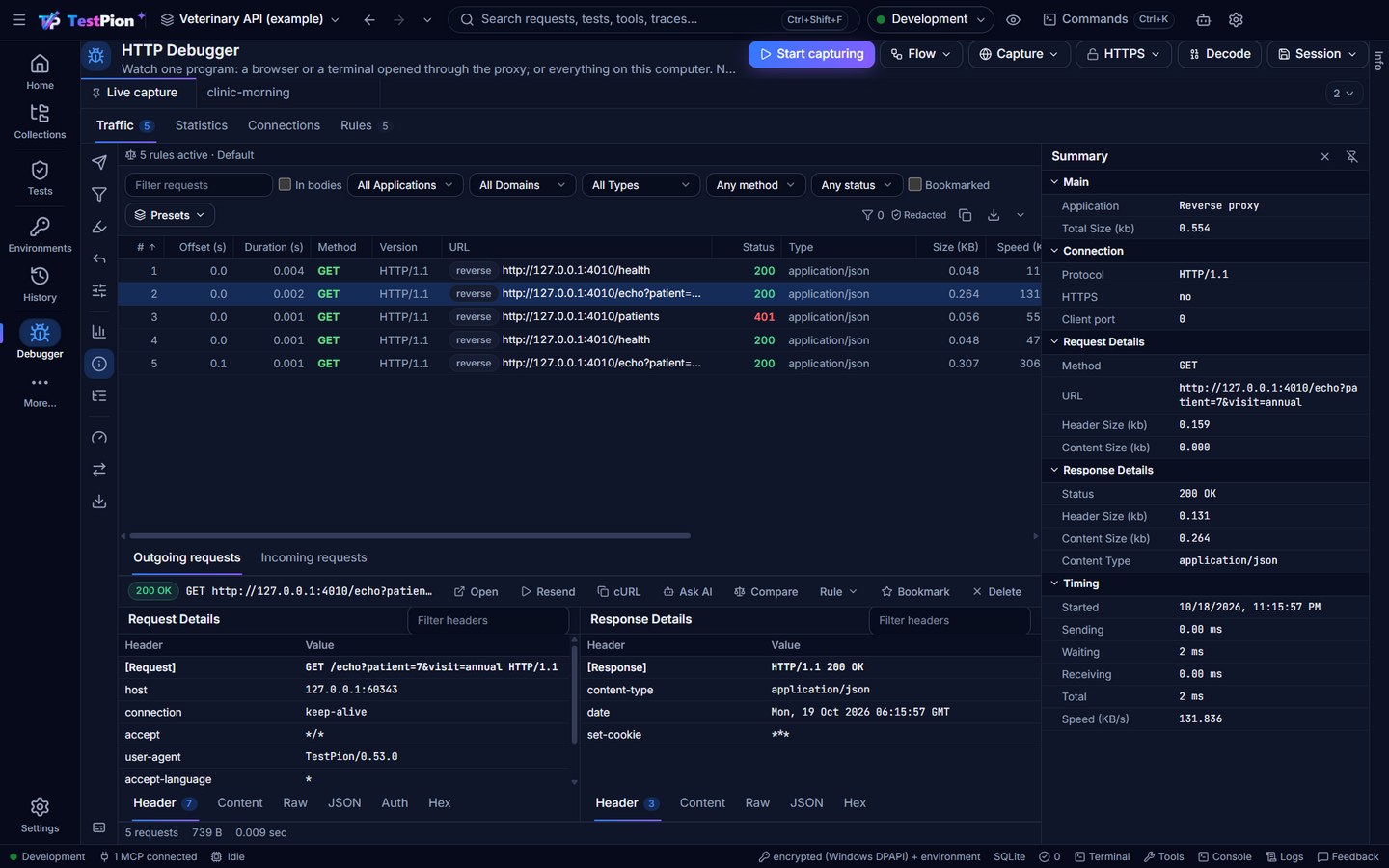
A client that can't use a proxy (a front end with a configurable base URL, a mobile build, a test suite) can point at a local address instead: Capture ▸ Reverse proxy for one API… forwards to the API you give and lists what passes, and Save keeps it as a collection with the responses as examples. The status bar's Tools ▸ Reverse proxy for one API…, the command palette (Capture: Reverse Proxy for One API…) and the Capture traffic into a collection button in the Collections view's header open the same dialog in the Debugger. No certificate is needed, because the client talks plain HTTP to TestPion.
What the reverse proxy forwards is in the Debugger's grid too, next to the proxy's traffic: each row has a reverse badge and Reverse proxy in the Application column (pick it in the Application filter to see only those). Everything works on them as on any row: select, filter, Create flow from selection…, Save to collection…, Export as HAR…, Save session and AutoSave, and History's capture sessions (they say reverse proxy). Show in Debugger in the dialog goes there; the dialog's Clear starts its own list again (the rows stay in the Debugger, whose Clear removes them). See Record traffic for the details and the testpion record command.
From the terminal and for agents
testpion debug                       # the proxy on 8899; every exchange printed as it happens
testpion debug -p 9000 -o session.har --json   # a JSON line ({ type, data }) per exchange, for scripts
testpion debug --save-collection "Captured"  # on Ctrl+C, the exchanges become requests in a new collection
testpion debug --rules debugger/rules.json   # the workspace's rules (re-read when the file changes)
testpion debug --decrypt                     # HTTPS too, for programs that trust ~/.testpion/debugger/testpion-root.pem
testpion debug -w .                          # gRPC decoded with this workspace's .proto files
AI agents have the same through the workspace's MCP server: debugger_capture (start / stop / status / clear; decrypt for HTTPS), debugger_exchanges (the list, with filters; deep searches bodies), debugger_exchange (one, with bodies), debugger_session (save the session as HAR, or open a HAR file), debugger_rules (list with each rule's hits, presets, add, enable, remove; kinds include only for Capture Only and a where condition on a column with a style: an agent can take an API offline, slow it down, redirect it or narrow the capture while it tests), debugger_stats. An agent can start the proxy, run a program against it and read what it did. flow_from_exchanges turns captured exchanges (or a HAR file) into a flow file; testpion flow from-har <file.har> does it from the terminal.
Coming next
Every feature of HTTP Debugger and Fiddler Everywhere listed in planning/http-debugger.md is in; what comes next is in that file. The plan is planning/http-debugger.md in the repository.