
Keyboard shortcuts
On macOS use ⌘ for Ctrl and ⌥ for Alt. In the app, ? (outside a text field) or Help ▸ Keyboard Shortcuts shows the same list. The tables list the default keys.
Change the keys
Settings ▸ Keyboard (also Change the keys… in the ? list, and Ctrl+K ▸ Keyboard Shortcuts: Change the Keys…) lists every shortcut with a search box (by what it does or by its keys). The ones under Anywhere can be changed, except Ctrl+Alt+1…9 (the rail's), F12 and Ctrl+Z:
- Click a shortcut's keys: it says Press keys…. Press the new combination (Esc cancels, Backspace turns the shortcut off).
- Keys another command has are named (Ctrl+P is already “Quick Open”): Use it here moves them to this command and gives the other one this command's old keys. Keys an editor or the system keeps (Ctrl+S, Ctrl+C, Ctrl+Alt+1…9 …) and a key alone that typing needs (a letter, Shift+a letter) are refused with the reason.
- ↺ beside a shortcut puts its default back; Reset all puts every default back.
- Export… saves your changes as
testpion-keybindings.json({ "testpionKeybindings": 1, "bindings": { "palette": "Mod+Shift+P" } }, only the keys you changed;Mod= Ctrl / ⌘); Import… reads such a file on another computer and says what it skipped.
Your keys are this computer's (the app's settings.json, keybindings), and the shortcuts list (?), the tooltips, the top bar and the command palette's hints show them. The editors' own keys (send, save, find …) are listed for reference and keep their keys. The native File menu shows the default key of Settings….
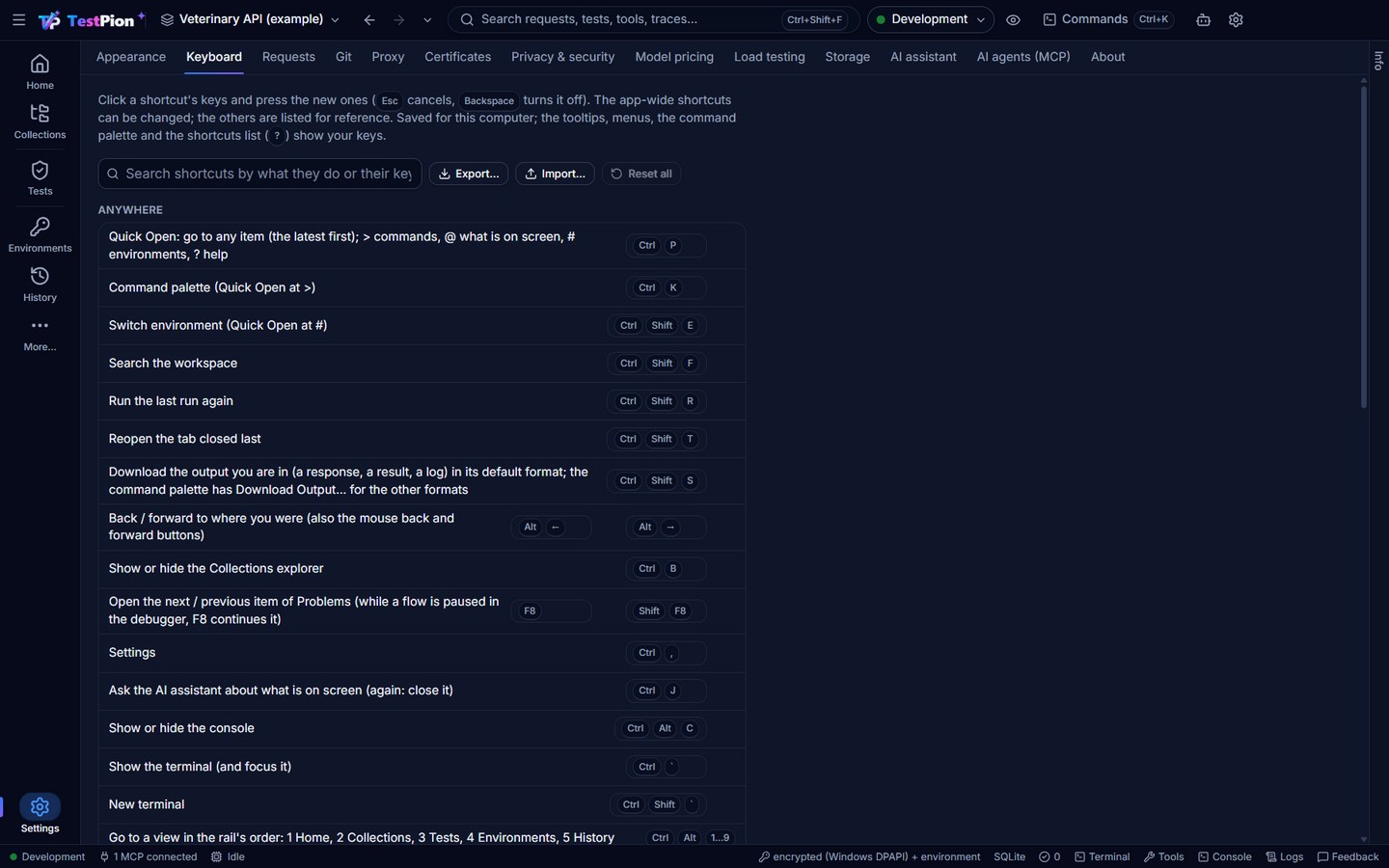
Anywhere
| Keys | What it does |
|---|---|
| Ctrl+P | Quick Open: the items you opened lately, any item by name as you type. First character: > commands, @ the focused editor's commands, # environments and variables, ? help. See Finding your way around. |
| Ctrl+K | The command palette (Quick Open on > commands). On the flow canvas it lists the canvas's actions first. |
| Ctrl+Shift+E | Switch environment (Quick Open on #). |
| Ctrl+Shift+F | Search the workspace. |
| Ctrl+Shift+R | Run the last run again, as it ran (same files or collection, same environment). |
| Ctrl+Shift+T | Reopen the tab you closed last, in whichever tab bar it was. |
| Ctrl+Shift+S | Download the output you are in (a response, a result, a log) in its default format; the command palette's Download Output… offers the other formats. See Save and export results. |
| Alt+← / Alt+→ | Back / forward to where you were (also the mouse's back and forward buttons). |
| Ctrl+Alt+1 … 9 | Go to a view shown on the rail, in its order: by default 1 Home, 2 Collections, 3 Tests, 4 Environments, 5 History (the rail's tooltips show each; rearrange the rail and the numbers follow). |
| Ctrl+B | Show or hide the Collections explorer (in Tests, beside the flow designer, to drag requests onto the canvas). |
| F8 / Shift+F8 | Open the next / previous item of Problems (while a flow is paused in the debugger, F8 continues it). |
| Ctrl+J | Ask the AI assistant about what is on screen (again: close it). |
| Ctrl+Alt+C | Show or hide the Console. |
| Ctrl+` | Show the Terminal and focus it (again: hide the panel). |
| Ctrl+Shift+` | New terminal. |
| Ctrl+, | Settings. |
| F12 | Developer Tools (Windows and Linux; View menu on macOS). |
| Ctrl+Z | Undo a delete while its message shows Undo (8 seconds; outside text fields and editors, which keep their own undo). |
| ? | The list of shortcuts (outside a text field). |
Requests and tabs
| Keys | What it does |
|---|---|
| Ctrl+Enter | Send the request (also runs AI prompts and gRPC calls). |
| Ctrl+S | Save. |
| Ctrl+T | New request tab. |
| Ctrl+W / Ctrl+Shift+W | Close the tab / all tabs. |
| Ctrl+O | Import (Postman, Insomnia, Bruno, OpenAPI, Arazzo, cURL …). |
| F2 | Rename the focused tab or item in place; Enter saves, Esc cancels. |
| Middle-click a tab | Close it. Double-click a preview tab (its name in italics) to keep it. |
Collections explorer and lists
| Keys | What it does |
|---|---|
| ↑ / ↓ | Move between rows. |
| Home / End | Go to the first or last row. |
| → / ← | Expand or collapse a collection, category or folder. |
| Enter | Open the focused item. |
| F2 | Rename it. |
| Delete | Delete… the focused item: a request, folder, collection, MCP server, API definition, dataset, saved item, monitor, test file … (Undo in the message). |
| Shift+F10 / the menu key | Open the focused row's menu: the same as its ⋯ and its right-click, in every tree and list. |
| * | Expand all inside the focused collection, folder or section. |
| Letters | Jump to the next row whose name starts with what you type. |
| ↑ / ↓ or J / K | Move through a run's results. |
| Esc | Close a menu or dialog. |
Code editors
| Keys | What it does |
|---|---|
| {{ | Suggest variables. |
| Ctrl+Space | Suggestions (variables, tp.* snippets, JSON Schema fields). |
| Ctrl+Shift+I | Insert a snippet by name (request scripts). |
| Ctrl+F / Ctrl+H | Find / replace. |
| Ctrl+/ | Comment or uncomment lines. |
| Alt+↑ / Alt+↓ | Move lines (and environment variables in the Environments table). |
Flow designer
On the canvas of a test file's Flow tab (see Design a flow):
| Keys | What it does |
|---|---|
| Click / Shift+click | Select a step / add one to the selection. |
| Shift+drag | Select with a box. |
| Ctrl+A / Esc | Select everything / nothing. |
| Delete | Remove the selected steps, notes or connection. |
| Ctrl+D | Duplicate the selected steps. |
| Ctrl+C / Ctrl+V | Copy steps, to this or another flow. |
| Ctrl+Z / Ctrl+Y (or Ctrl+Shift+Z) | Undo / redo any canvas change. |
| Enter | Open the selected step in the editor. |
| Ctrl+F | Find a step (Enter / Shift+Enter: next / previous match). |
| Ctrl+K | The canvas's actions first, then the app's commands. |
| Space+drag, middle button | Pan (as does a plain drag on the empty canvas and two fingers on a trackpad); the wheel or a pinch zooms. |
| F9 | Add or remove a breakpoint on the selected step. |
| F8 / F10 | While paused: Continue / Step over. |
| Ctrl+Enter | Save a sticky note you are writing. |
Reviewing an AI proposal
In the review of suggested checks, tests, a flow, a request, or the fixes for a failed run or a flaky test (proposals):
| Keys | What it does |
|---|---|
| Tab | Move through the items and their buttons. |
| Space | Tick or untick the focused item. |
| Enter | On an item's title: show or hide its diff. |
| Ctrl+Enter | Accept selected (on a flow's canvas review: Accept; for a failed run: Apply selected fixes; after Attempt to fix: Keep the fix). |
| Esc | Close the review (nothing is applied). |
HTTP Debugger
| Keys | What it does |
|---|---|
| ↑ / ↓ | Move through the exchanges. |
| Enter | Open as request: the selected exchange in a request tab. |
| Ctrl/Shift+click | Select several exchanges (for Save to collection… or Create flow from selection…). |
| Delete | Delete the selected exchanges. |
| Ctrl+F | The filter box. |
| Ctrl+E | Clear the session. |
| F5 / F6 | The Timeline / Structure panel. |
Terminal
Keys typed in a terminal go to the shell, not to the app (Ctrl+K, Ctrl+R …). Ctrl+C stops the running command; Ctrl+Shift+C copies (selecting text copies too) and Ctrl+Shift+V pastes. See Terminal.