
Terminal
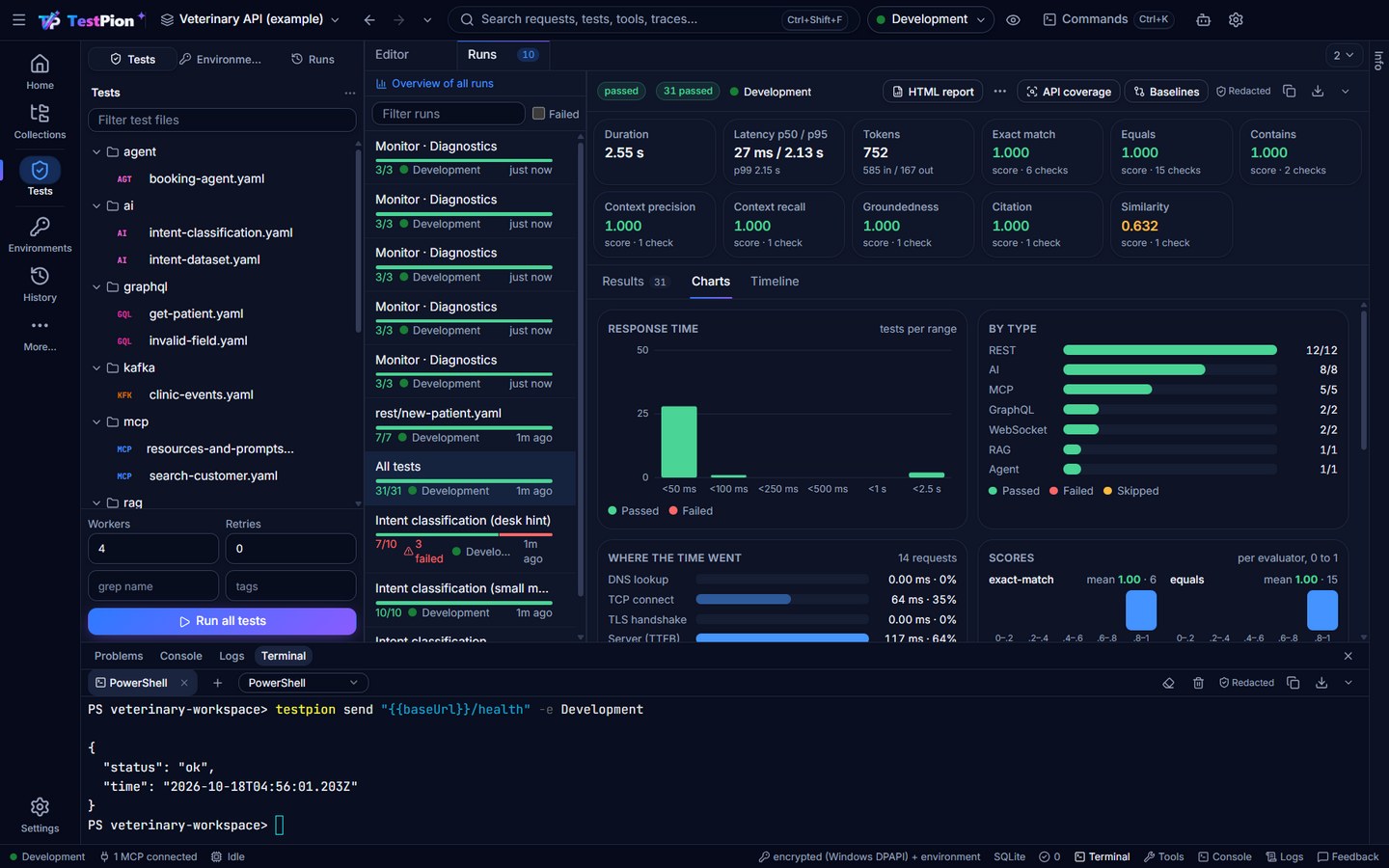
The bottom panel has a Terminal tab next to Console, Logs and Problems, like the terminal of VS Code. It runs a real shell of your computer in the open workspace's folder, and the testpion command works in it without installing anything: it is the app's own command line, always the same version as the app.
Open it with Ctrl+` (⌘+` on macOS; press again to hide the panel; both keys can be changed in Settings ▸ Keyboard), the command palette's Terminal: Focus and Terminal: New (Ctrl+Shift+`), or the panel's Terminal tab. The first visit opens a terminal.
Shells
| Platform | Default | Also offered when installed |
|---|---|---|
| Windows | Windows PowerShell | PowerShell 7 (pwsh), Command Prompt, Git Bash |
| macOS, Linux | your login shell ($SHELL -l) | zsh, bash, fish, sh |
The drop-down next to + picks the shell of new terminals (remembered for each workspace). Up to 8 terminals can be open at once; each one's tab shows its shell, and a terminal whose shell exited stays, with its output, until you close it.
What the shell gets
- Working folder: the open workspace's folder.
testpionon thePATH:testpion --version,testpion run-collection …,testpion test tests/, every command of the CLI reference. It runs the app itself in command-line mode (TestPion --cli …), so no Node.js or npm install is needed.TESTPION_WORKSPACE: the workspace's folder, for scripts.- Your own environment variables, as in any other terminal.
TERM_PROGRAMisTestPion.
Switching to another workspace closes the terminals (they ran in the old workspace's folder); closing the window or quitting the app ends them and everything running in them. A window that reloads gets its terminals back.
Using it
- Copy: selecting text copies it; Ctrl+Shift+C copies too. Ctrl+C goes to the shell (it stops the running command).
- Paste: Ctrl+Shift+V, or right-click (right-click copies instead when text is selected).
- Links: web addresses open in your browser; a path in the workspace opens what it is:
tests/smoke.yaml:12the test file in Tests,specs/…the API definition,datasets/…the dataset,collections/<id>.jsonthe collection, any other file in Git. Absolute paths inside the workspace folder work too. - Save the transcript: the down arrow at the right end of the bar saves what the shown terminal holds (its scrollback as text) through the Save as dialog, and Copy beside it copies it. Tokens, passwords and Authorization headers are masked (the Redacted mark); ▾ ▸ Include secrets… keeps them after you confirm. See Save and export results.
- Clear (eraser) empties the screen; Kill (bin) ends the shell and closes its terminal. Keys typed in a terminal (Ctrl+K, Ctrl+R …) go to the shell, not to the app.
- The terminals keep running, and keep their output, while you look at the Console or Logs or close the panel.
Large output
A command that prints a lot (cat of a 50 MB log, yes) never freezes the window or fills memory: the shell's output is read only as fast as the terminal draws it (at most 512 KB waits to be drawn; the shell itself waits meanwhile, as in VS Code). If the window stops drawing for 5 seconds (it is hidden, reloading, or busy), the shell is not kept waiting: it runs on, the app keeps only its last 1 MB of output, and the terminal shows that output when the window draws again. Each terminal keeps 5,000 lines to scroll back. terminal.list (the app's RPC) shows a terminal that waits as paused and one whose window stopped drawing as detached, with its undrawn characters.
Run in terminal
Where the app shows a command line (Settings ▸ AI agents for Claude Code, an MCP toolset's Serve box), the terminal icon next to Copy puts the command into the terminal. It is typed, not run: read it, then press Enter.
Coding agents in the terminal
Claude Code, Codex or Gemini CLI started in the Terminal work in the workspace folder and can run testpion commands (testpion agent-info tells them what they need). To give them TestPion's MCP tools, use the command of Settings ▸ AI agents (Run in terminal there types claude mcp add testpion -- … for you). TestPion has no MCP tool for the terminal: an agent already has a shell of its own.
Desktop app only
The terminal runs programs on your computer, so only the desktop app offers it. The app reports this as capabilities.shell (in app.info); in a browser or a hosted TestPion the tab says the terminal is not available, and no shell can be started.
Limits
testpionin the terminal can't read from standard input on Windows (a limitation of running the app in command-line mode). Fortestpion mcp-server, which talks over standard input, agents startTestPion --mcp-serveras Settings ▸ AI agents shows.- Windows 10 1809 or later (ConPTY).