Connecting
A server is edited like any request. New ▸ MCP server in the Collections explorer (or + on its MCP servers section, or the + at the end of the tab bar) opens a New MCP server tab:
- The bar at the top holds the transport (stdio, Streamable HTTP, SSE or a mock) and the command line (
npx -y @modelcontextprotocol/server-everything; quotes keep spaces in an argument), the URL or the mock file, then Connect and Save. - The Settings tab, next to Tools, Resources, Prompts, Protocol trace and Server info, has every field: name, folder, command, arguments, working directory and environment variables (stdio) or URL and headers, and Edit JSON.
- Save (Ctrl+S) keeps it in the workspace; Connect saves first. The tab shows a dot while there are unsaved changes, and its right-click menu is the same as every other tab's (Rename, Pin tab, Duplicate tab, Reveal in sidebar, Save as test…, Close tab, Close other tabs …). The first line of the view says where the server is (MCP servers › folder › name).
Servers are saved in mcp-servers.json in the workspace:
json
{
  "servers": [
    { "id": "customer-mcp", "name": "customer-mcp", "transport": "stdio", "command": "node", "args": ["{{workspaceDir}}/../servers/mcp-server.mjs"] },
    { "id": "remote", "name": "Remote", "transport": "streamable-http", "url": "https://mcp.example.com/mcp", "headers": [{ "key": "Authorization", "value": "Bearer {{mcpToken}}" }] }
  ]
}- Every field accepts variables, so tokens can come from secret environment variables.
- Folders: group servers in folders with the folder button above the list, the server's
⋯/ right-click menu in the Collections explorer (Move to folder), the Folder field of the server editor, or by dragging a server onto a folder. A server's folder is itsfolderfield; empty folders are kept inlibrary/mcp.json. - Delete in the server's
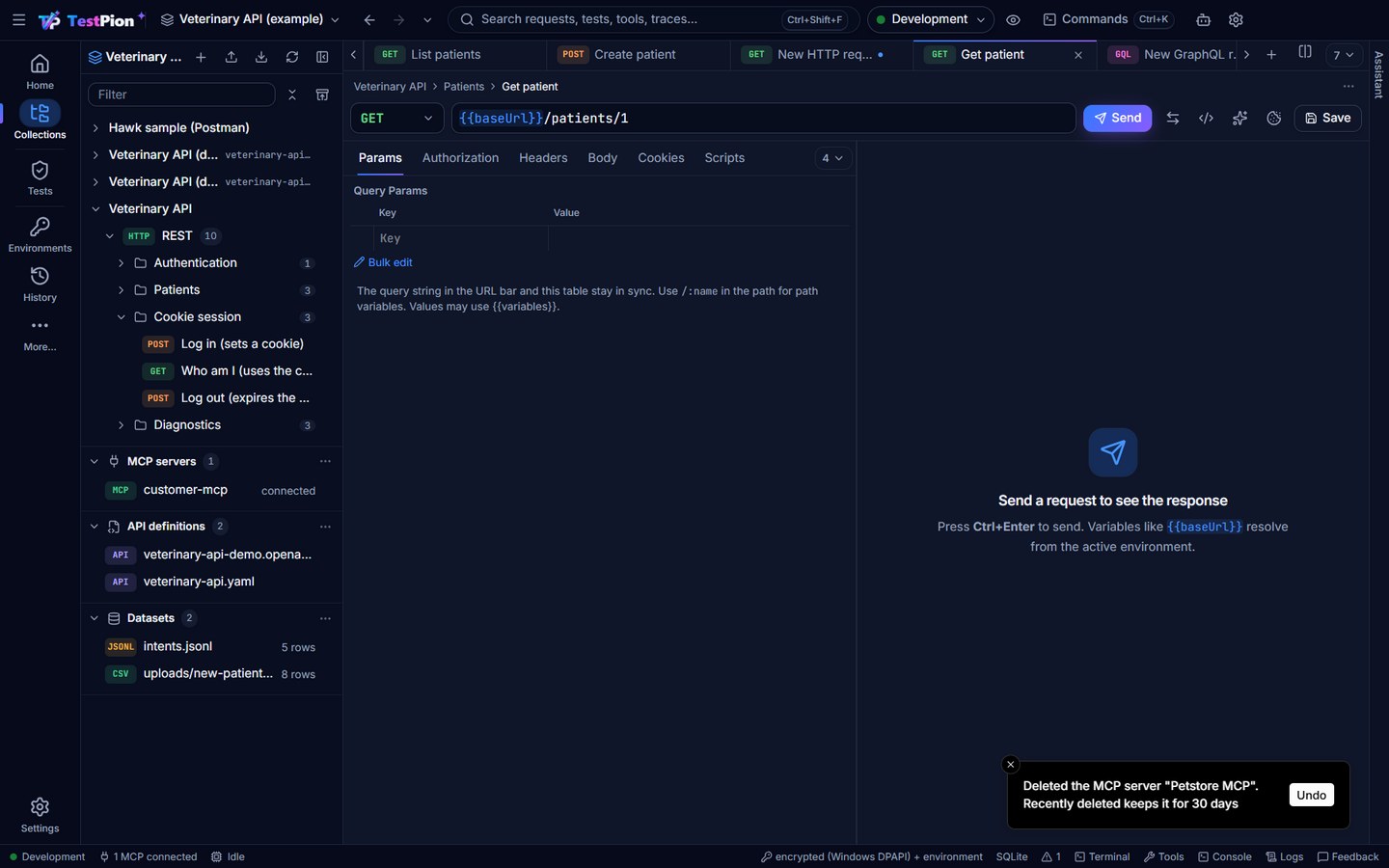
⋯/ right-click menu of the Collections sidebar removes it at once, without a question, and disconnects it. Undo in the message (8 seconds, or Ctrl+Z) puts it back in its place in the list with its settings, and reconnects it if it was connected. After that, Recently deleted (the icon beside the sidebar's Filter box) keeps it for 30 days (testpion trash list/trash restore). Delete in the server tab's ⋯ menu is the same Delete: at once, with Undo (it reconnects a connected server), and the server is in Recently deleted too. - Exports never carry a server's header or
envvalues: each becomes a{{variable}}such as{{PETSTORE_MCP_AUTHORIZATION}}(names that never hold a secret, likeContent-TypeorNODE_ENV, are kept), and the export lists them. See Privacy: exports. - On Windows, use
npx.cmdor the full path tonode.exefor stdio servers. - Anything the server writes to stderr is captured in the trace, which helps diagnose startup failures.
- From the terminal,
testpion mcp -- node server.jslists a server's tools, resources and prompts;testpion mcp --server "My server" -w . --call get_forecast --args '{"city":"Paris"}'calls a tool of a server saved in the workspace (--jsonfor scripts and CI: the result is in the envelope's.data). AI agents do the same through themcp_server_toolsandmcp_call_tooltools of the workspace's MCP server.