
REST and HTTP
Open the HTTP editor from the Collections explorer: click a saved request (a single click opens a preview tab, in italics, that the next click replaces; double-click it, or change something, to keep it), or the explorer's + ▸ HTTP request (Ctrl/⌘+T). The left rail has no entry per protocol: every request editor (HTTP, GraphQL, gRPC, WebSocket, MCP) is reached through Collections, Quick Open (Ctrl+P) or the + at the end of the tab bar. See Finding your way around.
Body: completion from the API definition
When the workspace holds an API definition (Import an OpenAPI / Swagger document, or save one under specs/), a JSON body is completed and checked against the operation the request maps to (its method and URL, {{variables}} resolved from the active environment): the editor offers the fields, says which are required, and marks a wrong type or an unknown field. A line above the body says which definition and operation the schema comes from. The same schemas drive the gRPC message editor (from the service's .proto) and the MCP tool arguments (from the tool's input schema).
Requests
Any method, including custom ones.
A request whose host is a
{{variable}}without a value ({{baseurl}}/users) is not sent: the error names the variable and the one it most likely meant, with a button to add it to the environment (Typing variables).On an environment marked as production, a request that can change data (POST, PUT, PATCH, DELETE …) asks before it is sent (Production).
Params, headers and cookies use key/value tables, each row with its own toggle.
Cookie jar: cookies set by responses are kept per workspace and sent with later matching requests. Open the Cookies dialog with the cookie button next to Send (or the status bar's Tools ▸ Cookies…). See Cookies.
Body types: JSON, XML, text, HTML, form URL-encoded, multipart (text and file fields), and binary file. Files are streamed from disk.
Settings: timeout, retries, redirects, proxy, disabling TLS verification (development only), and client certificates (mTLS). Retries (up to 5) repeat a request after a network error, a timeout,
429or a5xx, waiting 500 ms, then twice as long each time (at most 10 s, or whatRetry-Aftersays). POST and PATCH are repeated only when the connection failed, because the server may already have acted on them. They apply everywhere the request runs: sends, collection runs, monitors and the CLI; the response shows N attempts when it took more than one.Postman-style request settings (the request's Settings tab), saved with the request so collection runs, monitors and the CLI use them too:
Setting What it does HTTP version Auto (HTTP/2 over https when the server supports it) or HTTP/1.1 Enable SSL certificate verification Off accepts any certificate (development servers only) TLS versions Oldest and newest TLS version allowed in the handshake; the others are disabled Cipher suites OpenSSL cipher names in order of preference Automatically follow redirects, Maximum number of redirects Follow 3xx responses, up to a limit (default 20) Follow original HTTP method Keep POST (and its body) on a 301/302 instead of switching to GET; a 303 is always GET Follow Authorization header Keep the Authorization header when a redirect goes to another host (removed by default) Remove referer header on redirect Drop the Referer header from redirected requests Encode URL automatically Off sends query values and path variables as typed (spaces and non-ASCII are still escaped) Disable cookie jar Neither send jar cookies nor store the response's cookies (the Cookies tab still applies) Responses are always parsed strictly (invalid HTTP headers are rejected). Postman's "use server cipher suite order" is a server-side TLS option with no client equivalent.
HTTP/2: over
https://, HTTP/2 is offered (ALPN) and used when the server supports it; the response shows an HTTP/2 badge (andhttpVersion: "2"in the.dataof--jsonoutput). Set HTTP version to HTTP/1.1 in the request's Settings for servers or proxies that misbehave with HTTP/2. Plainhttp://uses HTTP/1.1.
Proxy
Settings ▸ Proxy chooses how TestPion reaches the network:
- Use the environment variables (the default):
HTTP_PROXY,HTTPS_PROXYandNO_PROXY, like curl. - Use this proxy: a proxy URL, an optional user name and password, and a list of hosts that bypass it. The bypass list uses
NO_PROXYrules: host names (subdomains included),.domainsuffixes,host:port, IP addresses, or*. The password is kept in the OS secret store, never in the settings file. - Don't use a proxy.
The proxy applies to requests, tp.sendRequest, OAuth token calls, AI providers, MCP over HTTP, remote datasets, and WebSocket and Socket.IO connections (tunnelled with CONNECT). A request's own proxy (its Settings tab) wins. gRPC reads the environment variables itself.
The CLI always uses the environment variables. Set TESTPION_NO_PROXY=1 to connect directly instead.
Certificates
If your company inspects TLS traffic, or an API uses a private certificate authority, HTTPS requests fail with a certificate error until TestPion trusts that CA. Settings ▸ Certificates has two options:
- Trust the certificates installed in the operating system: the Windows certificate store, the macOS keychain or the Linux CA bundle. A corporate root certificate is usually already there.
- Extra CA certificates: paste PEM blocks or add
.pem/.crtfiles. TestPion shows each certificate's name, issuer and expiry before you save.
These apply wherever the proxy does. A request that turns off TLS verification ignores them. From the terminal, use TESTPION_USE_SYSTEM_CA=1, TESTPION_CA_FILE=ca.pem, or Node's NODE_EXTRA_CA_CERTS.
Paste a request from the browser
In the browser's devtools, right-click a request on the Network tab, choose Copy, and pick any of:
- Copy as cURL (bash) or Copy as cURL (cmd)
- Copy as fetch or Copy as fetch (Node.js)
- Copy as PowerShell (
Invoke-WebRequest, alsoInvoke-RestMethod)
An HTTPie or xh command works too, e.g. http POST api.test/pets name=Rex age:=3 Authorization:'Bearer tok': name=value is a JSON field (a form field with --form), name:=json raw JSON, name==value a query parameter, Name:value a header, field@file a file; -a / -A bearer, --verify=no and --timeout are read, and :3000/path means localhost.
Then paste it into TestPion:
- Into the URL bar: the current tab is replaced with the pasted request.
- Anywhere else in the HTTP editor (with no text field focused), for example right after opening a new tab with Ctrl/Cmd+V: an unchanged new tab is filled, otherwise the request opens in a new tab named after its method and path, such as
POST /v1/pets.
The method, URL, query parameters, headers, cookies, body (JSON, form, multipart, XML or text), basic and bearer auth, and curl options such as -k, -L, --proxy and --max-time are all imported. HTTP/2 pseudo headers (authority, method, path, scheme) that PowerShell snippets include are dropped. Pasted secrets, such as an Authorization header or session cookie, are only in the unsaved tab: move them into a secret variable before you save the request.
Sidebar
The request editors share one sidebar, the Collections explorer (Ctrl/⌘+B hides or shows it). It lists the workspace's collections, each holding its requests by kind (REST, SOAP, GraphQL, gRPC, WebSocket & MQTT), and below them MCP servers, API definitions and Datasets; Favorites come first when you have some. Its header has New (a collection or any kind of request), Import, Export and a filter. Every row has a ⋯ menu, and a right-click opens the same menu: Open, Open in new tab, Save as test…, the copy commands, Rename, Duplicate, Move to…, Delete… (see Request menu). The sidebar follows the tab you switch to: the request's collection and folders open and its row scrolls into view.
Environments have their own view (Environments on the rail) and the picker in the top bar; History has its own view too.
Tabs and history
Each request opens in a tab. A single click in the explorer opens a preview tab (its name in italics) that the next single click replaces; a double-click on the item or the tab, Enter, or an edit keeps it. A dot on a tab means it has unsaved changes. The tab bar is shared by every request editor (HTTP, GraphQL, gRPC, WebSocket, MCP), and the + after the tabs opens a new request of any kind.
When more tabs are open than fit, the tab bar scrolls sideways (the mouse wheel, or the ‹ / › buttons at its ends), and the count button at its right end lists every open tab to jump to. Right-click a tab (or middle-click to close it) for:
- Pin tab: pinned tabs move to the front, show a pin, have no close button, and are kept by the bulk close actions. Unpin from the same menu.
- Duplicate tab: an unsaved copy of the request, opened next to it.
- Reveal in sidebar: shows the request's row in the Collections explorer.
- Save as test…: the request as a test file in Tests.
- Rename (F2, or double-click the tab): renames the tab; a saved request is renamed in its collection too.
- Close tab, Close other tabs, Close tabs to the right, Close all tabs: you are asked once if any of the closed tabs has unsaved changes.
- Reopen closed tab (Ctrl/⌘+Shift+T): the tab you closed last.
The same commands are in the File menu: New Request Tab (Ctrl/⌘+T), Close Tab (Ctrl/⌘+W), Close Other Tabs, Close All Tabs (Ctrl/⌘+Shift+W) and Reopen Closed Tab, and in the command palette (Ctrl/⌘+K). Pinned tabs are kept by the bulk close commands. On macOS, Close Window in the File menu is ⌘+⌥+W.
The first line of the editor says where the request is saved (Collection › Folder › Request); a folder shows it in the sidebar, and the ⋯ at its end has Save as test….
Open tabs, including pins, are restored when the app starts. You can close every tab: the editor then shows New request and Describe with AI, and stays empty after a restart until you open something.
History lists every request you sent, newest first, grouped by day (Today, Yesterday, weekday, then date). Search by name, URL, method or status, filter by kind or to Failed responses, and double-click an entry (or choose Open) to open it in the editor of its kind. Its right-click menu also has Open request (the saved request it was sent from), Open trace and Save as test… (History: send it again). Select an entry and Ctrl/⌘+click another to compare the two responses (status, time, header changes and a field-by-field body diff). Each row has a small bar of its duration next to the others. History stores redacted request metadata only. HAR exports the HTTP and GraphQL entries shown (after your search and filter) as a HAR file that browser devtools, Charles, Fiddler and other API tools open; secret headers, parameters and known secret values are masked. From the terminal: testpion history export-har -w my-workspace -o history.har.
Responses
Response layout. The response goes beside the request when there is room, or below it on a narrower window (Auto). The layout button at the right of the tabs (also Settings ▸ Appearance and the command palette) sets Side by side or Response below for every editor: HTTP, GraphQL, gRPC and MCP tools. Each layout remembers its own size. When the request's tabs (Params, Headers, Body …) don't fit, » lists them all.
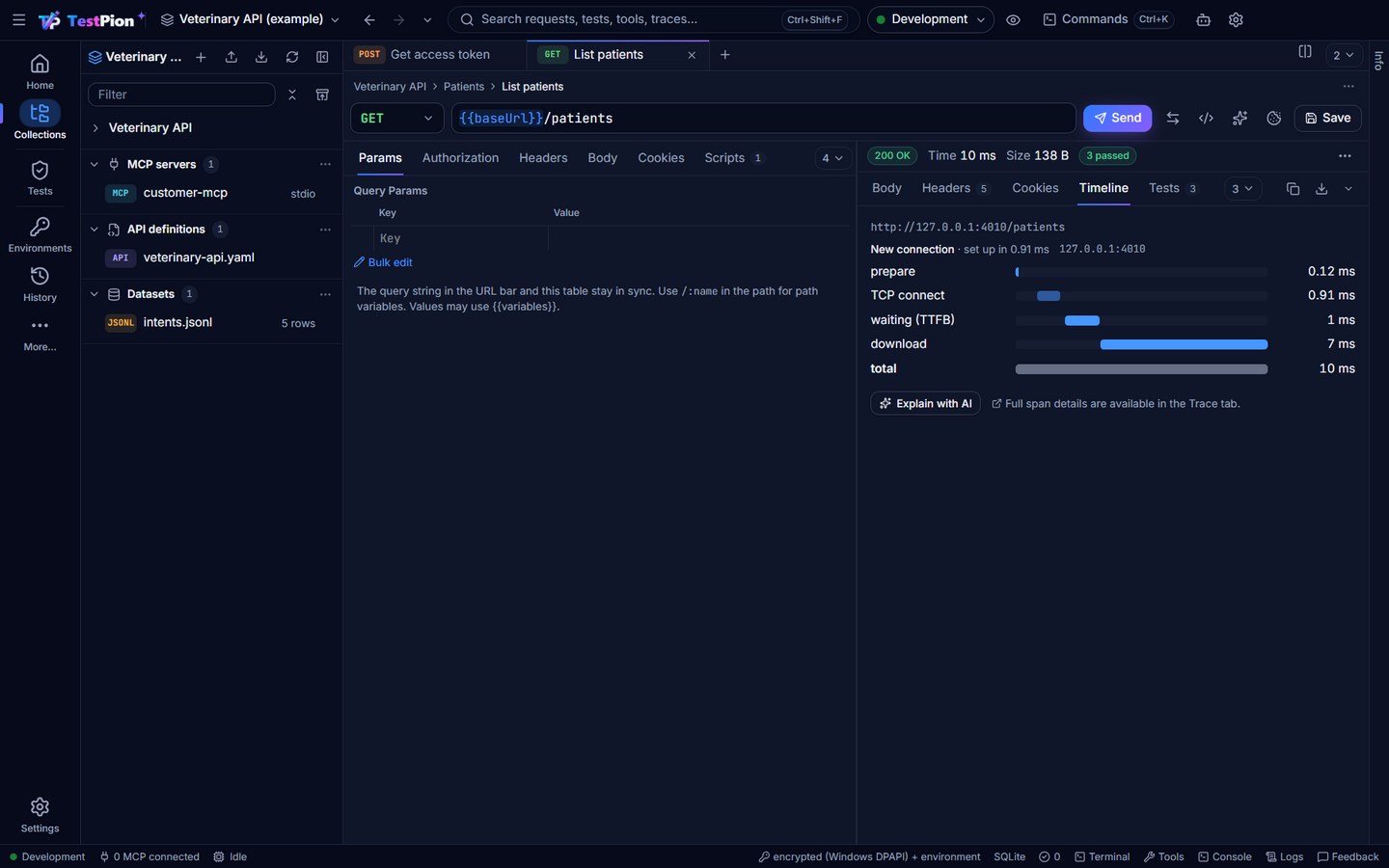
The status, duration, size, headers, cookies and a timeline are always shown. The timeline is a waterfall of prepare, DNS lookup, TCP connect and TLS handshake (on a new connection), waiting for the first byte (TTFB) and download, with the server's address, the TLS version and cipher, the certificate (subject, issuer, valid until, days left), or Reused connection when the request went over an open one. The Trace tab (and OpenTelemetry export) shows the phases as spans of the request. testpion send <url> -i prints the same phases, --json (under .data) and the send_request MCP tool return them as timing (dnsMs, tcpMs, tlsMs, ttfbMs, downloadMs, reusedConnection). Save as example keeps the response with the request (see Examples). For the body:
- Pretty is a virtualised JSON tree. Click a key to copy its JSONPath. HTML and XML bodies are laid out with indentation.
- Table appears when the JSON is an array of objects, or holds one up to three levels deep (such as
items,data.users; the largest is used; GraphQL responses have it too): a column per key, click a header to sort (again to reverse), and filter rows by any cell. The first 500 rows are shown; Copy CSV copies every matching row. Chart (when a column holds numbers) draws one bar per row: choose the number and the label column; sorting and filtering apply. Save as dataset writes the rows todatasets/<name>.csvin the workspace (never overwriting), where the Collection Runner lists them next to Select file (agents use the same file withrun_collection'sdata). - Raw is a virtualised text view with search.
- Preview renders HTML in a sandboxed frame.
- JWT appears when the body or a header holds a JSON Web Token (an
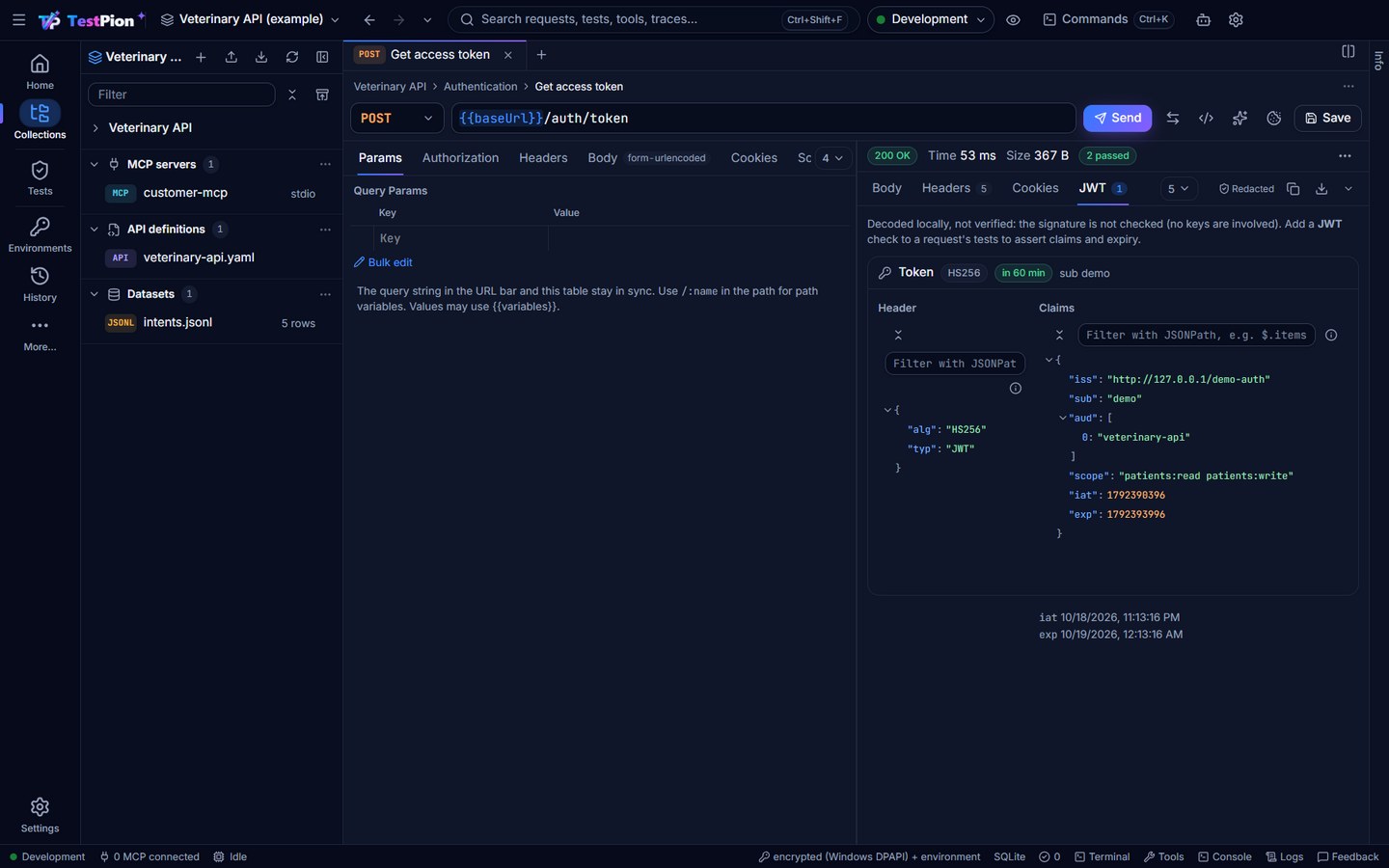
access_token,id_tokenorAuthorizationvalue): its header and claims, when it was issued and when it expires (expires in 58 min, or expired 2 h ago). The signature is not verified. Ajwtcheck (see Assertions) tests the same in a test;testpion jwt <token>and thedecode_jwtMCP tool decode one outside the app.
The full body is streamed to payloads/ on disk. The viewer only holds a preview, 2 MB by default and configurable in Settings. Larger bodies show a truncated badge; the down arrow at the right end of the response's tab bar saves the complete body from disk (Save the response).
Save the response
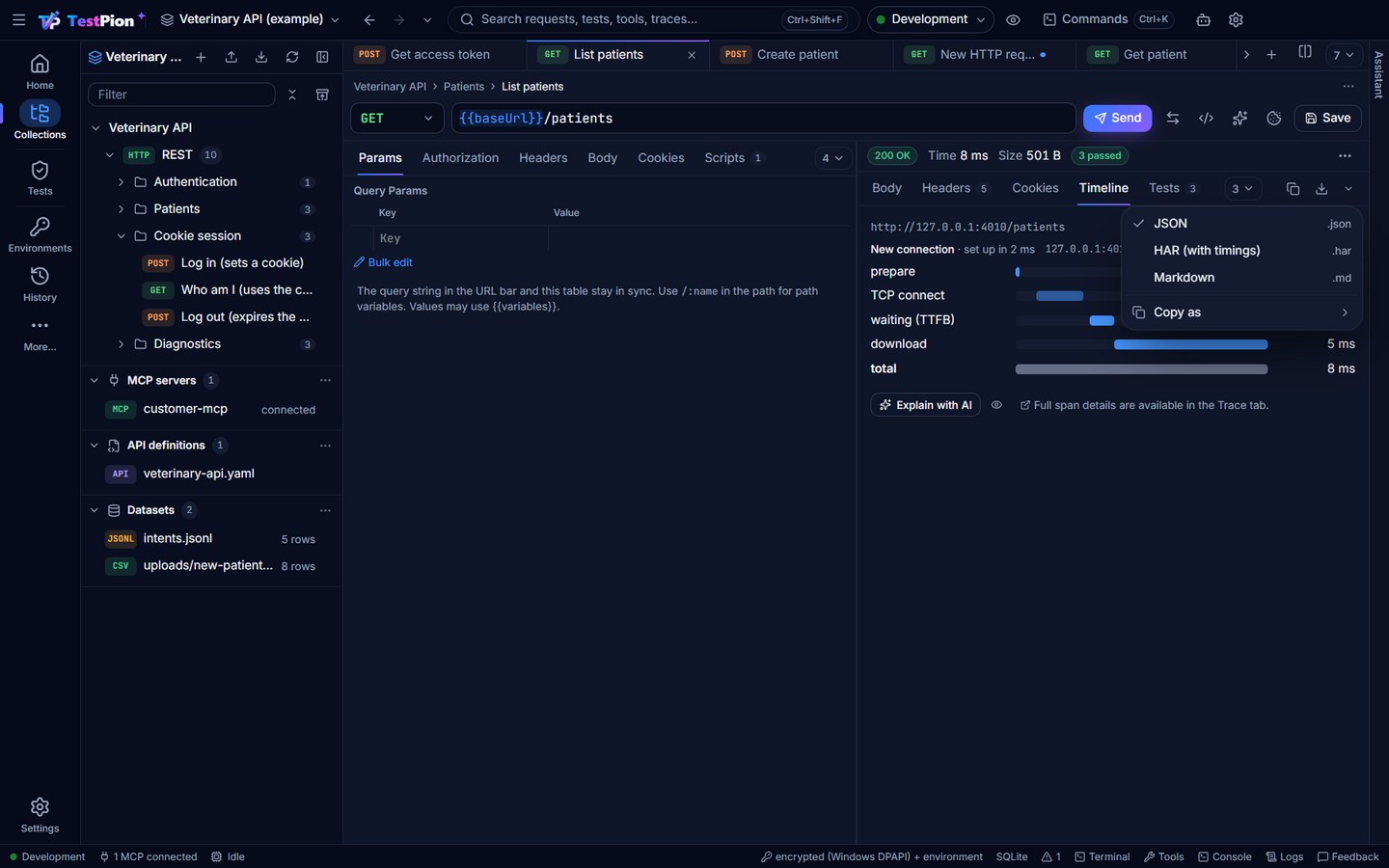
Every tab of the response has the same down arrow at the right end of the response's tab bar, with Copy before it and ▾ after it. A click saves the tab you are on: the body as pretty JSON (or the raw bytes as received, the table as CSV or TSV, HAR), the headers, the cookies (also as cookies.txt for curl -b), the decoded JWTs, the timeline as HAR with timings, the checks as JUnit XML, the stream, the trace, the events, the history or the cURL command. The Save as dialog suggests a name such as GET-patients-2026-10-17-1405-200.json (or the server's Content-Disposition name for the raw body). Ctrl+Shift+S does the same from the keyboard. The decoded JWTs are saved with the tokens masked unless you choose ▾ ▸ Include secrets…; the body is saved as it is. While Diff vs previous is open, the Body tab shows the comparison and has no arrow: close the diff to save the body. Every format: Save and export results.
Compare across environments
The Compare across environments button (next to Send) sends the open request with two environments, one after the other, and shows the differences:
- status and time;
- every changed JSON field (added, removed, changed, or a different type), or a line diff for text;
- header changes.
Use it to check that Staging and Production answer the same way. Both are real requests: scripts, auth and checks run as usual, and a request that changes data asks first when either environment is marked as production (Production).
From the terminal: testpion env diff Staging Production --request "List patients" -w my-workspace [--json] (exit 1 when the responses differ). AI agents: compare_request_across_environments.
Checks from the response
To find something in a big response, type a JSONPath in Filter with JSONPath above the tree (for example $.items[*].name or $..id): the tree then shows only the matches, with their count.
- As you type, the field suggests the response's own paths (arrays as
[*], the keys of their items merged):$.itoffers$.items,$.items[*],$.items[*].id…, the next level first; a plain word (name) finds that key anywhere. ↑ / ↓ move, Enter or Tab takes one, Esc closes the list (again: clears the filter). - A path that can't be right says why (
Not a valid JSONPath: “]” is missing) instead of matching something by accident. - The same filter (and its suggestions) is on every JSON tree in the app: History, Traces, the Debugger, JWTs.
![The JSONPath filter of a response with $.it typed: the suggestions $.items, $.items[*], $.items[*].id, name, ownerId and species, from the response itself](/testpion/images/response-filter.jpg)
In the Pretty view of a JSON response, click a key to open its menu:
- Copy JSONPath copies the key's path (like
$.items[0].id). - Save to variable… keeps the field in a variable for later requests (a token from a login, an id from a create). It adds a line such as
tp.environment.set('accessToken', tp.response.json().access_token);to the request's test script, so the value is updated after every send, and sets it right away in the active environment (the globals when no environment is selected). Use it as{{accessToken}}. - Equals checks the field has its current value.
- Exists checks the field is there.
- Is a … checks the field's type (string, number, array …).
- For arrays, Has N items and Is not empty.
Each choice adds a check to the request's Tests tab. Save the request to keep it; collection runs, monitors and CI then check it every time.
Server-Sent Events
A text/event-stream response (live feeds, notifications, streaming LLM APIs) is shown event by event while it arrives: time, event type, id and data, newest at the bottom. Click an event to see its data in full (JSON as a tree), and filter by type, id or data.
- The stream stays open for as long as the server sends it: the request timeout applies only until the response starts.
- Stop ends the stream and keeps the events received so far, marked stopped.
- When the response ends, it opens on the Events tab. The raw text is on Body.
- Up to 10,000 events are kept per response.
- The down arrow on the Events tab's bar saves every event kept (not only the filtered ones) as JSON Lines, CSV or
text/event-streamtext. - AI agents using
testpion mcp-serverget the parsed events fromsend_request.
Diff vs previous
Diff vs previous (in the response's actions, or its ⋯ menu when the panel is narrow) compares the response with the previous response of the same request: the one you sent before it in this session, else, for a saved request, the one before it in its History. It shows the same comparison as History ▸ Compare: the status and time change, the body field by field (added, removed, changed, type, each with its JSON path; text bodies: a line diff) and the header changes. Hide the diff or × goes back to the body.
![Diff vs previous on List patients after a patient was created: status 200 to 200, the time, $.items[2] added and $.total changed from 2 to 3, no header changes](/testpion/images/response-diff.jpg)
- The app keeps the last two responses of the 20 requests sent most recently, in memory only (bodies over 512 KB compared by their start); History keeps the rest.
- For AI agents and scripts: the same comparison of two sends by history id:
testpion history diff <before> <after> --jsonand the MCP toolcompare_responses(both mask sensitive values);testpion history list --request "…" --json/request_historygive the ids.
Response history and compare
For a saved request, the response panel has a History tab: every response you sent from the app, newest first, with its status, time, size and when it was sent.
- Above the list, a Response time chart shows the recent responses oldest to newest, with the median, p95 and slowest time; failed responses are red dots. Hover a point for details, click it to open that response.
- Click a response to view its body.
- The down arrow on the History tab's bar saves the list as JSON or CSV.
- To see what changed, tick two responses and click Compare selected, or use the compare button on a row to compare it with the response before it.
- The comparison shows the status and time change, then the body field by field: each change is listed with its JSON path (
$.items[2],$.total…) as added, removed, changed or a type change. Text bodies get a line-by-line diff. - It also shows header changes. Headers that change on every response (
date, request ids and similar) are hidden behind a link, so they don't hide real differences.
Response bodies come from the payload files in the workspace (up to 2 MB each are compared). Responses sent before version 0.6.4 have no link to their saved request, so they don't appear here.
For AI agents and scripts: testpion history list --request "List patients" --json, testpion history stats --request "List patients" --json (the numbers of the Response time chart) and testpion history diff <before> <after> --json in the CLI, and request_history, response_time_stats and compare_responses on the MCP server. In these, the values of sensitive fields such as tokens and passwords are masked.
Scripts
Pre-request and post-response scripts use TestPion's script API, tp: tp.test(...), tp.expect(...), tp.environment.set(...) and the rest below. Scripts written for Postman (pm.*) also run unchanged. Scripts run in a sandbox without file or network access. The Snippets list next to the editor inserts common scripts, and the editor autocompletes tp..
Room to write on a small screen: the Snippets panel can be unpinned with the pin in its header. It then folds into a slim Snippets tab on the right edge and the editor takes the width; hover the tab (or click it) and the list slides over the editor, and it slides away when the pointer leaves it, on Esc, on a click elsewhere or once you insert a snippet. Pin it again to keep it docked. The choice is remembered; until you choose, it starts unpinned when the Scripts tab is narrower than 700 pixels. On a narrow tab, Pre-request and Post-response also become tabs above the editor, and the editor's help is behind the ⓘ icon.
Insert a snippet from the keyboard: in the script editor press Ctrl+Shift+I (⌘+⇧+I on macOS), or choose Insert Snippet… in the command palette or the editor's right-click menu. Type to filter (for example
status), Enter inserts the snippet at the cursor, Esc goes back to the editor. (The developer tools moved to F12 on Windows and Linux.)Import from Postman: scripts are converted to
tp.*on import, unless you tick Keep pm.* in scripts in the Import dialog (testpion import --keep-pm; see Import). To switch a whole collection later, right-click it (or use its ⋯) and choose Convert scripts to tp.*; Convert scripts to pm.* goes back. You see how many scripts change before anything is saved. The CLI equivalent istestpion scripts convert --to tp -w <workspace> [--collection <name>] [--dry-run] --json.Export to Postman (and
testpion export):tp.*is converted to Postman's name for the API, the only one Postman knows. Only code changes; text in strings and comments, regular expressions and properties such asobj.tpare left alone. A script that declares its owntpvariable is exported unchanged.
Pre-request:
tp.variables.set('nonce', tp.uuid());
const sig = CryptoJS.HmacSHA256(tp.request.body.toString(), tp.environment.get('secret')).toString(CryptoJS.enc.Base64);
tp.request.headers.upsert({ key: 'X-Signature', value: sig });
Post-response:
tp.test('Status code is 200', () => tp.response.to.have.status(200));
tp.test('Returns patients', () => {
  const body = tp.response.json();
  tp.expect(body.items).to.be.an('array').that.is.not.empty;
  tp.expect(body.items[0]).to.have.property('species');
});
tp.environment.set('patientId', tp.response.json().items[0].id);
Supported API
| Area | API |
|---|---|
| Tests | tp.test, chai-style tp.expect(…).to.… (equal, eql, deep, a/an, include, property, lengthOf, above/below, oneOf, keys, match, jsonSchema, not, true/false/null/ok/empty …), JSON Schema checks with tp.response.to.have.jsonSchema(schema) or tv4.validate(data, schema) (validated with Ajv: draft-07 keywords and formats), legacy tests["name"] = bool |
| Response | tp.response.code, .status, .responseTime, .headers.get(), .json(), .text(), tp.response.to.have.status/header/body/jsonBody, tp.response.to.be.ok/success/error/json, legacy responseCode, responseBody |
| Request | tp.request.method, tp.request.url (toString(), update(), getHost(), getPath(), getQueryString(), query.get/has/add/upsert/remove, … or assign a string), .headers.add/upsert/remove/get, .body.toString()/update() |
| Variables | tp.variables, tp.environment, tp.collectionVariables, tp.globals (get/set/unset/has/clear/toObject/replaceIn; replaceIn also fills dynamic variables such as {{$randomFirstName}}), tp.iterationData |
| Other | tp.info, tp.cookies, tp.cookies.jar() (get, getAll, set, unset, clear), tp.execution.setNextRequest, tp.execution.location (collection, folders and request; .current is the request), tp.sendRequest, tp.visualizer.set/clear, postman.setNextRequest, postman.setEnvironmentVariable / clearEnvironmentVariable / getResponseHeader / getResponseCookie (and the globals versions), xml2Json (XML and SOAP responses, as in Postman), setTimeout / setInterval (the callbacks run after the script, in delay order, without waiting), tp.response.size(), tp.expect.fail(), CryptoJS (hashes, HMAC, Base64/Hex/Utf8), btoa/atob, require('crypto-js'), require('tv4'), require('ajv') (new Ajv().compile(schema)), require('chai'), require('xml2js'), require('csv-parse/lib/sync'), lodash as _ or require('lodash'), cheerio (HTML with CSS selectors: const $ = cheerio.load(tp.response.text()); $('title').text(), .find, .attr, .each, .map …), moment (formatting, add/subtract, startOf/endOf, diff, comparisons; times are UTC), console.log |
| Bruno | A Bruno import writes its scripts with tp.* (bru.setVar → tp.collectionVariables.set …); Bruno's API still runs, for scripts imported by earlier versions or pasted in: bru.getEnvVar / setEnvVar / getVar / setVar / interpolate / setNextRequest / runner.skipRequest, req.getUrl / setHeader / getBody / setBody …, res.status / res.body / res.getBody() / res.getHeader() / res('path'), test() and expect() |
Script packages (tp.require) are shared modules for scripts, like Postman's package library: code you'd otherwise copy into many requests (signing, token handling, common checks). Open Scripts ▸ Packages… to create and edit them; each is a CommonJS module in the workspace's packages/ folder (packages/@clinic/auth.js for @clinic/auth), so they're versioned with the workspace and run the same in the app, the CLI and monitors.
// packages/@clinic/auth.js
module.exports = {
  bearer(token) {
    return 'Bearer ' + token;
  },
};

// in a pre-request script
const auth = tp.require('@clinic/auth');
tp.request.headers.upsert({ key: 'Authorization', value: auth.bearer(tp.environment.get('token')) });
A package can tp.require other packages and require() the built-in modules; each is loaded once per script run. Postman collections that use packages work once the packages are added with the same names.
tp.sendRequest sends another HTTP request from a pre-request or test script, for example to fetch a token first:
tp.sendRequest({
  url: tp.variables.replaceIn("{{baseUrl}}/auth/token"),
  method: "POST",
  header: { "Content-Type": "application/json" },
  body: { mode: "raw", raw: JSON.stringify({ client_id: tp.environment.get("clientId") }) }
}, (err, res) => {
  if (err) return console.error(err.message);
  tp.environment.set("accessToken", res.json().access_token);
  tp.request.headers.upsert({ key: "Authorization", value: "Bearer " + res.json().access_token });
});
The request is a URL string or a Postman request object (
url,method,headeras a list or map,bodywithmode: "raw"or"urlencoded"). As in Postman,{{variables}}are not resolved automatically: usetp.variables.replaceIn().The response has
code,status,responseTime,headers,json()andtext(). On a network error, the callback getserrandnull.Without a callback,
tp.sendRequestreturns a promise, and scripts may useawaitat the top level, as in newer Postman scripts:jsconst res = await tp.sendRequest(tp.variables.replaceIn("{{baseUrl}}/auth/token")); tp.environment.set("accessToken", res.json().access_token);A failed request rejects the promise (use
try/catch).tp.testtakes async functions (tp.test('name', async () => { … await … })) and Postman'sfunction (done) { … done(); }style (adonethat is never called fails the test);tp.test.skip(name, fn)lists a test as skipped without running it.Requests share the run's cookie jar, time out like other requests, and appear in the Console under the script's request, whether the request was sent from a tab or by a run (they are also recorded as
sentRequestsin the run's results).How it works: the sandbox is synchronous, so the script runs, its requests are sent, then the script runs again from the start with the responses, and callbacks run immediately (an
awaiton a request that hasn't been sent yet waits for the next run). Only the last run's variables, tests and logs count. So a request made inside a callback also has its callback run inside, before later callbacks. Keep scripts deterministic aroundtp.sendRequest(avoid a random URL per run). A script may send at most 20 requests.
tp.vault (Postman Vault) works with TestPion's secret variables: await tp.vault.get("apiKey") reads the variable apiKey (keep it a secret variable), tp.vault.set / unset change the environment, and {{vault:apiKey}} in a request resolves like {{apiKey}}.
Visualize responses (tp.visualizer)
As in Postman, a test (post-response) script can turn a response into an HTML view with a Handlebars template:
const template = `
<table>
  <tr><th>Name</th><th>Species</th></tr>
  {{#each items}}
    <tr><td>{{name}}</td><td>{{species}}</td></tr>
  {{/each}}
</table>`;
tp.visualizer.set(template, tp.response.json());
After you send, the response body opens on Visualize (next to Pretty and Raw). The example workspace's List patients request has one; the Snippets list has Visualize the response as a table.
tp.visualizer.set(template, data)renderstemplatewithdata(anything JSON-serialisable). If several scripts (collection, folder, request) call it, the last call wins.tp.visualizer.clear()removes it.Handlebars' built-in helpers work (
#each,#if,#with,lookup, …), plus{{json value}}to print a value as JSON.{{…}}output is HTML-escaped. Use{{{…}}}only for HTML you trust.Scripts and charts work, like in Postman: a template can load a chart library from a CDN (
https://cdn.jsdelivr.net,https://cdnjs.cloudflare.comorhttps://unpkg.com) and read its data withtp.getData((err, data) => …). For example:jsconst template = ` <canvas id="c" height="120"></canvas> <script src="https://cdn.jsdelivr.net/npm/chart.js"></script> <script> tp.getData((err, data) => { new Chart(document.getElementById('c'), { type: 'bar', data: { labels: data.items.map((p) => p.name), datasets: [{ label: 'Age', data: data.items.map((p) => p.age) }] }, }); }); </script>`; tp.visualizer.set(template, tp.response.json());Security: the visualization runs on its own isolated origin (
tpviz://in the desktop app), in a sandboxed frame that can't reach the app, its storage or your data. It can't make network requests, so nothing leaves your machine; only scripts from those CDNs (and inline scripts) load, and images and fonts must be inline. Hosts that can't serve the isolated page fall back to a sanitised, script-free view.
Current values: values set with tp.environment.set, tp.collectionVariables.set or tp.globals.set are kept on this machine as current values and override the stored values. They're never written to workspace files. Sensitive ones (tokens, passwords, secret variables) are encrypted. You can see and reset them under Environments.
AI help
With an assistant model set in Settings ▸ AI assistant (a local model works offline), the request builder can draft work for you. Everything the AI produces is labelled, checked by TestPion and shown to you in a review first; nothing is added until you accept it, and nothing is sent or run on its own.
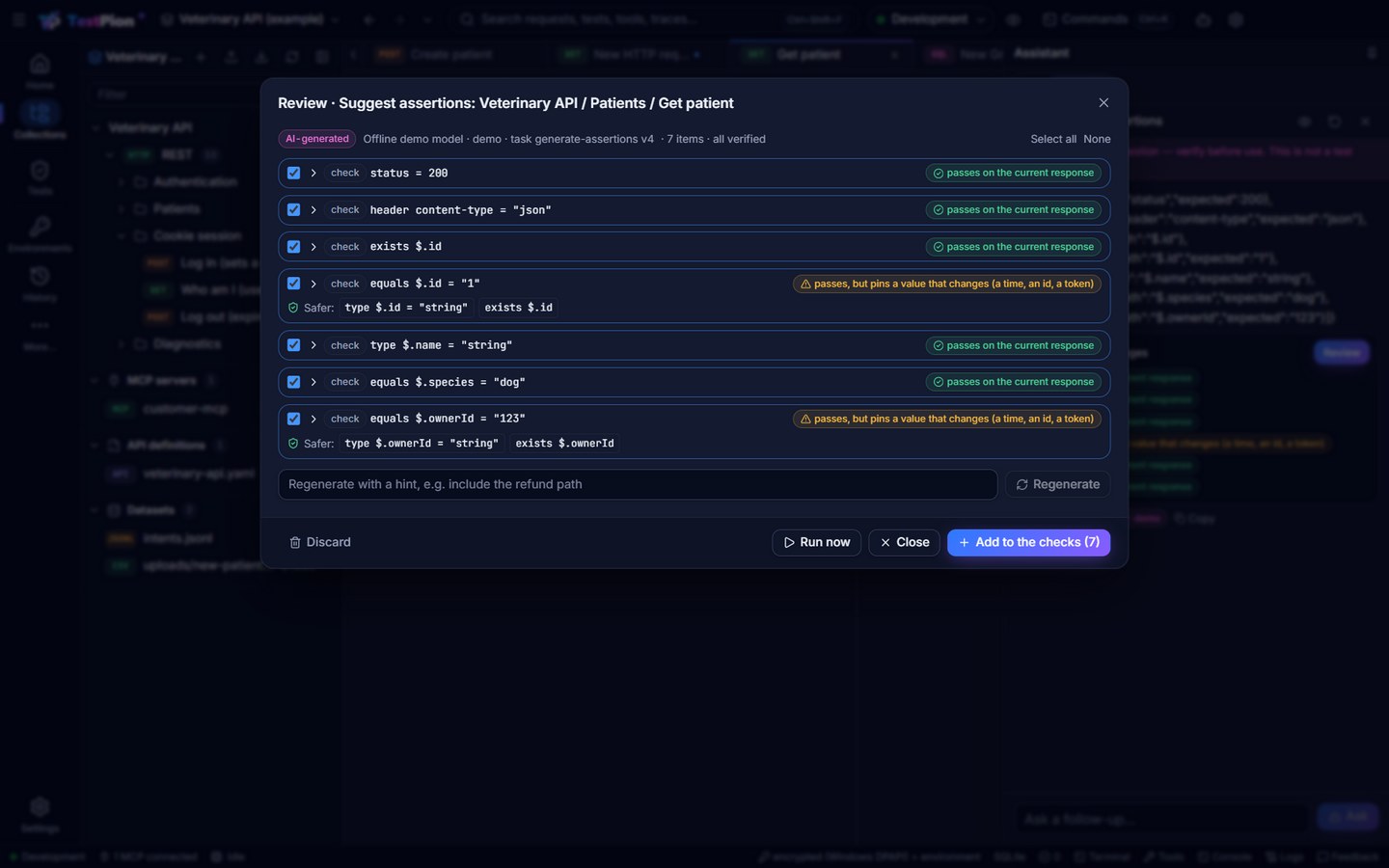
- Suggest assertions (a response's actions): the review opens at once with TestPion checks for the response — status, headers, fields, types. Each check has already run against the response on screen and, for a saved request, the one before it in History: a check that passes now but failed before is unticked (the value changes), and one that pins a generated value (an id, a time, a token) is flagged with Safer: forms (
type,exists, a formatregex) — click one to use it. Add to the checks adds the ticked ones to the Tests tab. - Generate tests (a response's actions): one
tp.test(...)per item, each run once in the sandbox against the response (and the previous one); a failing test is unticked with its message, and a test written withpm.*is sent back to the model to be written withtp.*. Add to the Post-response script adds the ticked tests after your own script, never replacing it. - Describe a request (sparkles button next to Send): write what you want in plain words, for example create a patient named Biscuit, a dog, owned by customer 123. The proposed request is reviewed, then Open as a new request opens it in a new, unsaved tab with the method, URL, headers and body filled in. The assistant only sees the names of your variables, so it writes
{{baseUrl}}and{{accessToken}}instead of real values. - Explain (a 4xx or 5xx response's actions): opens the assistant with what the error means, the likely cause and how to fix the request.
In the review, Run now sends the request again (the usual way, under the production guard) and checks every item against the new response; Regenerate asks again with a hint; Discard drops the proposal. What you add is in the editor: save the request to keep it.
What is sent to the model is redacted first (secret values, sensitive headers and fields, credentials and personal data found by their shape), and a large body is sampled and summarised to its shape rather than cut. What will be sent… (the eye beside an AI button) shows the exact messages and the estimate first. See AI features: privacy, cost and review.
Editor help
The code editors (bodies, scripts, GraphQL, messages, prompts) complete {{variables}} and highlight unknown ones in red (see Typing variables). In scripts, type tp. for the API with its documentation, and pick a ready-made snippet (tp.test status, JSON field, header, body text, JSON Schema, response time; tp.environment.set; tp.sendRequest …). JSON editors that have a schema, such as MCP tool arguments in raw JSON and gRPC messages, complete field names and values and flag mistakes as you type.
Console
The Console is Postman's console: a log of every request with its script output. Open it with Console in the status bar or Ctrl+Alt+C (⌘+⌥+C on macOS). It shares the bottom panel with the application Logs, the Terminal and Problems.
- Each line shows the time, method, URL, status, duration and size. GraphQL operations sent from the GraphQL view are marked GraphQL (their request shows the query and variables). Requests from runs (the test runner and the Collection Runner) are marked run, and failed checks, including GraphQL
errors, are counted. - MCP lines: connecting to a server (
CONNECT, with its URL or command line), tool calls (CALL, with the arguments and the result), resource reads (READ) and prompts (PROMPT). - WebSocket lines:
CONNECT(with the handshake headers and subprotocols), each message you send (SEND), andCLOSEwith how long the connection was open and how many messages were sent and received. Received messages stay in the WebSocket view's message log, so a busy stream doesn't flood the console. console.log,console.info,console.warnandconsole.erroroutput from pre-request and test scripts appears under its request, markedpre ›ortest ›.- Click a request sent from a tab to expand it and see the request and response headers and bodies (up to 16,000 characters each).
- An expanded line links to what it belongs to: the saved request it was sent from, its History entry, its Trace, and for a run's request the Run (at that result). Open as request opens what was sent in its editor.
- All / Errors / With logs and the filter box narrow the list. The trash button clears it. The console keeps the last 500 requests until the app closes and is never written to disk, unless you save it: the down arrow at the right end of its bar saves the lines as text or JSON Lines, always with secrets masked (Save and export results).
- Everything is redacted before it reaches the console: sensitive headers, sensitive JSON fields, known secret values, and values you typed into sensitive headers or body fields, even when a server echoes them back.
See also authentication, environments and collections.