
Save and export results
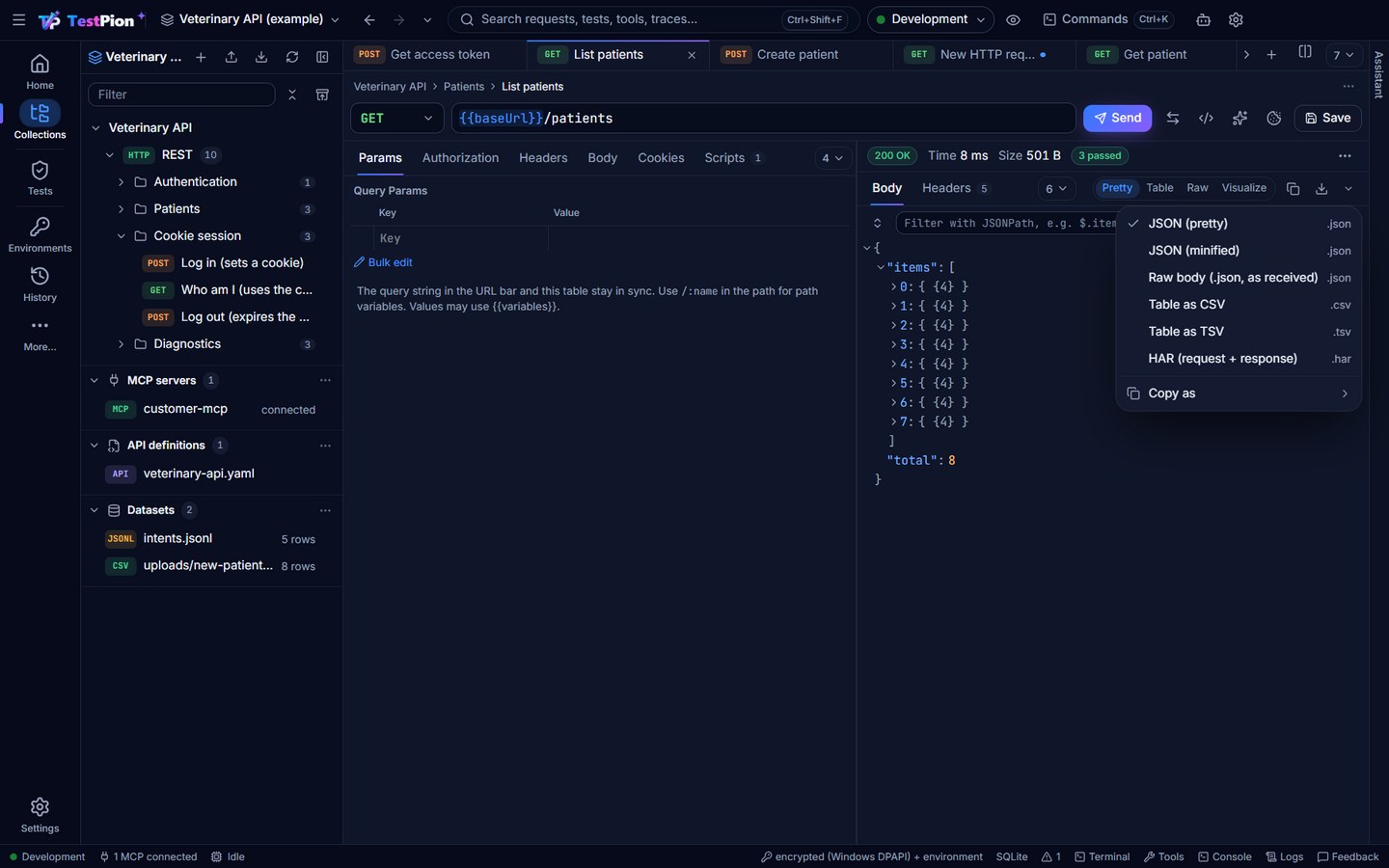
Every response and every result in TestPion has the same down arrow at the right end of its bar. It saves what the panel shows to a file. Copy sits just before it, and ▾ just after it lists the other formats.
Save an output
- Open the output: a response, a run's results, the console and so on.
- At the right end of its bar, click the down arrow (Download …). It saves in the default format, or in the format you chose last on that kind of output.
- Choose the folder and the name in the Save as dialog. The first time it opens in your Downloads folder. After that it opens in the folder you last used for that kind of output (responses, runs, flows, logs …) in this workspace.
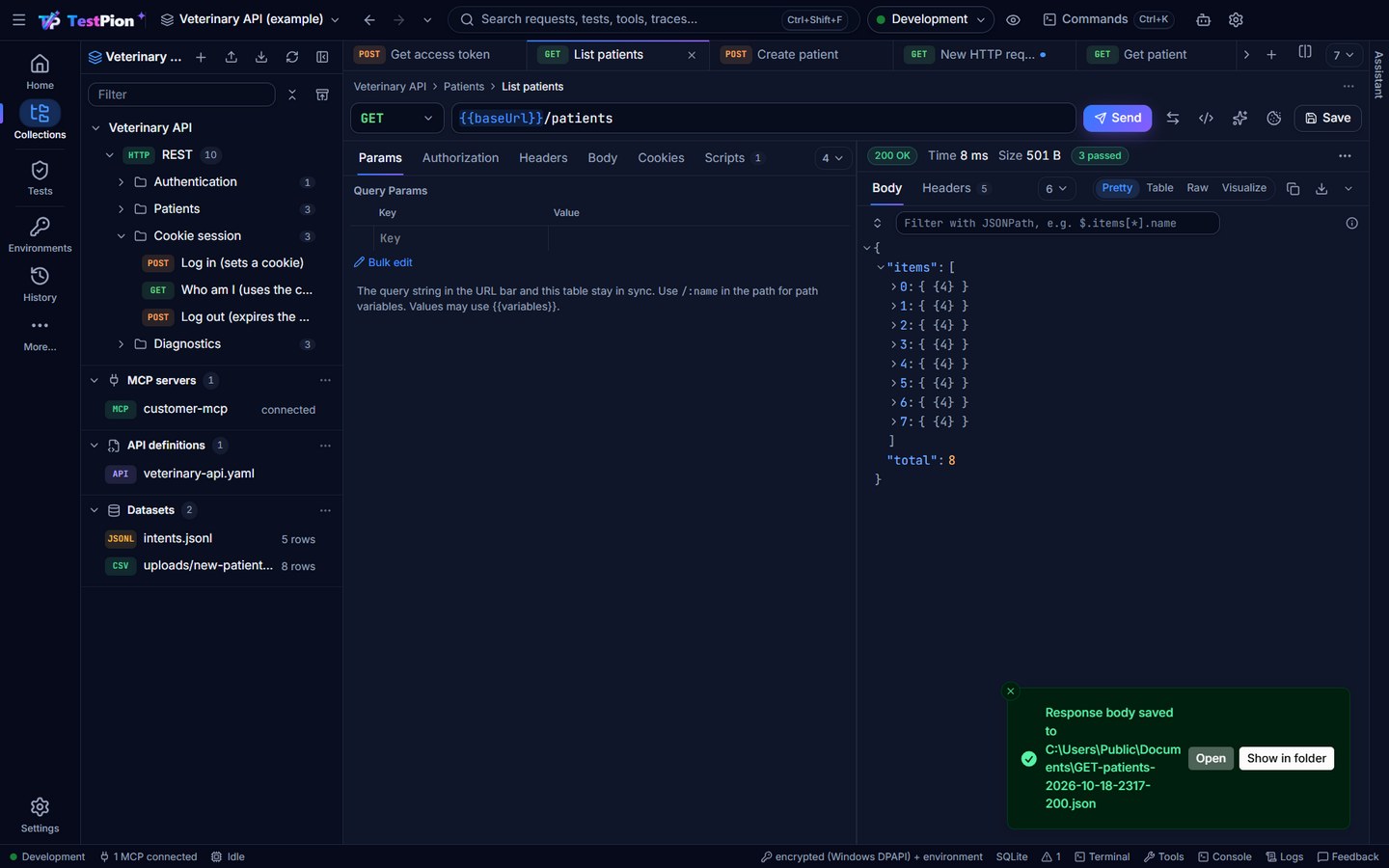
- When the file is saved, a message says where. Show in folder opens the file's folder and Open opens the file.
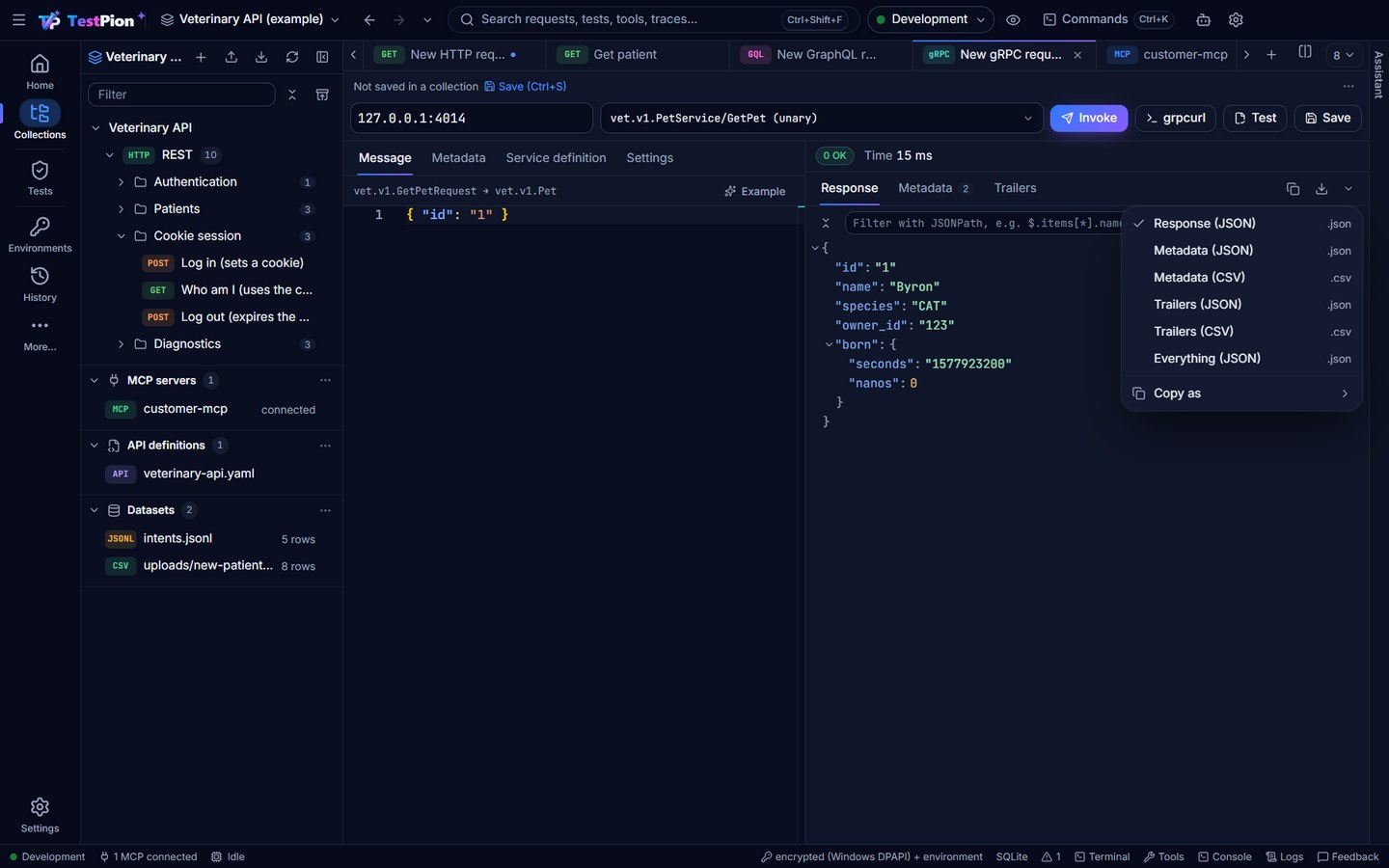
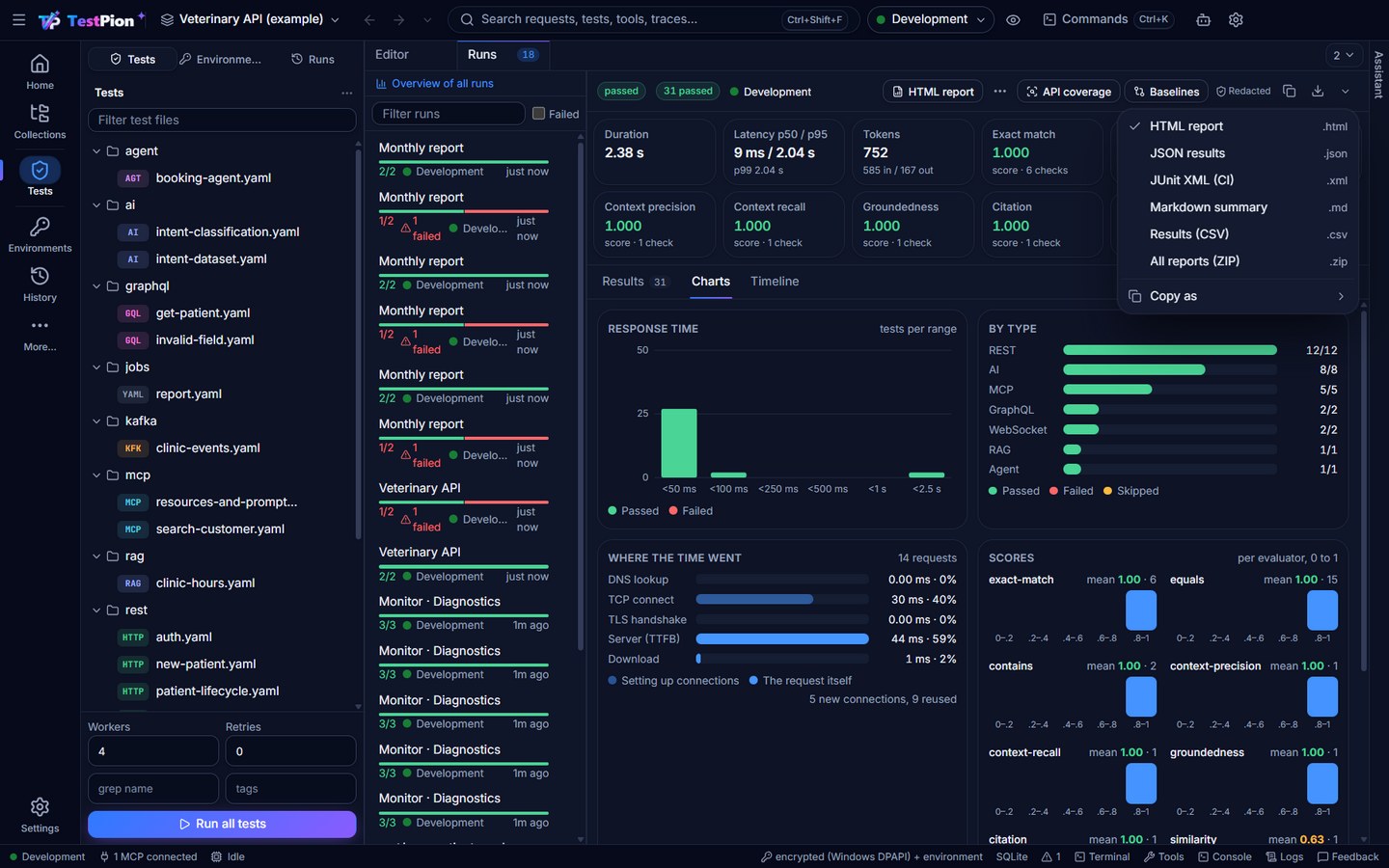
Other formats. Click ▾ next to the arrow. The menu lists every format of that output with its extension; the one a click saves has a check mark. It also has:
- Copy as: copies the output in another text format.
- Include secrets…: on outputs that are redacted by default and still hold the secrets, such as decoded JWTs and the terminal transcript (see Secrets).
Copy. The Copy button copies the output in the format the arrow saves, or in its first text format when that one is binary (raw bytes, ZIP). Copy is limited to 5 MB: download anything bigger.
Keyboard.
- Ctrl+Shift+S (⌘+⇧+S on macOS) saves the output you are in, meaning the one nearest to where you last clicked, in its default format. You can rebind it (Download the focused output) in Settings ▸ Keyboard.
- The command palette's Download Output… and File ▸ Download Output… open its format menu.
File names are made from what the output is and when, for example GET-patients-2026-10-17-1405-200.json or run-smoke-2026-10-17-1405-passed.html. They are safe on Windows, macOS and Linux: no reserved characters, no Windows device names such as CON or NUL, no invisible characters that make a name read differently. For a raw response body, the file name from the server's Content-Disposition header wins.
What you can save
| Output | Formats |
|---|---|
| Response body: REST, SOAP | Raw bytes as received (images, PDFs and other binary bodies too), JSON pretty or minified, the Table view as CSV or TSV, an HTML page, XML (pretty), text, HAR (request and response) |
| Response headers | JSON, CSV, text (Name: value) |
| Response cookies | JSON, CSV, cookies.txt (Netscape, for curl -b) |
| Response timeline | JSON, HAR with timings, Markdown |
| Response checks (the Tests tab) | JSON, JUnit XML, Markdown |
| Decoded JWTs, request trace | JSON |
| Response stream | Text |
| Server-sent events | JSON Lines, CSV, text (text/event-stream) |
| Response history | JSON, CSV |
| cURL tab | Shell script (.sh), text |
| GraphQL response | JSON pretty or minified, raw bytes, the Table view as CSV |
| GraphQL subscription events | JSON Lines, JSON |
| gRPC: response, metadata, trailers | Response as JSON (a stream's messages as JSON Lines), metadata and trailers as JSON or CSV, and everything in one JSON |
| WebSocket, Socket.IO, MQTT and Kafka message logs | JSON Lines, CSV, text, JSON |
| MCP tool result | JSON, Markdown (when the result is text), text |
| Generated code | The file in its language (.sh, .py, .js …) |
| Run results: tests, collection runner, evaluations | HTML report, JSON, JUnit XML, Markdown, CSV of the results, ZIP of all of them |
| Flow run timeline | Self-contained HTML, JSON |
| Data-run rows, data runs and environment matrices | CSV, JSON, HTML |
| Load test results | JSON, CSV (per request or step, status codes, per second), HTML, Markdown |
| Evaluation matrix | CSV, JSON, Markdown, HTML |
| Console, application log | Text, JSON Lines |
| Terminal | Text |
| Problems | Markdown, JSON, CSV |
| HTTP Debugger session | HAR (sanitized), JSON, CSV |
Message logs, server-sent events and subscription events hold every message kept, not only the filtered ones.
CSV files are safe to open in a spreadsheet. A cell that a spreadsheet would run as a formula starts with =, +, -, @, a tab or a line break. TestPion writes such a cell with a leading ', so the spreadsheet shows it as text. Plain numbers such as -12.5 stay numbers. Rows end with CRLF, as spreadsheets expect.
HTML exports are one self-contained file. They have no scripts and load nothing from the network, and they follow the reader's light or dark theme.
Secrets
Logs and reports are redacted by default. This covers the console, the application log, the terminal transcript, run reports, the flow timeline, data-run and matrix grids, traces, the HTTP Debugger's HAR, decoded JWTs, generated code and the cURL command. The following are masked:
- Authorization and cookie headers
- tokens and API keys, found by their shape
- credential query parameters
- the values of your secret variables
These outputs show a Redacted mark next to the arrow. On the ones that still hold the secrets, choose ▾ ▸ Include secrets… to keep them. TestPion asks first, and the choice applies to that one file only.
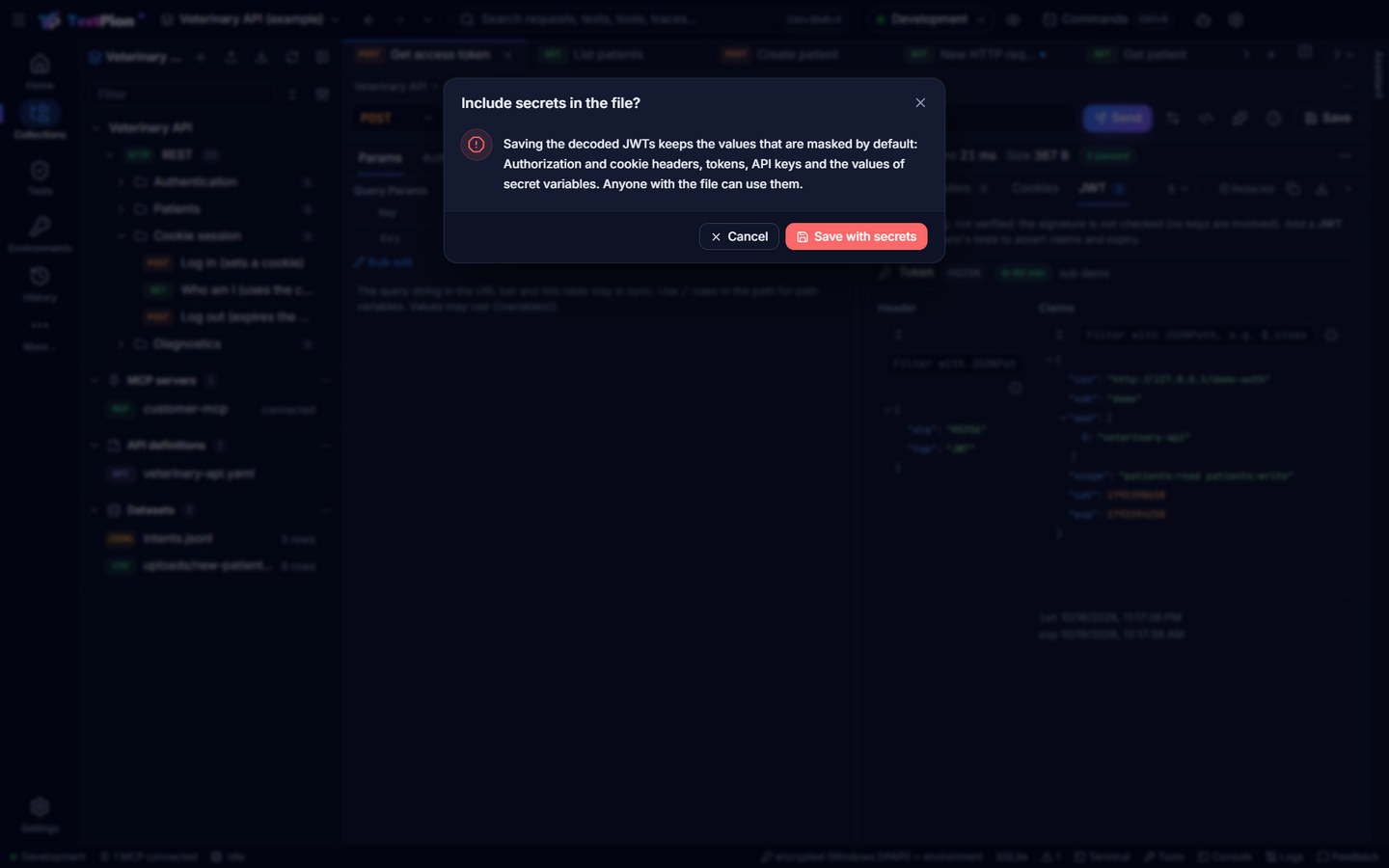
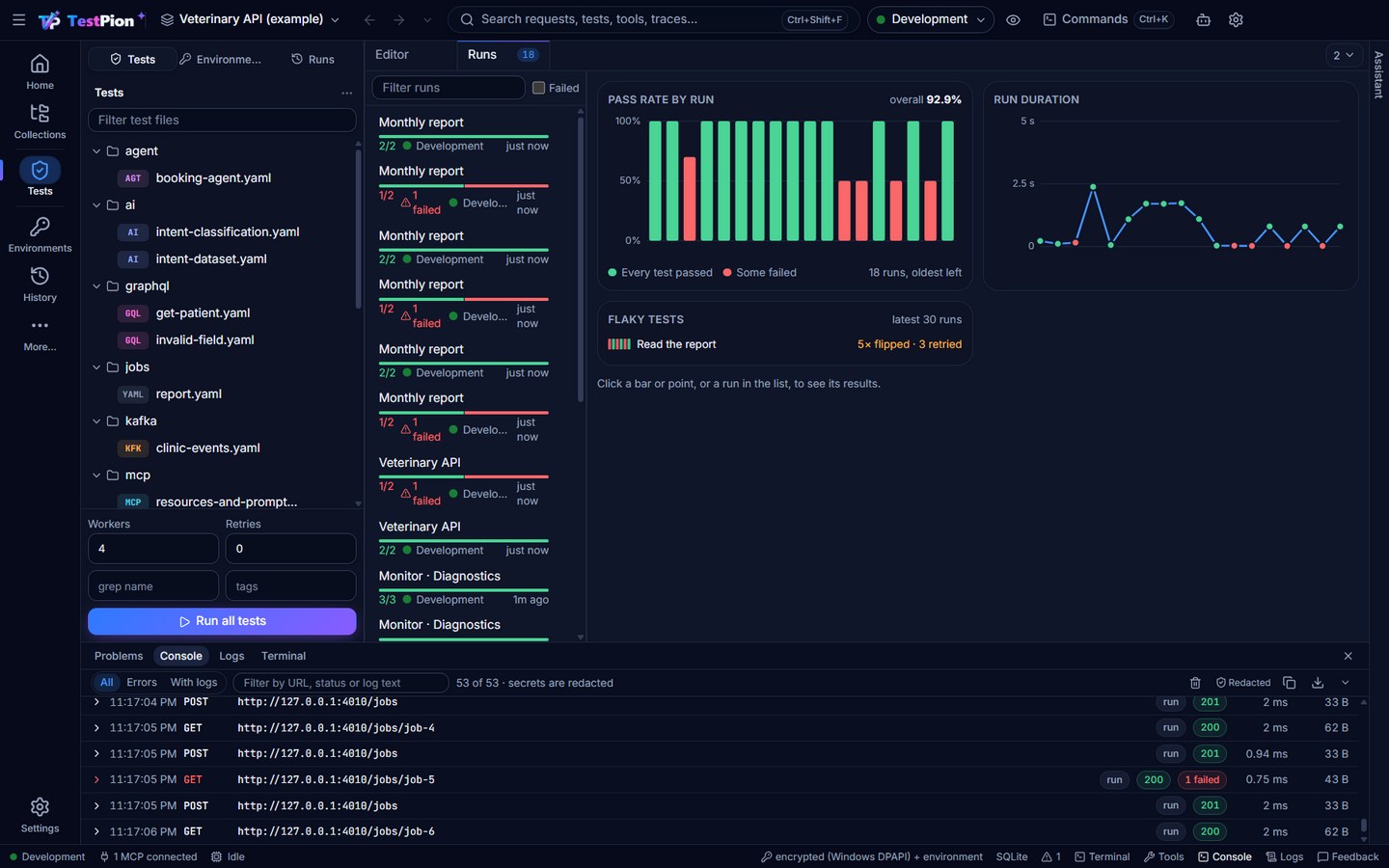
Some outputs never hold secrets. Their secrets are masked before the output is built, so they have the Redacted mark but no Include secrets…: the masked values are not kept anywhere to put back. The mark's tooltip says so. These are:
- the console and the application log, masked as each request or log line is recorded
- run results and reports, masked as each result is recorded
- request traces and the flow run timeline
- the cURL tab of a response
- data-run rows and environment-matrix values
- the HTTP Debugger's HAR (saved sessions are stored sanitized)
- a generated code snippet, unless Show secrets is on
A response body is your own data, so it is saved as it is. When the body looks like it holds a credential (an access_token field, a bearer token), the message after saving says so. When the active environment is marked as production, the menu and the message say that too.
What a saved file can contain, and what never leaves your computer: Privacy.
Big outputs
Large data is never copied into the window. The full response body is already kept on disk (the window only shows a preview), and the app copies or re-indents it straight into your file: a 50 MB body is pretty-printed as it is read. The same applies to:
- a run's reports
- the rows of a data run or an evaluation matrix (a 10,000-row grid is written page by page)
- the console and the log
Long saves show progress. A save of more than 5 MB, or one that takes a moment, shows how far it is, with Cancel. A cancelled or failed save leaves no half-written file: the file is written as <name>.part and renamed when it is complete. When a save cannot be written (no permission, a full disk, a file open in another program), the message says why and what to do.
In the browser version the file is downloaded instead of saved through a dialog, up to 100 MB. Use the desktop app or the CLI for bigger files.
From the terminal and for agents
The CLI already writes many of these files:
run-collection,testandeval runtake-o/--out <dir>and-rfor the reports (JUnit, JSON, HTML, Markdown)load --json <file>history export-har -o <file>,debug -o <file.har>flow report <file> --html <out>
Not in this release yet:
--out <file> --format …with the same formats and the same redaction on every result command, and MCP tools that save big results into the workspace'sexports/folder.- A down arrow on History, Traces, AI answers and proposals, Git diffs, lint, fuzz and coverage reports, charts (PNG, SVG), monitor runs, the runs overview, environment compare and Settings diagnostics.