
Finding your way around
Everything in a workspace has a place it opens: a request in its editor (REST, SOAP, GraphQL, gRPC, WebSocket), a test file or flow in Tests, a run in its results, a monitor in Monitors, an environment in Environments, a history entry in History or, with Open, back in the editor it was sent from. Wherever the app names one of them (the Git view's changes, search results, Needs attention on Home, a toast, a run result), it opens the same way.
Get started
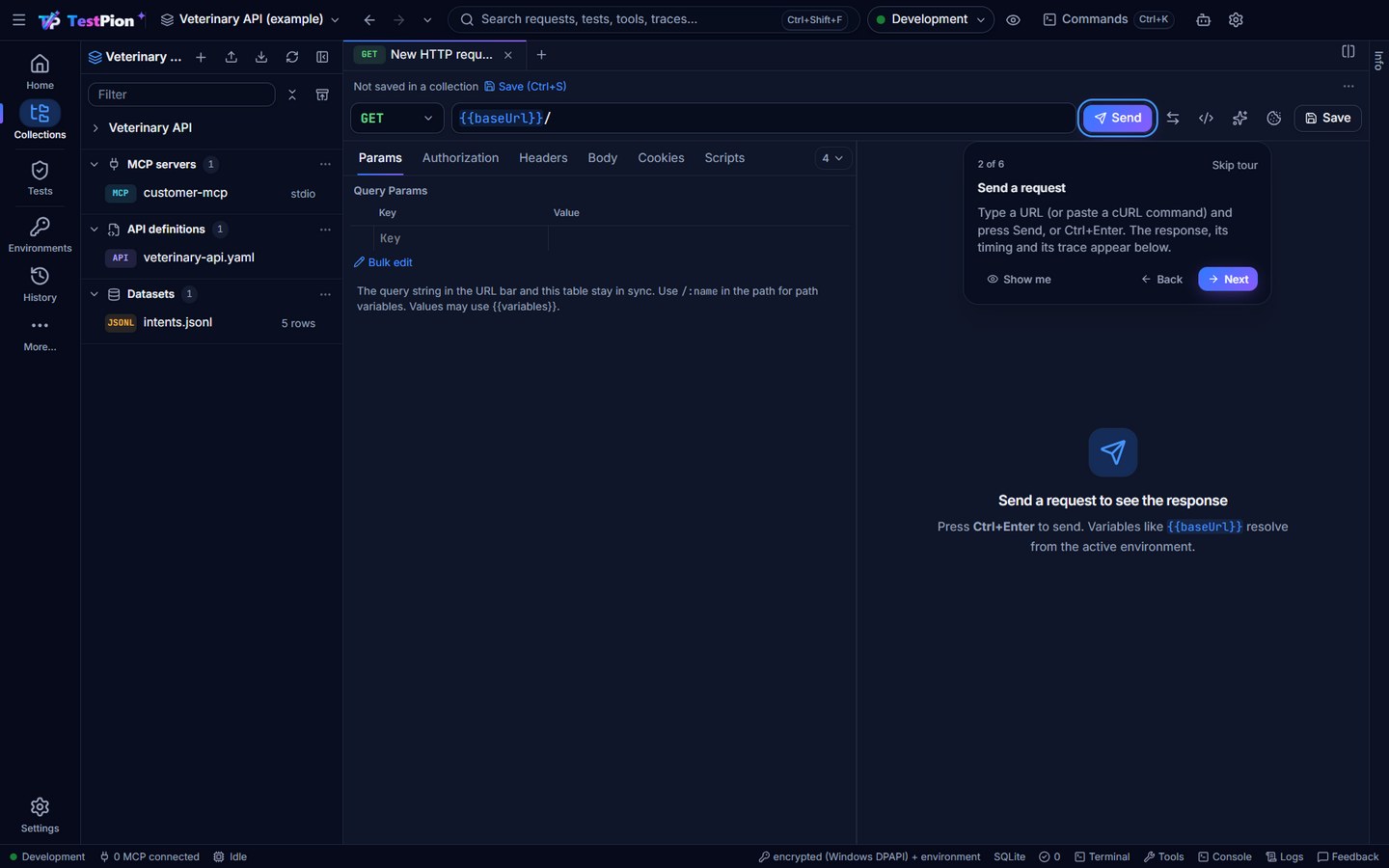
A new workspace's Home starts with Get started: the first loop, from a request to CI — Send a request, Save it in a collection, Save it as a test, Run the tests, Run them in CI. Each step is ticked from what the workspace holds (History, a saved request, a test file, a run, a pipeline file that runs testpion), not from clicks, and its button opens what the step builds on: the request you sent, the request you saved, the test file. Below it, walk-throughs for the other loops: Debug a failing test and Capture traffic into requests (in the Examples workspace) and Collaborate through git, each with its guide.
A guided tour of the same loop opens by itself the first time Home shows Get started in a workspace (never again there), and Get started ▸ Take the tour starts it at any time, at the first step not done yet. Each step points at the control that does it — Send, Save (Ctrl+S), the request's ⋯ ▸ Save as test…, Run all tests, Run in CI… — going to its view; Show me does what the Get started button does. Next / Back (or → / ←) move through it; Esc or Skip tour ends it. Going to another view pauses it; it shows again on its step's view.
Open an item
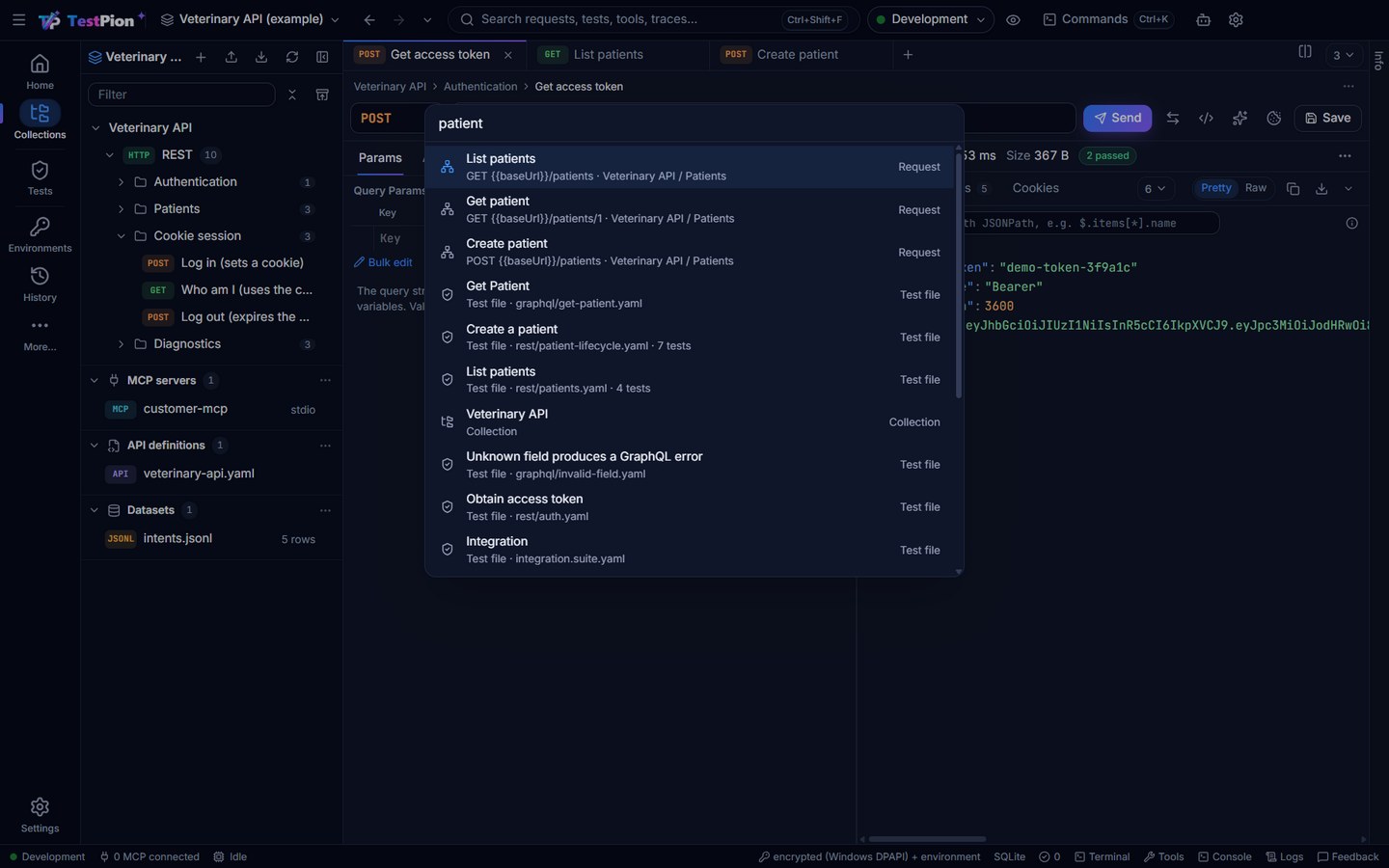
- Quick Open (Ctrl+P) lists the items you opened lately (nothing typed) and finds any item by name as you type: requests, collections, test files and flows, environments and variables, API definitions, datasets, saved gRPC calls and connections, monitors, history, traces and runs; Enter opens it. The first character changes what it lists: > commands, @ what is on screen (the focused editor's own commands), # environments (switch) and variables, ? help. Ctrl+K opens it on commands, Ctrl+Shift+E on environments. From a terminal:
testpion search <words> [--json]; agents:search_workspace. - Search (the box in the top bar, Ctrl+Shift+F) finds requests, collections, test files, environments and their variables, API definitions, datasets, MCP servers, AI providers, saved gRPC calls and connections, monitors, history, traces and runs. A hit opens in the view of its kind: a gRPC call in gRPC, a connection in WebSocket, a SOAP call in the HTTP editor.
- Back and Forward (Alt+← / Alt+→, or the mouse's back and forward buttons) return to the places you opened; the arrow beside them, Recent places, names each one ("GET List patients · Veterinary API").
- Pick up where you left off on Home, Quick Open with nothing typed and File ▸ Open Recent… list the items you opened lately in this workspace, of every kind, newest first.
- Tabs work the same in every view that opens items: requests, test files, monitors, load tests, evaluations, saved AI prompts, environments and the Debugger's sessions. A single click in a list (the Collections explorer included) opens a preview tab (its name in italics) that the next click replaces; double-click the tab or the item, press Enter, or change something in it to keep it. Each tab keeps its own unsaved changes, and the open tabs are kept per workspace. The Debugger's Live capture tab is always there: a saved session (Session ▸ Open …, or a capture session in History) opens in a tab beside it and leaves the live capture as it is (Add to the live capture copies its exchanges in). The AI Lab's Model comparison keeps a prompt of its own, apart from the Playground's tabs.
- Reopen closed tab (Ctrl+Shift+T, any tab's right-click menu, File ▸ Reopen Closed Tab) opens the tab you closed last, whichever tab bar it was in, when it showed a saved item (a request, a gRPC call, a connection, an MCP server, an API definition, a dataset, a monitor).
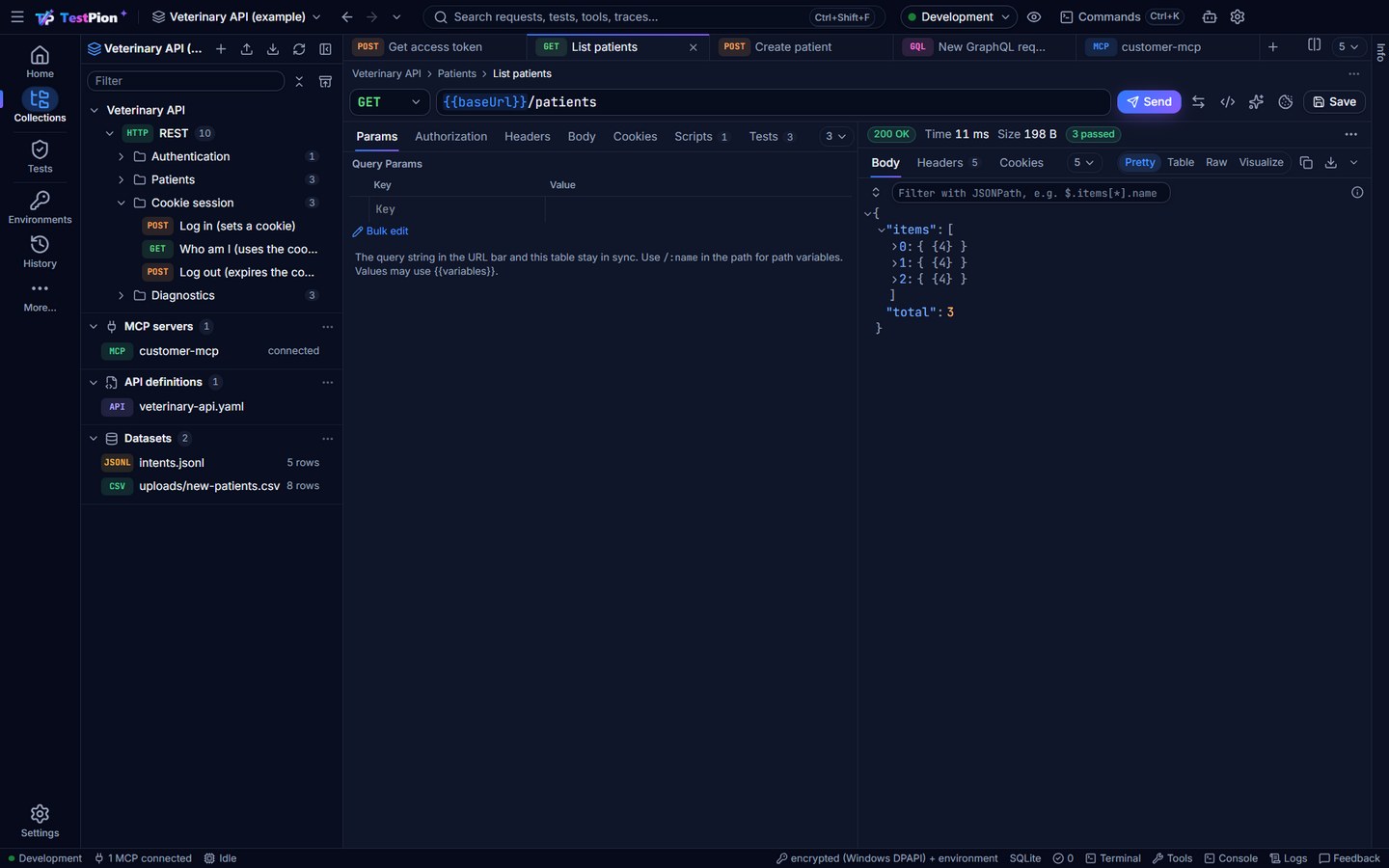
- Where an item lives is the first line of every item view: Collection › Folder › Request, Monitors › Nightly, API definitions › folder › file, Datasets, MCP servers, Load tests, Evaluations. A folder segment shows that folder in the sidebar; the ⋯ at its end is the item's menu. Switching request tabs makes the sidebar follow (the item's collection and folders open, its row scrolls into view), and every tab's right-click menu has Reveal in sidebar.
- A named item (an underlined name with its icon) opens on click. Right-click it for Open, Open in new tab, Reveal in sidebar (requests) and Copy link.
- A toast about an item has the button to open it: Open run on a failing monitor, Open monitor when it passes again, Open test file after a test is saved, Open collection after a duplicate, Open request after a move, Open dataset, Open variable, Open certificate for a certificate about to expire. A system notification (the app in the background) opens the same item when you click it.
The Info panel
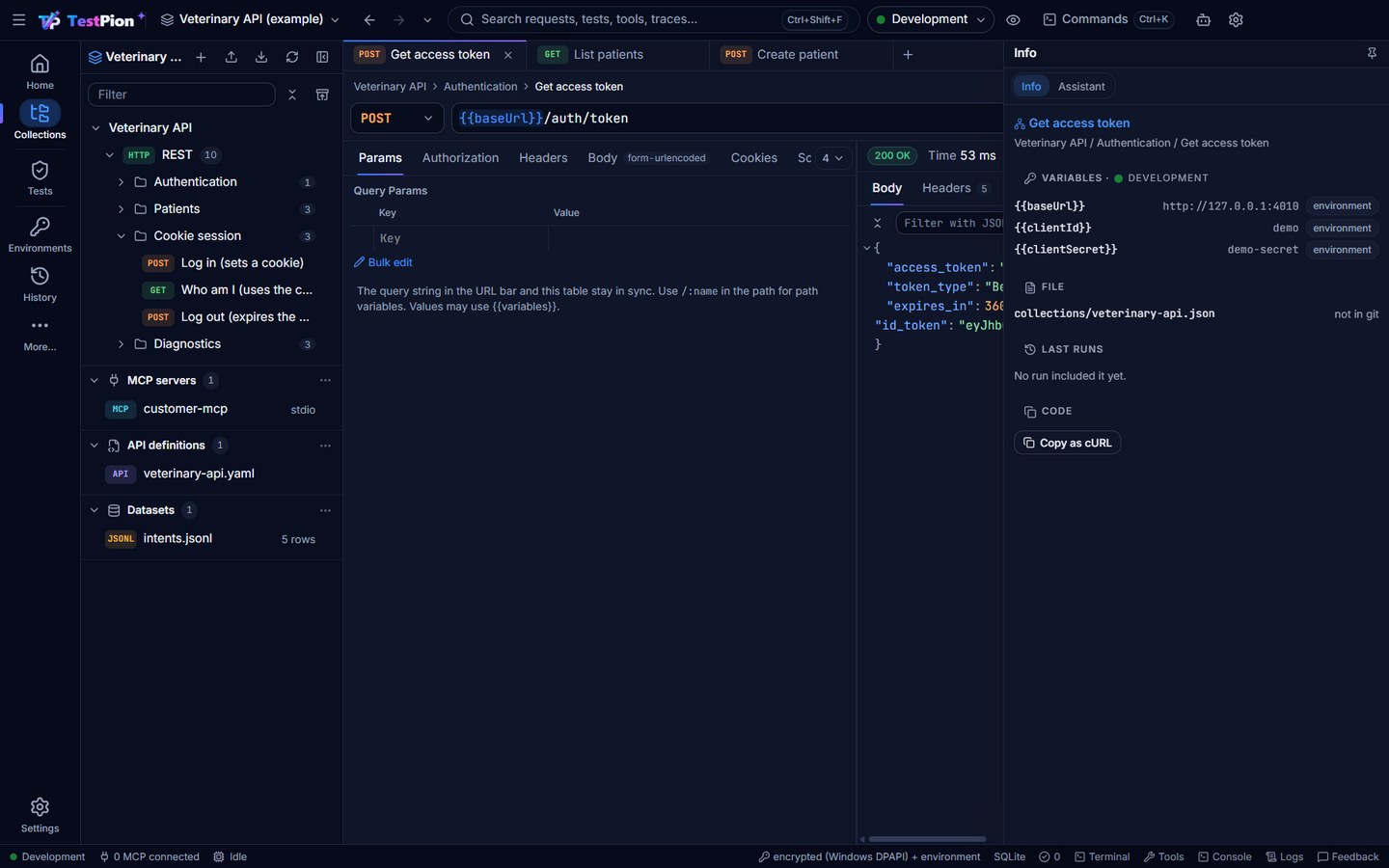
The right edge of the window holds Info and the Assistant in one panel: a tab on the edge that slides over the content on hover or click, or, pinned, docked beside it (the pin and its width are kept). Info is about the item on screen — a request, a test file, a monitor — and is the same for each: the variables it uses with their values and where each comes from in the active environment (a variable that is set nowhere is marked), the file that holds it and its git state (a click shows the change), the latest runs that included it, and for a request Copy as cURL. Asking the assistant (Ctrl+J, or an AI button such as Ask AI or Explain with AI) shows it in the same panel; the eye beside every AI button, What will be sent…, shows what would be sent first, and generated checks, tests and flows open in a review before anything is added (AI features). Agents get the same with item_info.
When something is gone
An item can be gone by the time you open it: deleted, renamed, moved to another collection, cleared from History, or in another workspace. TestPion says so instead of opening an empty editor, and offers the nearest thing that is still there: the collection a deleted request was in, the Tests view for a renamed test file, History for a cleared entry.
History: send it again
In History, select an entry and choose Open (or double-click it): it opens in the editor of its kind with what was sent. Its right-click menu (and the ⋯ above its details) also has Open request (the saved request it was sent from), Open trace, Save as test… and Delete…. A GraphQL query comes back with its variables, an MCP tool call with its server, tool and arguments (the Tools tab picks the tool once the server is connected), a prompt in the AI Playground with its model and system prompt, an HTTP or gRPC request as it was.
Capture sessions are in History too (the Kind filter ▸ Capture sessions): each Save to collection…, Create flow… and Save session… in the HTTP Debugger adds one, saying what was captured (how many exchanges, through the proxy or the reverse proxy, the hosts, from when to when) and what it became. Open opens that: the collection, the flow in the designer, or the saved session in the Debugger. From a terminal: testpion history list --kind capture --json (each row has capture.ref); agents: history_list with kind: capture.
Console, Traces and History
They name each other. A Console line (expand it) links to the saved request it was sent from, its History entry, its trace and, for a run's request, the run at that result; Open as request opens what was sent in its editor. A trace's header names its request and History entry (or its run). History's menu opens the request and the trace. The Console's down arrow saves its lines (as text or JSON Lines), always with secrets masked.
The Git view
Each change in Git is listed by what it means (Payments ▸ Create invoice: URL and 2 headers), and the name opens it: a request in its own editor, a folder or collection's settings, an environment, a saved gRPC call or connection, a test file or the flow step that changed.
Links to an item
Copy link gives a testpion://open?… link. Opening it (from a chat, a ticket, a report) brings TestPion forward on that item; the installer registers the link type. From a terminal:
testpion open run:run-8f2c1a            # the run's results
testpion open "request:payments:create-invoice" -w .
testpion open 'testpion://open?kind=test&path=smoke/login.yaml'
testpion open run:run-8f2c1a --json     # {ref, url, resolution}: checked, not opened
The short form is kind:id with the kind's ids in order. testpion open looks the item up in the workspace first and says when it is gone (exit code 2).
For AI agents: ref
Results that name an item carry a ref, the same object everywhere: MCP tool results (run_tests, recent_failures, what_needs_attention, git_status, debugger_exchanges), search hits, git diff changes and CLI --json output (testpion history list --json). It is { "kind": …, …ids }:
| kind | ids | opens |
|---|---|---|
request | collectionId, requestId, protocol? (http, soap, graphql) | the request's editor |
collection, folder, mock | collectionId (+ folderId) | the collection's page (its mock server) |
saved | library (grpc, websocket, ai-prompts, load-tests, evaluations), itemId | a saved gRPC call, connection, prompt, load test or evaluation |
monitor | monitorId | the monitor |
environment, variable | environmentId, key | the environment |
test, flow | path (inside tests/), step? | the test file, the flow designer |
run, test-case | runId / testId | the run's results, Tests |
history, trace, exchange | historyId / traceId / exchangeId | History, Traces, the HTTP Debugger |
mcp-server, provider | serverId / providerId | MCP, AI Lab ▸ Providers |
spec, dataset | path (specs/…) / name (inside datasets/) | the API definition, the dataset |
certificate, git-file, doc | host / path / url | Settings ▸ Certificates, Git, a documentation page |
capture | name | a Debugger capture session saved as debugger/<name>.har, opened in the Debugger |
The resolve_ref MCP tool says whether a ref still exists, its name, and the testpion:// link that opens it in the app; when it is gone, why and what to open instead (next).
Save what you see
Every response and result keeps its down arrow in the same place: the right end of its bar, after the view's own tools, with Copy before it and ▾ (the other formats) after it. That holds for a response's tabs, gRPC, GraphQL, message logs, MCP tool results, run results, timelines, grids, load results, the evaluation matrix, and the bottom panel's Console, Logs, Terminal and Problems. Ctrl+Shift+S saves the one nearest to where you last clicked; the palette's Download Output… and File ▸ Download Output… open its formats. A Redacted mark beside it means secrets are masked in the file. See Save and export results.
Menus and shortcuts
Every row of every tree and list — a collection, a folder, a request, a gRPC call, an MCP server, an API definition, a dataset, a saved prompt, a load test, an evaluation, a monitor, a test file, a run, a History entry, a trace, an environment — has one menu, built the same way everywhere. Its right-click menu is its ⋯ menu, and the keyboard opens it too: Shift+F10 or the menu key on the focused row. Section headers (MCP servers, API definitions, Datasets, Tests, the lists of the other views) and folders have one as well, and a right-click on the blank part of a list opens the menu of the section it belongs to.
The items come in groups, always in this order, with a line between groups:
- create — New … (what the container holds), New folder, Import…
- open — Open, Open in new tab, Reveal in sidebar, Reveal file, Preview …
- tree — Expand all, Collapse all: everything inside that collection, folder or section (on every container, before Run)
- run — Run, Run collection, Run folder, Connect, Lint …
- share — Copy link, Copy as ▸ (cURL, PowerShell, fetch …), Copy path, Export ▸
- tools — Monitor on a schedule…, Run in CI…, Create test file…, Generate integration flow with AI…, Settings…
- git — History in git… (when the workspace is in git)
- edit — Rename, Duplicate, Move to…, Add to / Remove from favorites
- danger — Delete… (always last; where what is deleted can be brought back it goes at once, with Undo, and a folder of more than 200 test files still asks first)
An item a kind doesn't have is not shown; one that applies but can't run right now is shown greyed out, and its tooltip says why. The keys run the same items: F2 Rename, Delete Delete…, * Expand all, Enter Open; typing a name's first letters jumps to the next row that starts with them. Which folders and sections are open is kept per workspace, across restarts.
The menus of every kind, as the app builds them ("New …" stands for the kind's own new items; an item shows only where the row can do it):
| Node | create | open | tree | run | share | tools | git | edit | danger |
|---|---|---|---|---|---|---|---|---|---|
| Collection | New …, New folder… | Expand all *, Collapse all | Run collection | Copy link, Export ▸ | Monitor on a schedule…, Run in CI…, Create test file from collection…, Generate integration flow with AI…, Settings, runner & docs, Convert scripts to tp.* | History in git… | Rename F2, Duplicate | Delete… Del | |
| Protocol group (REST, SOAP …) of a collection | New … | Expand all *, Collapse all | Run collection | ||||||
| Folder of a collection | New …, New folder… | Expand all *, Collapse all | Run folder | Copy link | Monitor on a schedule…, Run in CI…, Create test file from folder…, Generate integration flow with AI…, Edit folder (scripts, variables, auth) | Rename F2, Duplicate, Move to… | Delete… Del | ||
| Request (HTTP, SOAP, GraphQL) | Open Enter, Open in new tab | Copy link, Copy as ▸ | Monitor on a schedule…, Save as test… | History in git… | Rename F2, Duplicate, Move to…, Add to favorites | Delete… Del | |||
| Folder of gRPC calls or connections | Expand all *, Collapse all | Rename folder F2 | Delete folder… Del | ||||||
| Saved gRPC call | Open Enter, Open in new tab | Copy link, Copy as grpcurl | Save as test… | Rename F2, Duplicate, Move to collection ▸ | Delete… Del | ||||
| Saved WebSocket / MQTT / Kafka connection | Open Enter, Open in new tab | Copy link, Copy URL | Save as test… | Rename F2, Duplicate, Move to collection ▸ | Delete… Del | ||||
| Favorites section | Expand all *, Collapse all | ||||||||
| MCP servers section | New …, New folder… | Open MCP inspector | Expand all *, Collapse all | ||||||
| Folder of MCP servers | New … | Expand all *, Collapse all | Rename folder F2 | Delete folder… Del | |||||
| MCP server | Open Enter, Open in new tab | Connect, Disconnect | Copy link, Copy MCP config | Settings… | Rename F2, Duplicate, Move to folder ▸ | Delete… Del | |||
| API definitions section | New …, New folder… | Open API definitions | Expand all *, Collapse all | ||||||
| Folder of API definitions | New … | Expand all *, Collapse all | Rename folder F2 | Delete folder… Del | |||||
| API definition | Open Enter, Reveal file | Lint, API coverage, Compare versions | Copy link, Copy path | Generate tests…, Generate integration flows… | Rename F2, Move to folder ▸ | Delete… Del | |||
| Datasets section | New …, New folder…, Generate test data… | Expand all *, Collapse all | |||||||
| Folder of datasets | New … | Expand all *, Collapse all | Rename folder F2 | Delete folder… Del | |||||
| Dataset | Open Enter, Reveal file, Preview | Run a collection with it | Copy link, Copy path | Use in a test | Rename F2, Duplicate, Move to folder ▸ | Delete… Del | |||
| The sidebar’s blank area | New …, Import… | Recently deleted… | Expand all *, Collapse all | Run in CI… | |||||
| Saved prompt (AI Lab) | Open Enter, Open in new tab | Copy link | Rename F2, Duplicate, Move to folder ▸ | Delete… Del | |||||
| Saved load test | Open Enter, Open in new tab | Run | Copy link | Rename F2, Duplicate, Move to folder ▸ | Delete… Del | ||||
| Saved evaluation | Open Enter, Open in new tab | Run | Copy link | Rename F2, Duplicate, Move to folder ▸ | Delete… Del | ||||
| Monitor | Open Enter, Open in new tab, Edit | Run now, Pause, Resume | Copy link | Rename F2, Duplicate, Move to folder ▸ | Delete… Del | ||||
| Folder of a list (monitors, prompts, load tests, evaluations) | New … | Expand all *, Collapse all | Rename folder F2 | Delete folder… Del | |||||
| Tests section (and its blank area) | New … | Expand all *, Collapse all | Run in CI… | ||||||
| Folder of test files | New … | Expand all *, Collapse all | Run folder | Run in CI… | Rename folder F2 | Delete folder… Del | |||
| Test file | Open Enter, Reveal file | Run, Run with data…, Run in several environments… | Copy link, Copy path, Copy CLI command, Export as Arazzo… | Monitor on a schedule…, Run in CI…, Expose as MCP tool… | Rename F2, Duplicate | Delete… Del | |||
| Run | Open Enter | Rerun failed | Copy link, Copy CLI command, Copy run id, Export report… | Run in CI…, Explain and fix failures with AI… | Delete… Del | ||||
| History entry | Open Enter, Open request, Open trace | Copy link | Save as test… | Delete… Del | |||||
| Trace | Open Enter, Open run | Copy link | |||||||
| Environment | Open Enter | Make active | Copy link | History in git… | Rename F2, Duplicate | Delete… Del | |||
| AI provider | Open Enter | Copy link | Settings… | Duplicate | Delete… Del |
For AI agents and scripts, testpion kinds --json and the MCP tool list_kinds say what every kind of item offers, and why an action never applies to one.
Ctrl+Alt+1…9 follow the views shown on the rail, in its order: by default 1 Home, 2 Collections, 3 Tests, 4 Environments, 5 History (the rail's tooltips show each; rearrange the rail and the numbers follow). ? lists every shortcut in the app; Keyboard shortcuts has them all on one page.
Deleting and Undo
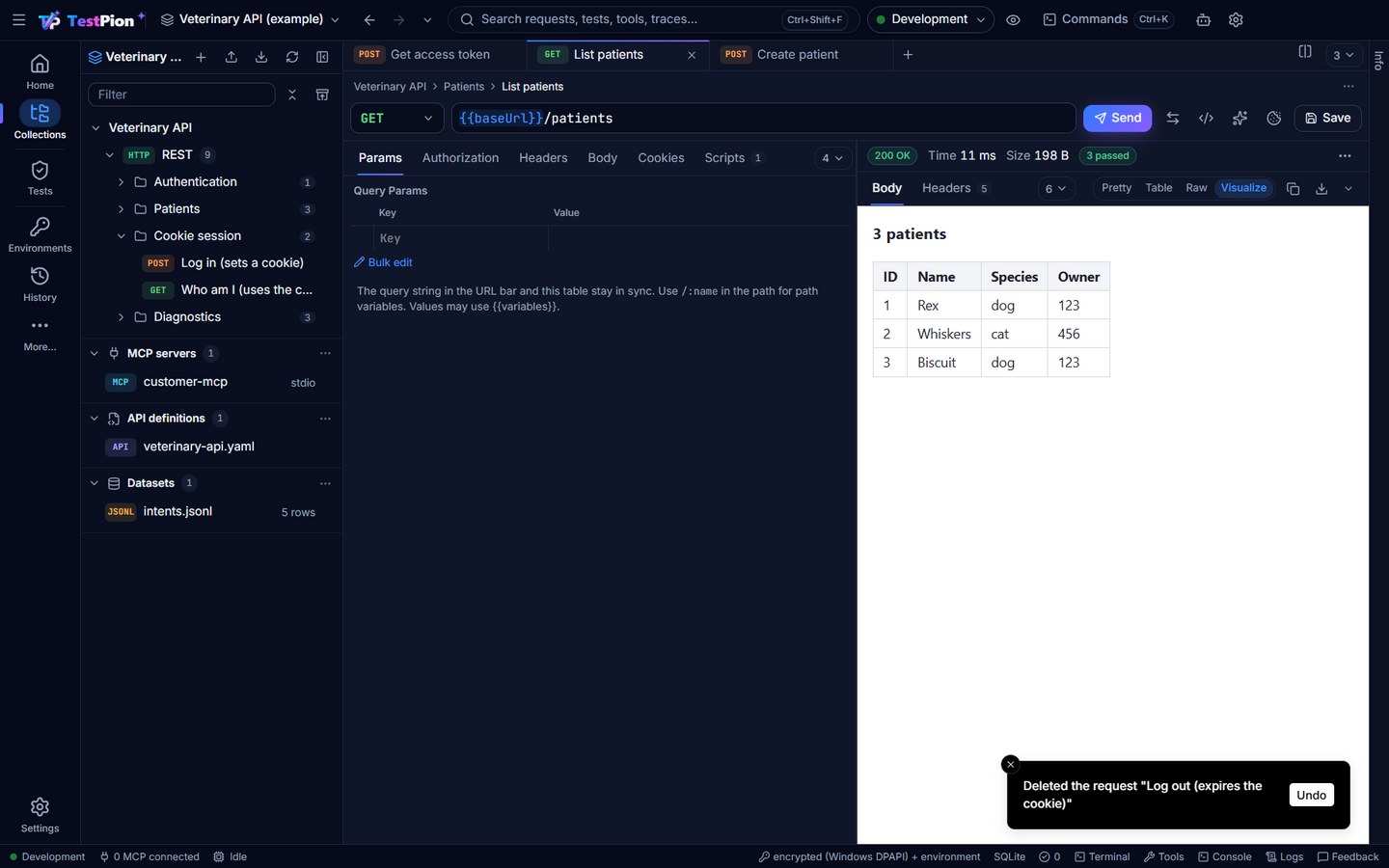
Deleting something you can get back happens at once, without a question: the message at the bottom right says what went, with Undo for 8 seconds (Ctrl+Z outside a text field does the same). This covers requests and folders in a collection, collections, environments (with their secret values), datasets, gRPC calls and connections, saved prompts, load tests and evaluations, monitors, MCP servers, examples and the folders of every list (their items move to the top level). The item comes back with its id, in its place. Collections, environments, datasets and MCP servers also stay in the workspace's trash for 30 days, with API definitions an import replaced: Recently deleted (the icon beside the Collections sidebar's Filter box, and the Environments list's ⋯ menu), testpion trash list / trash restore for all of them (Recently deleted).
Deletes that can't be taken back still ask first: Delete for good in Recently deleted, git branches, cookies, clearing the history and deleting old runs. Test files, script packages and the HTTP Debugger's rules also still ask.
The window
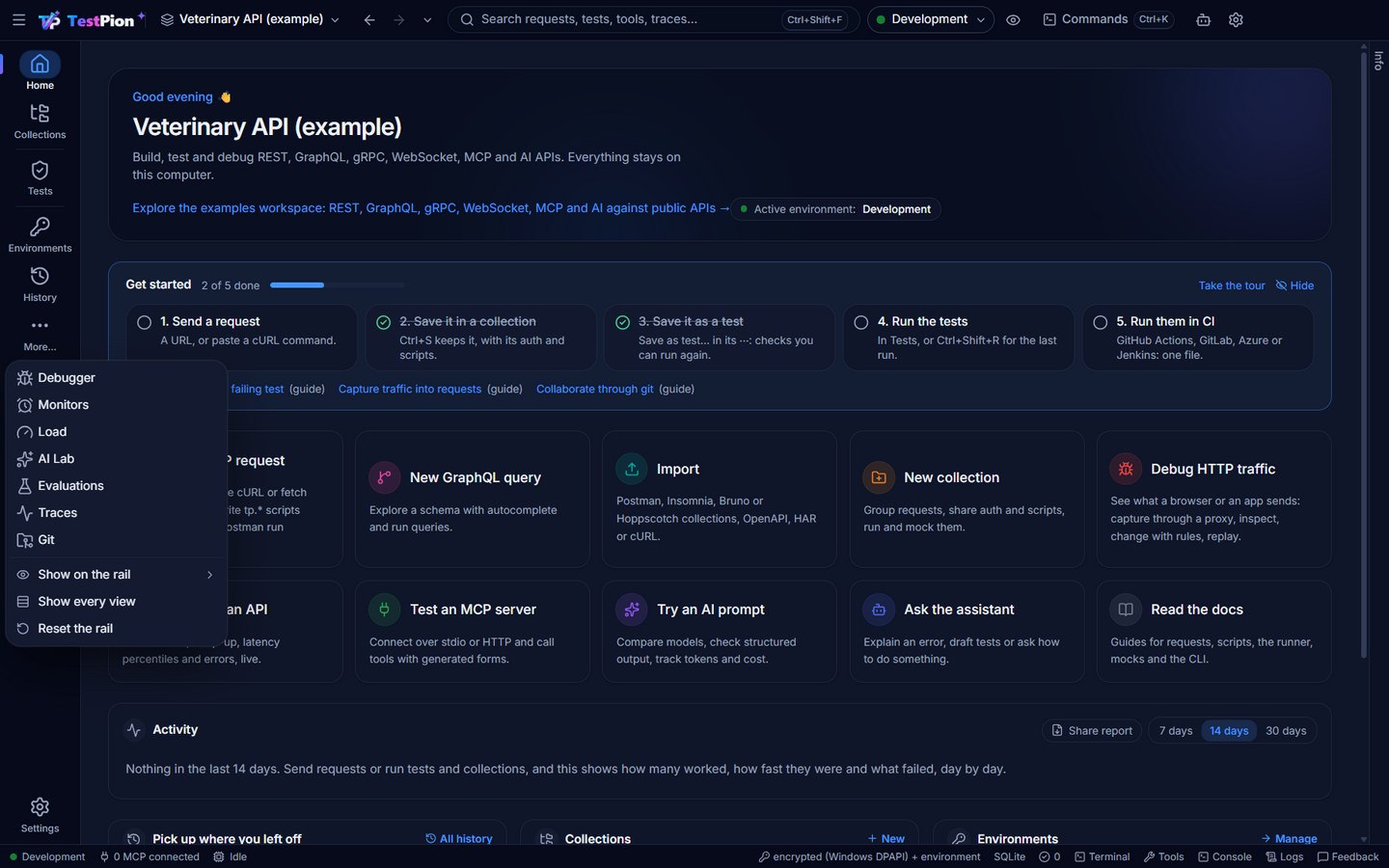
- The rail on the left: by default Home, Collections (the request editors — REST, GraphQL, gRPC, WebSocket, MCP — open from its explorer and its New menu), Tests, Environments and History; More… lists the other views (Debugger, Monitors, Load, AI Lab, Evaluations, Traces, Git). See Choose what the rail shows.
- Density: Settings ▸ Appearance ▸ Density ▸ Compact fits more on screen (smaller spacing, fields, row heights and small text everywhere, light and dark); Comfortable is the default. It is this computer's (
settings.jsondensity) and applies from the first paint; Ctrl+K ▸ Density: Switch Compact / Comfortable toggles it (see the picture below). - The bottom panel: Console, Logs, Terminal (a shell in the workspace folder, see Terminal) and Problems.
- The status bar: the Problems count, Terminal, the environment and Tools.
- The right edge: Info and the Assistant (see The Info panel).
- A production frame: while an environment marked as production is active, a thin frame in its colour runs around the window, and every send or run that changes data asks first (see Production).
The rail, the density and your keys are this computer's preferences, kept in the app's settings.json (rail, density, keybindings). A value there of the wrong shape (a hand edit, a file from another version) never stops the app: it starts with the default for that one.
Choose what the rail shows
The rail shows five views; More… under them lists the rest. Every view stays one step away: More…, Ctrl+K (Go to …), Ctrl+P, links and the status bar.
- Right-click a rail item for Hide from the rail, Move up / Move down, Show on the rail ▸ (a view from More…), Show every view and Reset the rail.
- A view opened from More… shows on the rail while it is open, under a line; right-click it and pick Keep on the rail to keep it there.
- A count (the Git view's commits to pull) shows on More… while its view is hidden there.
- Ctrl+Alt+1…9, the tooltips, the shortcuts list and the command palette's hints count the shown views, in the rail's order.
- The choice is this computer's: it is saved in the app's
settings.jsonasrail: { order, shown }(view ids such ashome,collections,tests,debugger), not in the workspace. Ctrl+K ▸ Rail: Show Every View / Rail: Reset to the Default Views do the same as the menu.
From a result to its source, and again
A run's results name where they came from: the test file at the step, or (a collection run, a monitor) the saved request. A monitor's Requests chart and the Collection runner's request list open the request on a click. Rerun last run (Ctrl+Shift+R, or the command palette) runs the latest run again as it ran — the same files or collection, the same environment — and opens it. For AI agents, every run_tests result has a ref ({ kind: "test", path, step }), and run_tests with paths: [ref.path] and step: ref.step runs that one result again.
A run's ⋯ also has Run in CI… (the pipeline dialog preselected with the run's files or collection and environment) and Copy CLI command; the palette has both for the last run. See CI/CD. A failed run's ⋯ (and its right-click in Runs) has Explain and fix failures with AI…: the failures grouped by cause, each explained with evidence and a verified fix, then Rerun the affected tests (Explain and fix failures). A collection run from the terminal (testpion run-collection on a collection of the workspace) is recorded with what it ran, so these work on it too.
Problems
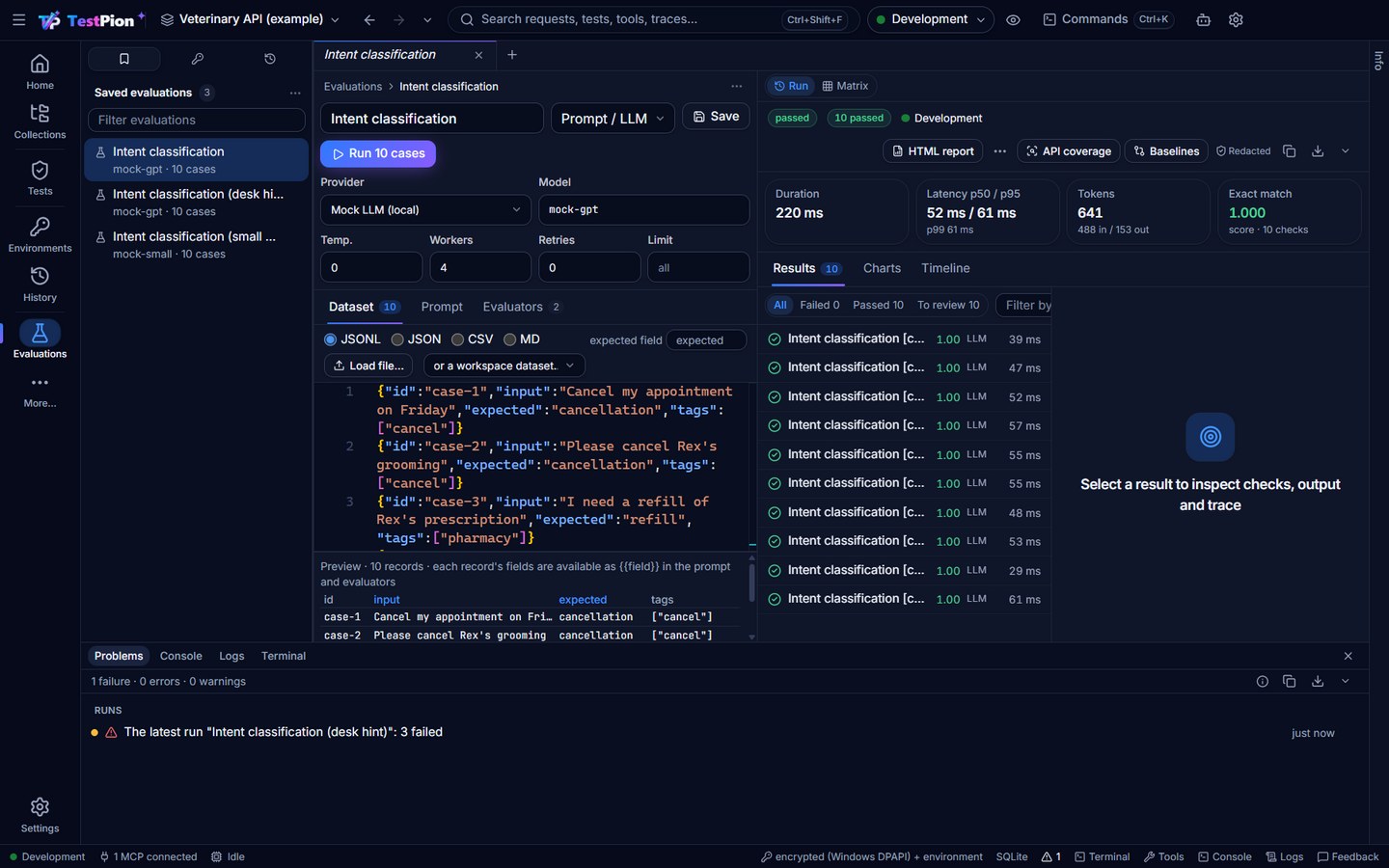
Everything that is failing in the workspace is one list, Problems: environment and collection files that can't be read (first), failing monitors, the latest run (failures and errors told apart: an error is a network, TLS, timeout or script problem; a failure a check that did not hold), requests whose latest response failed, certificates about to expire and flaky tests. The status bar counts them (red when something fails); a click opens the Problems tab of the bottom panel, grouped, each row with its time and a button to open it; its ⋯ (or right-click) also has Run again for a failed run, Explain and fix failures with AI… for a failed run or a failing monitor's run, Why is this flaky? for a flaky test, and Ask AI (AI features). F8 opens the next problem and Shift+F8 the previous one. Home's Needs attention is the same list. The status bar is the tool hub: the Problems count, Terminal beside Console and Logs, the environment (a click switches it) and Tools — Cookies…, Find & replace in a collection…, Reverse proxy for one API… (the HTTP Debugger's capture mode) and Certificates. From a terminal: testpion problems [--json] (also testpion attention); agents: what_needs_attention.
The environment, the same way everywhere
The environment picker is one control: the top bar's pill, the status bar's segment (a click opens the same menu) and the environment field of the Collection runner, a monitor and Load (each starts on the active environment). Production is marked in red everywhere, and an environment whose file can't be read is listed, disabled, with why. Ctrl+Shift+E opens Quick Open on environments and variables. Every run shows the environment it ran against as a badge (its colour dot and name, PRODUCTION in red): the Collection runner's results, a monitor, Load and Evaluations. For AI agents and scripts, run_tests, run_collection, run_monitor, load_test and run_evaluation report environment (null when none was used), as do testpion monitor run --json and testpion load --json.