
What's new: how to use it
The options added in 0.52, 0.51, 0.50, 0.49, 0.48, 0.47 and 0.46, each with the steps to use it and a link to the full reference. Where it makes sense, an option also works from the terminal (testpion …, with --json) and for AI agents (an MCP tool of testpion mcp-server). Read the behaviour changes of 0.52, 0.51, 0.50, 0.49, 0.48, 0.47 and 0.46 before upgrading. The 0.45 additions follow below; older ones are in the changelog.
What's new in 0.52: one registry, one menu
Every row of every tree and list now has the same menu, built by one function from what its kind can do: the menu of an MCP server, an API definition, a dataset, a saved gRPC call, a prompt, a monitor or a test file has the same groups, the same words and the same keys as a collection's.
- One menu everywhere, in one order: create · open · tree (Expand all, Collapse all) · run · share · tools · git · edit · danger, with a line between groups. An action a row can't do isn't shown; one it can't do right now is greyed out with a tooltip saying why (steps).
- Expand all and Collapse all on every container: collections, protocol groups, folders, the MCP servers, API definitions and Datasets sections and their folders, the folders of saved gRPC calls and of every list; and on the Tests tree. What is open is kept per workspace, across restarts.
- The keyboard opens a row's menu: Shift+F10 or the menu key, in every tree and list; F2 renames, Delete deletes (with Undo), * expands everything inside, and typing a name jumps to it.
- API definitions can be renamed and deleted (with Undo, back in their folder), and have Lint, Generate tests…, Generate integration flows…, Reveal file and Copy path in their menu.
- Datasets get folders (kept in
library/dataset-folders.json: the files never move, sodatasets/…paths in tests stay the same), Preview, Use in a test, Reveal file and Copy path. - For AI agents:
testpion kinds --jsonand the MCP toollist_kindssay what every kind of item offers, and why an action never applies to one.
Behaviour changes in 0.52
- Run moved after Expand all / Collapse all in the collection and folder menus (the groups are now create · open · tree · run · …). The items kept their names.
- A collection's other request kinds are under New request ▸ (GraphQL, SOAP, gRPC, WebSocket & MQTT), so the menu stays short; New HTTP request is still first.
- Copy as ▸: a request's Copy URL, cURL (bash), cURL (cmd), PowerShell, fetch and More code snippets… are in one submenu.
- Convert scripts to pm.* moved to Export ▸ For Postman (pm.*)… in the collection menu: TestPion writes
tp.*, andpm.*is for Postman. Convert scripts to tp.* stays in the menu. - Deleting an AI provider, a test file or a folder of test files no longer asks first: it goes at once with Undo (a folder of more than 200 files still asks).
- Folders and lists remember what is open per workspace (the explorer's sections, every list's folders and the Tests tree): opening another workspace no longer shows the first one's open folders. What you had open moves into the first workspace you open after the update.
One menu for every row
- Right-click any row, or click its ⋯ (or press Shift+F10 on it): the menu is the same three ways.
- A container's menu starts with what it can make (New …, New folder), then Expand all and Collapse all for everything inside it.
- Copy link copies the item's
testpion://openlink; paste it anywhere, and it opens the item in the app. - Right-click the blank part of the sidebar for the workspace's menu (new collection or request, Import…, Recently deleted…, expand or collapse everything), or of a list for that list's menu.
- Every kind's menu is in Menus.
What's new in 0.51: save and export every output
0.51 lets you keep anything TestPion shows as a file: every response and result has the same down arrow, in the same place, with the formats that make sense for it, and logs are saved without their secrets.
- One down arrow on every response and result: the response body and every response tab, GraphQL, gRPC, WebSocket, Socket.IO, MQTT and Kafka logs, MCP tool results, generated code, run results, the flow timeline, data-run grids, load results, the evaluation matrix, the console, the log, the terminal, Problems and the HTTP Debugger (steps).
- The formats each output needs: JSON, JSON Lines, CSV, TSV, Markdown, HTML, XML, HAR, cURL, JUnit,
cookies.txt, ZIP and the raw bytes as received (what you can save). - Secrets stay out of saved logs: a Redacted mark, and a confirmed Include secrets… only where the data still holds them (details).
- Big outputs never slow the window: a 50 MB body or a 10,000-row grid goes from disk straight into the file, with progress and Cancel.
- Fixed: the HTTP Debugger's Export as HAR… saves through the Save as dialog again, and the JSON tree's Expand all is no longer cut off.
Behaviour changes in 0.51
- The old Export and Save buttons are gone; the down arrow replaces them. The run results' Export ▾, the response's Save response (in its ⋯ menu), the run timeline's Save as HTML, the MCP tool result's Copy result and Save result icons and the generated code's Copy button: the arrow at the right end of the same bar saves the same files (and more formats), and Copy sits beside it. A runs list's Export report… and the palette's Export Results now save the HTML report through the Save as dialog.
- Console and log saves are always redacted. The console, the application log, run reports, traces, the cURL tab, the flow timeline, data-run and matrix grids and the Debugger's HAR are masked as they are recorded, so their files never hold a secret and their ▾ has no Include secrets….
- The HTTP Debugger's Export as HAR… opens the Save as dialog (it used to fall back to a browser download), and its file is sanitized like a saved session.
- Ctrl+Shift+S saves the output you are in. Rebind it (Download the focused output) in Settings ▸ Keyboard if you used it for something else.
- Not in 0.51 yet: the CLI's
--out <file> --format …on every result command, MCP tools that save results to a file, and a down arrow on History, Traces, AI answers, Git diffs, lint reports, charts and monitors.
Save any response or result
- Open a response or a result. At the right end of its bar you find Copy, the down arrow and ▾, the same in every view.
- Click the arrow to save in the default format, or the one you chose last on that kind of output. Open ▾ to choose another (each with its extension) or Copy as another text format.
- The Save as dialog opens in the folder you last used for that kind of output in this workspace, with a name such as
GET-patients-2026-10-17-1405-200.json. The message after saving has Show in folder and Open. - Ctrl+Shift+S saves the output nearest to where you last clicked; the palette's Download Output… and File ▸ Download Output… open its format menu.
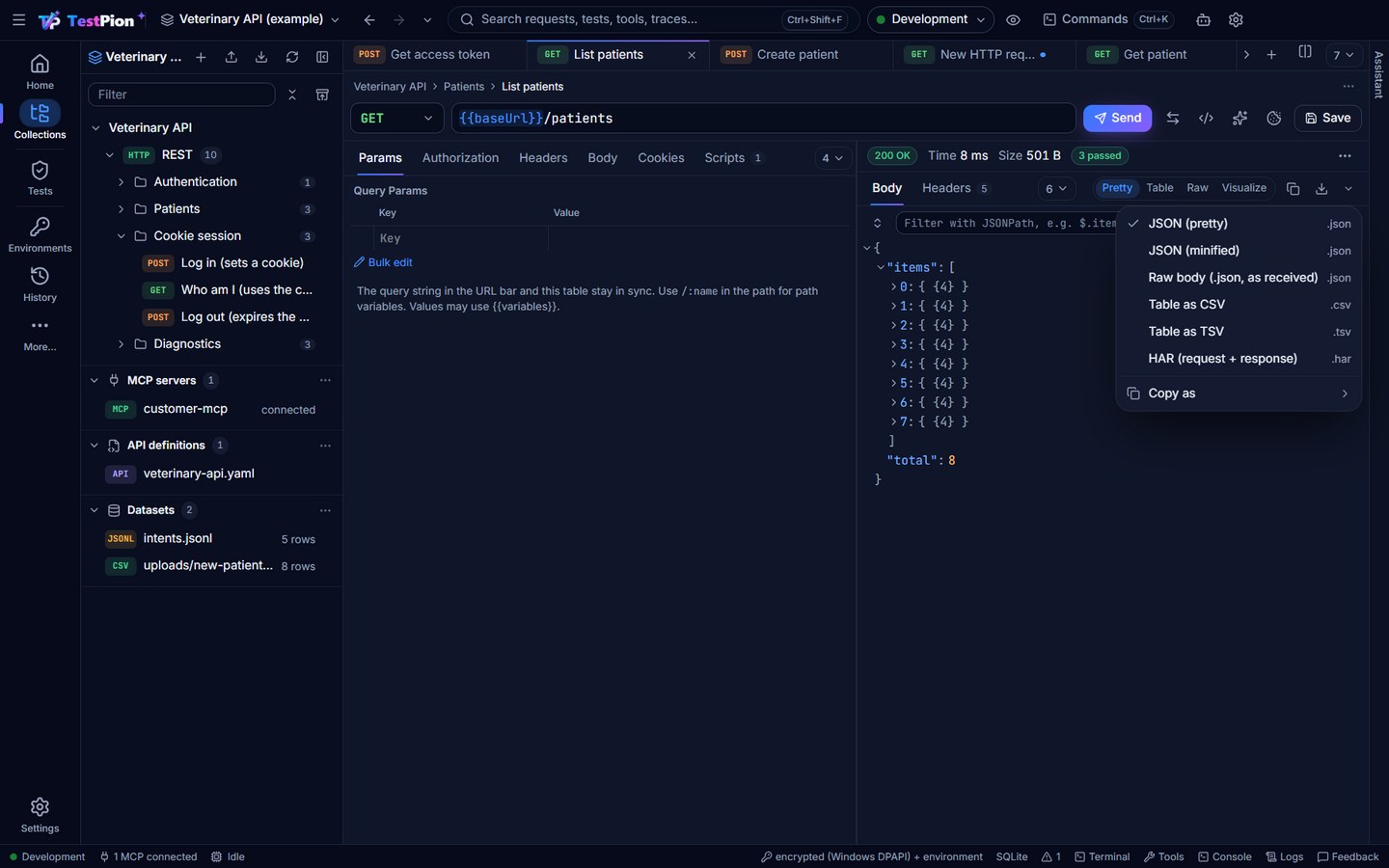
Run results save as an HTML report, JSON, JUnit XML, Markdown, CSV or a ZIP of them all; a response's timeline as HAR with timings; gRPC metadata and trailers as JSON or CSV. (Save and export results)
Secrets in saved files
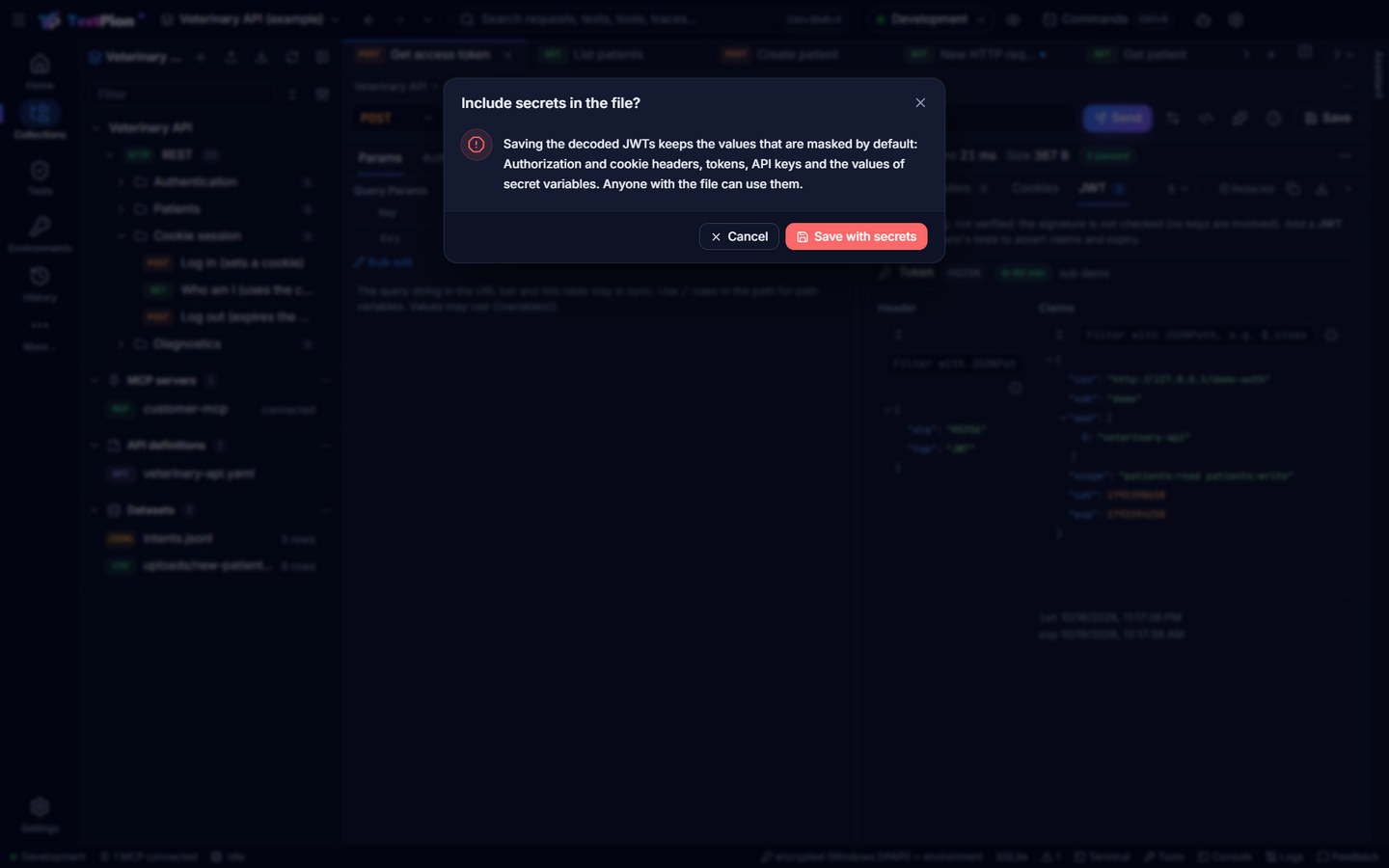
- Logs and reports show a Redacted mark beside the arrow: Authorization and cookie headers, tokens, API keys and the values of secret variables are masked in the file and in Copy.
- Where the data still holds the secrets (decoded JWTs, the terminal transcript, generated code with Show secrets on), ▾ ▸ Include secrets… saves them after you confirm, for that one file.
- A response body is saved as it is: when it looks like it holds a credential, or comes from a production environment, the message says so.
What's new in 0.50: nothing lost, nothing leaked
0.50 makes moving work in and out of TestPion safe: a workspace export holds everything it needs and no secret, an import says what it could not bring over instead of guessing, and nothing you delete or import over is gone for good.
- Export a whole workspace with its API definitions, datasets, mocks and protos, every typed-in secret replaced by a
{{variable}}and listed (steps). - Imports that tell you what did not come over: unsupported auth, Insomnia template tags and scripts, Bruno scripts and
.env, GraphQL schemas, each with a note naming the request (steps, Import fidelity). - An import never overwrites an API definition: both are kept, with Replace instead (steps).
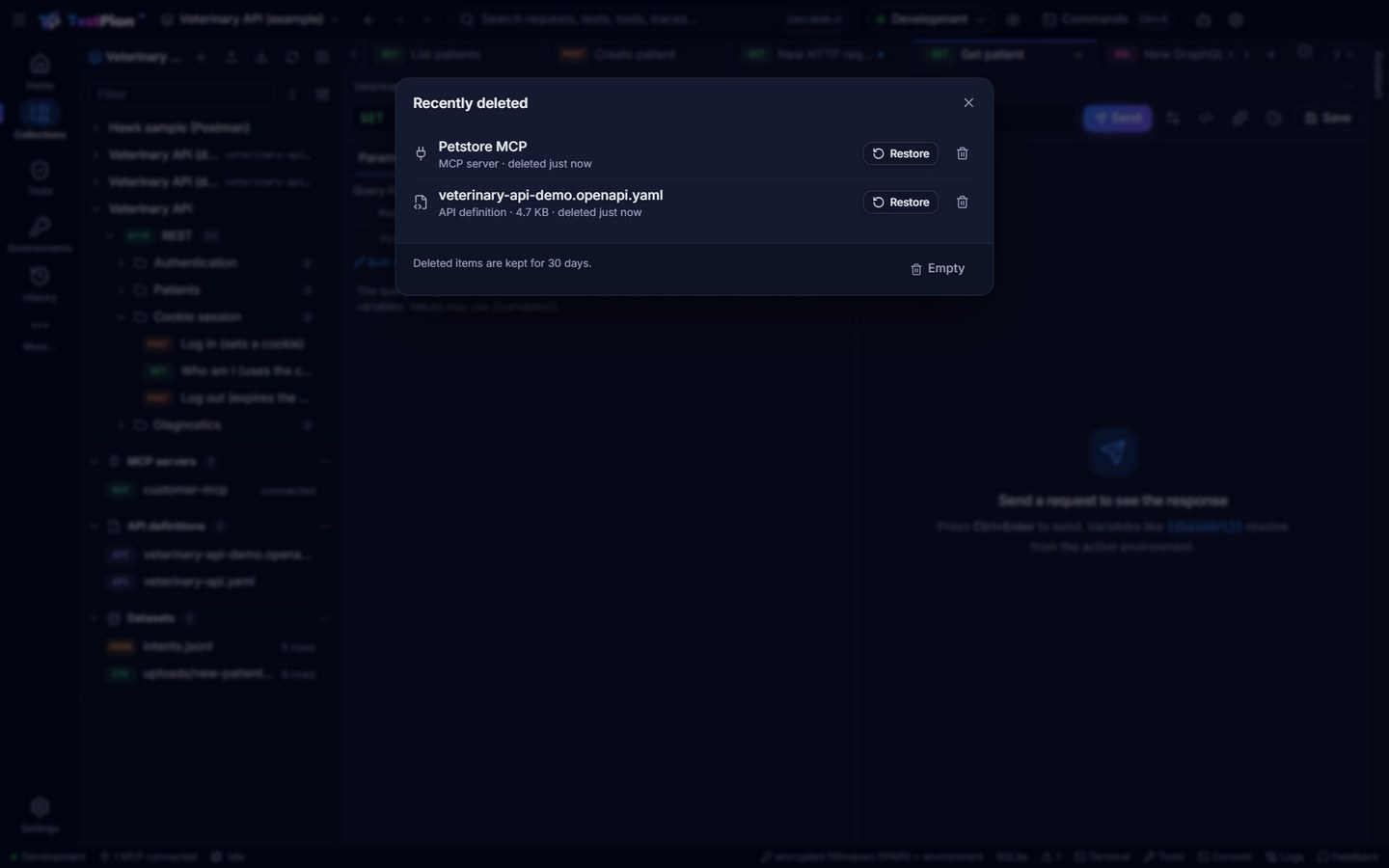
- Delete an MCP server with Undo, and find it, a replaced API definition or a deleted dataset in Recently deleted (steps).
- The Collections sidebar shows each request once: rows no longer repeat or vanish when two collections share request ids, and dragging a row leaves no ghost behind (details).
Behaviour changes in 0.50
- Workspace exports hold more, and never a secret. They now include the files of
specs/,datasets/,mocks/andprotos/(a file over 10 MB, or past 50 MB in all, is left out and named). A token, password or key typed into a collection's auth or headers, every MCP server header andenvvalue (except names such asContent-TypeorNODE_ENV), a password in a connection string and a provider key become{{variables}}; the message after export lists each one, and the import lists the values needed. Set them as secret variables of an environment on the other computer. - The export file is called
<workspace name>.testpion.json(it was.apsworkspace.json, which still imports), andtestpion workspace exportwrites it without-o. - Importing an API definition no longer overwrites one of the same name. A different document is saved beside it as
specs/<name>-2…; Replace instead in the message (ortestpion import --replace-spec) puts it in the old one's place, and the old one goes to Recently deleted. - Deleting an MCP server no longer asks first: it goes at once with Undo, like every other item that can come back, and Recently deleted keeps it for 30 days.
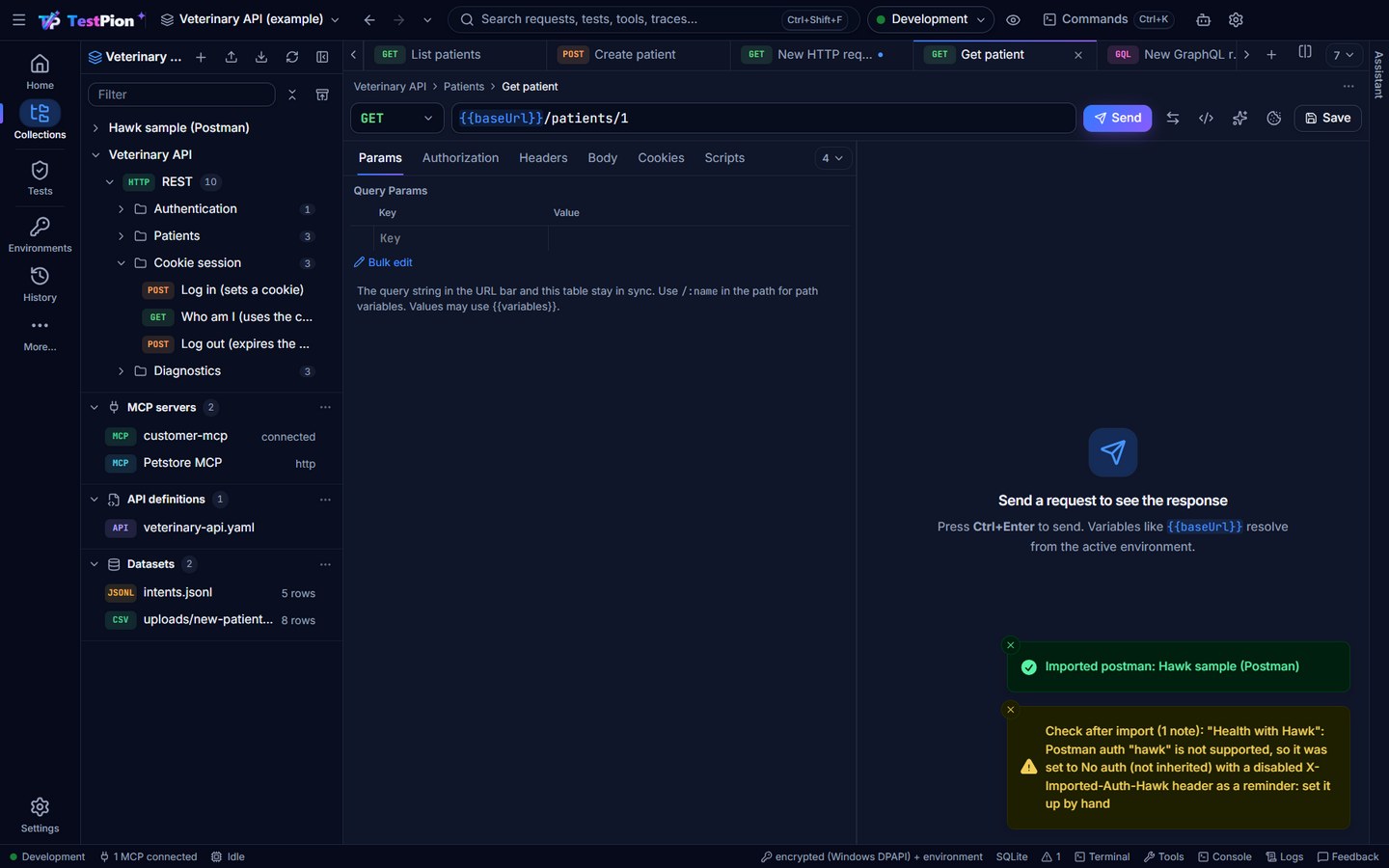
- An unsupported auth imports as No auth, never inherit. A Postman, Insomnia, Bruno or Hoppscotch request with Hawk, NTLM, EdgeGrid, ASAP, WSSE, netrc or another scheme TestPion doesn't have used to inherit its folder's auth, so it could send credentials it was never meant to. It now sends No auth, with a disabled
X-Imported-Auth-<Scheme>header and a note: set it up by hand. - Imported Bruno scripts are written with
tp.*(bru.setVar→tp.collectionVariables.set…);req,resandteststill run as in Bruno, and Export ▸ Bruno collection folder writesbru.*back. - Every import lists its notes: Check after import (N notes) in the app, up to 20 in
testpion import(all innoteswith--json), andnotesin the MCP toolimport_definition.
Export a whole workspace, nothing lost and nothing leaked
- File ▸ Export ▸ Workspace…, Export in the workspace switcher, or the Collections sidebar's Export icon ▸ The whole workspace. The file is called
<workspace name>.testpion.json. - It holds the collections, environments, tests, saved items and MCP servers, and now the files of
specs/,datasets/(a SQLite dataset too),mocks/andprotos/. A file over 10 MB is left out and named in the message, never dropped silently. - Read the message after export: it lists every secret it replaced. A token typed into a collection's auth or a header, an MCP server's header or
envvalue, a database password in a connection string, a provider key: each becomes a{{variable}}(Bearer {{PETSTORE_MCP_AUTHORIZATION}}), and its value stays on your computer. Names that never hold a secret (Content-Type,Accept,NODE_ENV…) are kept as they are. - Import the file on the other computer: it opens as a new workspace, and the message lists the values needed. Set them as secret variables of an environment.
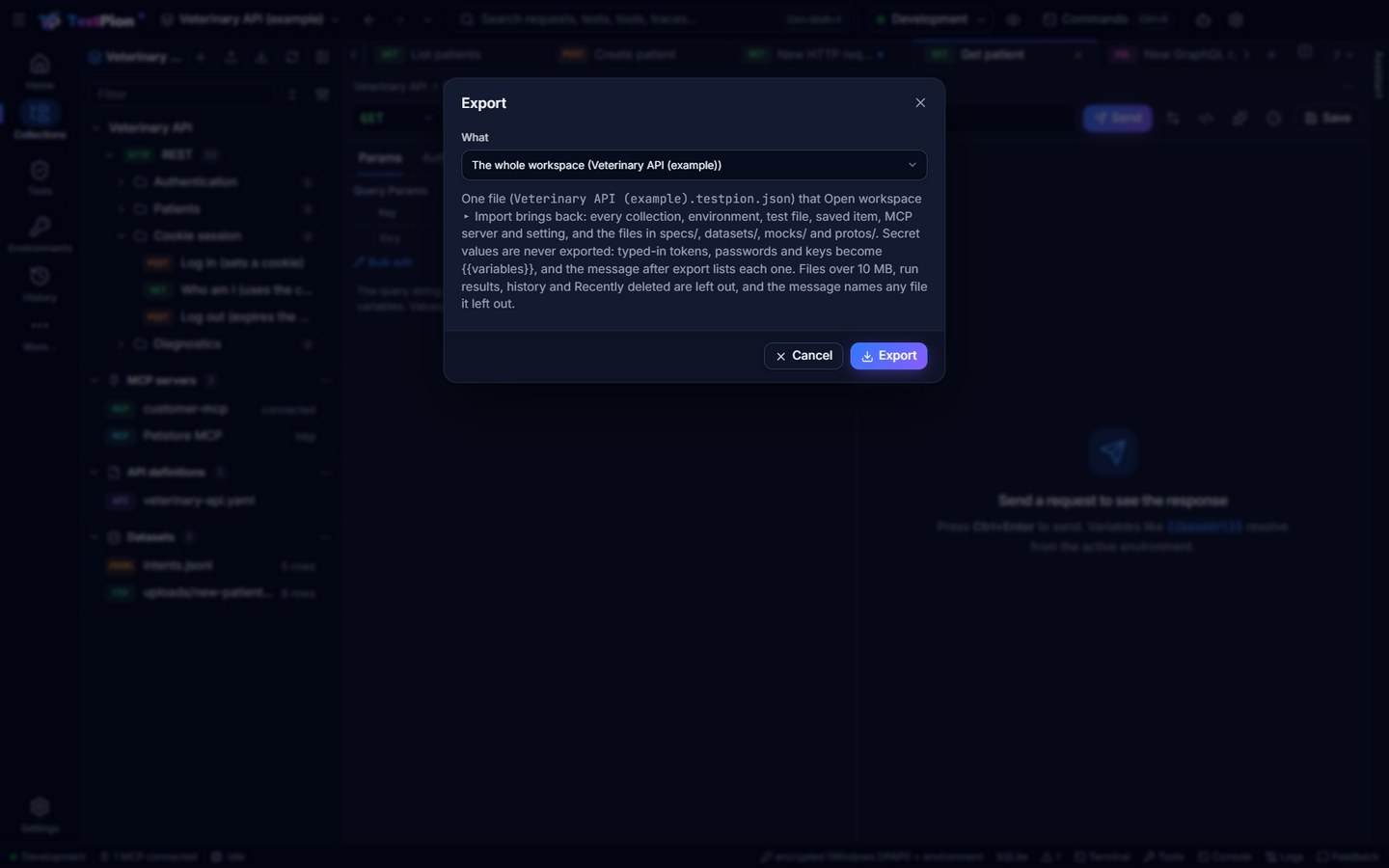
Terminal: testpion workspace export <workspace> [-o file] [--json] (--json returns replaced: [{ kind, item, field, variable }] and notes). (Export, Privacy: exports)
Imports that tell you what did not come over
- Import a Postman, Insomnia, Bruno or Hoppscotch collection as before (Import ▸ Choose file…, Bruno folder…, a link or pasted text;
testpion import). - Read the Check after import message: it names each request whose auth, template tag or script needed a change (
testpion import --jsonlists every note undernotes). - Look for a disabled
X-Imported-Auth-…header: the request's auth scheme isn't in TestPion yet, so it sends No auth (never the parent's) until you set it up. - Insomnia
{% response %}chaining becomes a variable such as{{insomnia_log_in_access_token}}, set by the post-response script of the request it comes from: send that request first (or run the collection in order). - For a Bruno folder with a
.env, activate the Bruno .env environment (or any imported one): its secret values are in the secret store. A GraphQL schema file (.graphql) becomes a request for{{graphqlUrl}}: set that variable. What each importer maps: Import fidelity.
Importing an API definition never overwrites one
- Import an OpenAPI or AsyncAPI document whose name the workspace already has (for example a newer version of
specs/petstore.openapi.yaml). - TestPion keeps both: the new document is saved as
specs/petstore-2.openapi.yaml, its requests check that file, and the message says Saved as specs/petstore-2.openapi.yaml. The same document imported again is not copied. - Click Replace instead in the message to put the new document in the old one's place: the old one goes to Recently deleted (30 days), and the new collection's contract checks follow.
Terminal: testpion import openapi.yaml -w <workspace> keeps both and prints the same note; --replace-spec replaces at once.
Delete an MCP server with Undo
- In the Collections sidebar, an MCP server's ⋯ ▸ Delete removes it at once (no question first); a connected server is disconnected.
- Click Undo in the message (or press Ctrl+Z) within 8 seconds: the server comes back in its place in the list, with its settings, and reconnects if it was connected.
- Later, click Recently deleted (the icon beside the sidebar's Filter box): it keeps deleted collections, datasets, MCP servers and API definitions replaced by an import for 30 days, with Restore (
testpion trash list/trash restore).
One row per request in the Collections sidebar
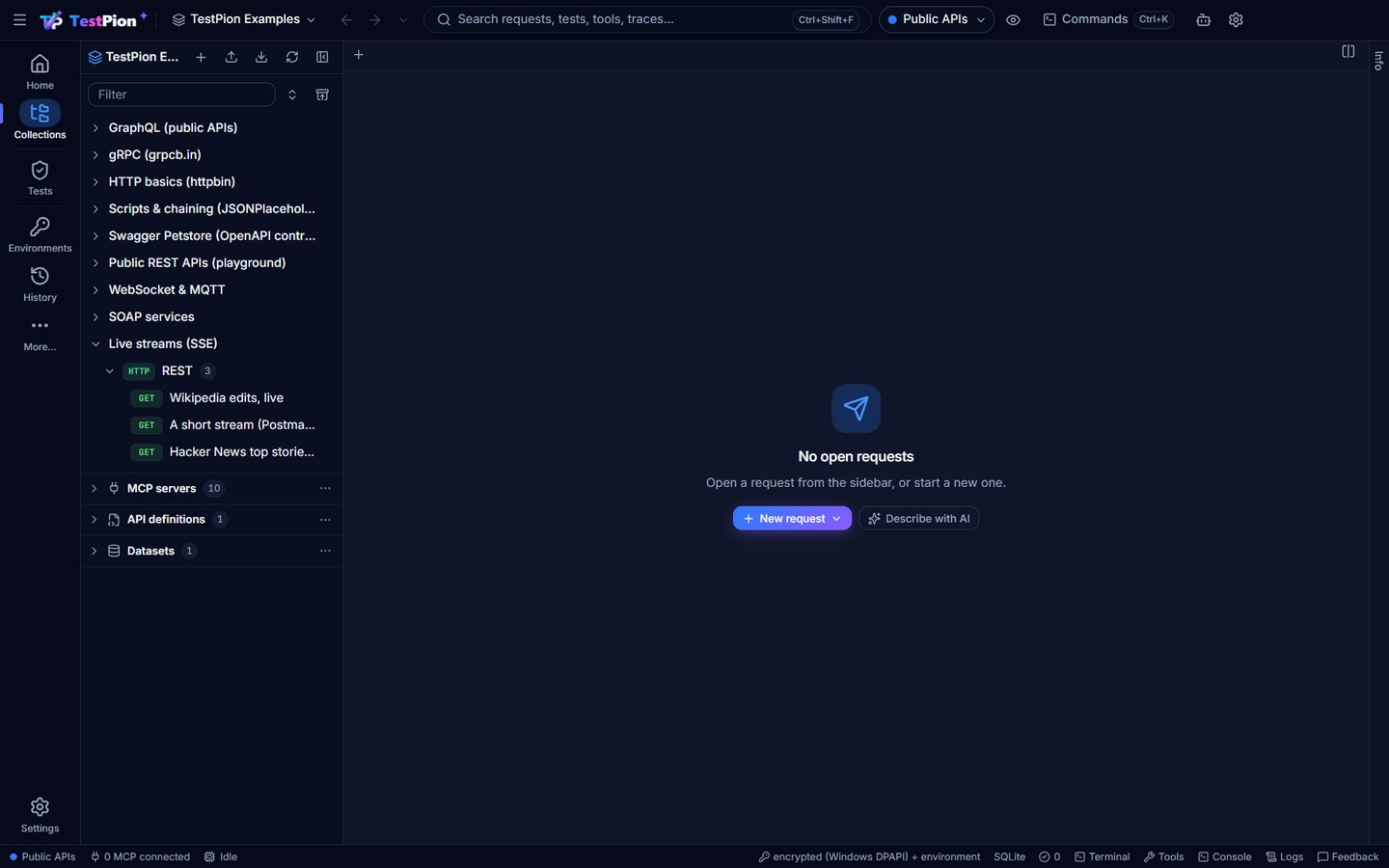
- Two collections may hold requests with the same id (a copied collection file, an import, an older examples update). The sidebar now tells them apart, so no row is shown twice or goes missing.
- Imports, moves and copies between collections, and examples updates, give a fresh id to a request whose id is already taken.
- A second copy of an example collection left by an older version (such as two Live streams (SSE)) is merged back into one when the examples workspace is updated; the copy is kept in Recently deleted.
- Dragging a row shows one small chip with its name, and the row never stays behind as a ghost.
What's new in 0.49
Behaviour changes in 0.49
testpion run-collectionrecords what it ran (on a collection of the workspace): the collection, the requests and folders picked, the iterations. The app's Run again and Run in CI…,ci --run lastand the triage now find its saved requests.- Attempt to fix and the triage obey the production guard: in an environment marked as production, Attempt to fix asks first like any run (
testpion ai attempt-fix --allow-production), and the MCP toolai_attempt_fixrefuses it unless the server was started with--allow-production. - A fix is not applied over a newer file: when the test file or saved request changed after a proposal was made, applying it says it changed since the proposal was made instead of overwriting your edit.
- A damaged run file says so: a run whose
summary.jsonor results cannot be read is named as damaged, with what to do, instead of a parser error.
Explain and fix a failed run with AI
- On a failed run, open its ⋯ (or right-click it in Runs, or the failed run in Problems or Home's Needs attention) ▸ Explain and fix failures with AI….
- The dialog says how many failures and groups there are (the same failed check, status and endpoint are one group), the model and the token estimate. Add a hint if you like, choose Metadata only to send no body values, then Explain and fix.
- The review lists the causes — each with its kind (test is stale, API regression, auth …), a confidence and the evidence: the failing request and response, the failed check, what changed since the test last passed — and the fixes, each verified on the failing and the last passing response (passes now; it follows an API change). Pick a Safer: form when one is offered (TestPion's own update, such as
type $.id = "string"for an id the server makes up); a bug report has Copy. - Apply selected fixes, then Rerun the affected tests (or Undo).
Terminal and CI: testpion ai triage [--run last] [--privacy metadata] [--no-ai] [--apply], and --triage on test, run and run-collection (a Triage section, triage.md, and a Triage (AI) section in the reports; the exit code stays the run's). Agents: ai_triage_run, then ai_apply_proposal. (Explain and fix failures)
Find out why a test is flaky
- A flaky test (it passes and fails without a change) is listed in Problems; its ⋯ ▸ Why is this flaky? (also in a result's History tab when it flipped).
- Analyse: TestPion reads the test across runs (pass rate, flips, retries, times, statuses) and how its failing responses differ from passing ones; the model names the pattern (timing, shared state, rate limit …) with evidence and a fix — a wait with
until:, a stable check, isolated data. A retry is only a last resort and is flagged; skipping or quarantining the test is never offered. - Attempt to fix applies the fix and runs the test 5 times: Stable: passed 5/5, Still flaky or Failing. Keep the fix, or Undo.
Terminal: testpion ai run analyze-flaky --item test:jobs/report.yaml, then testpion ai attempt-fix <id>. Agents: ai_analyze_flaky, then ai_attempt_fix. (Why is this flaky?)
Generated tests that need fewer repairs
Generate tests now gives the model the exact tp.* script API, read from the script sandbox itself, and a script that misuses it goes back naming the right member (tp.response.json().id for a field read from the raw tp.response.body, tp.response.json() for pm.response.json(), to.be.ok for toBeTruthy()). In the review, what TestPion changed in the model's answer is listed as notes. (The script API, from the sandbox)
What's new in 0.48
Behaviour changes in 0.48
- Suggest assertions, Generate tests and Describe a request open a review instead of adding their result at once: each item was checked first (against the response, or in the sandbox); tick what you want, then Add to the checks, Add to the Post-response script or Open as a new request. Generated tests are added after your own script.
- AI features need a model you set up: your Claude key or a provider of the workspace in Settings ▸ AI assistant (a local Ollama or LM Studio works offline). Local only there refuses cloud models.
- AI calls can be capped: tokens per call, tokens per day and cost per day (Settings ▸ AI assistant ▸ Limits); a call over a cap is refused before anything is sent. The CLI, MCP agents and CI are counted and capped too.
- More is masked before anything reaches a model: credentials found by their shape (JWTs, Bearer tokens, private keys, provider API keys,
?access_token=) and personal data (e-mail addresses, phone numbers, card numbers, IBANs; Mask personal data turns that off).
Let AI write an integration flow from a folder
- In the explorer, right-click a collection or a folder ▸ Generate integration flow with AI… (or, on an empty flow's canvas, Generate with AI).
- Check the folder, add a hint if you like (also test pagination), choose Metadata only to send no body values, read the estimate, then Generate.
- The flow opens on a canvas preview marked AI-generated: its steps (your saved requests, in create → read → update → delete order, values passed between them), the model's assumptions, what TestPion dropped, and the badges (parsed · linted, every variable is extracted before it is used, 2/2 steps pass on a mock). Edit the YAML, Try on mock, Regenerate with a hint, or Accept — then Run now.
Terminal: testpion flow generate --collection "Veterinary API" --folder Patients [--apply] --json. Agents: flow_generate, then ai_apply_proposal. (Let AI write the flow)
Suggested checks and tests are proven first
- Send a request, then Suggest assertions or Generate tests on the response: the review opens by itself.
- Each check ran against this response and the previous one; a check that pins a changing value (an id, a time) is unticked or flagged with Safer: forms (
exists,type, a formatregex) — click one to use it. Eachtp.testran in the sandbox; a failing one is unticked with its message. - Run now sends the request again and checks everything once more; Add to the checks / Add to the Post-response script adds what is ticked (your own script is kept).
Terminal: testpion ai run suggest-assertions --item request:<collection>:<request> --json. Agents: ai_run_task with task: "suggest-assertions". (Proposals)
See what an AI action sends, before it is sent
- Next to any AI button (Explain with AI, How to fix (AI), Generate …) click the eye icon, What will be sent… (in the assistant panel it is in the header).
- Read the model (and whether it stays on this computer), each section of the context with its tokens, what was masked, the estimate and the exact messages.
- Switch Full (redacted) / Metadata only / Names only to send less; Send goes ahead with that level.
Terminal: testpion ai run explain-error --context @error.json --dry-run. Agents: ai_run_task with dryRun: true. (What is sent)
Keep AI on this computer, and cap what it costs
- Settings ▸ AI assistant: choose a provider of the workspace such as Ollama (local) or LM Studio (local), then turn on Local only — a cloud model is refused before anything is sent.
- Under Models per task, pick a cheaper model for Small tasks and the best one for Large tasks.
- Under Limits, set tokens per call, tokens per day or cost per day. AI Lab ▸ Usage ▸ AI features shows today's calls, tokens and cost, and what is left.
CLI/CI: TESTPION_AI_LOCAL_ONLY=1, TESTPION_AI_MODEL_SMALL / _LARGE, testpion ai usage --json. Agents: ai_usage.
Review AI changes before they are applied
- Ask for something that changes files, for example API coverage ▸ Suggest tests with AI (tests for the coverage gaps). Suggested checks and tests on a response open the review at once; a flow has its own review.
- The answer ends with N proposed changes and the verification badges (passes on the current response, parsed · linted · 4 steps, 2/2 tests pass). Click Review.
- Untick what you don't want (failing items start unticked), open an item to see its diff, then Accept selected (Ctrl+Enter) — Undo in the message puts it back — or Regenerate with a hint, or Discard.
Terminal: testpion ai run design-flow -q "…" --path flows/x.yaml, then testpion ai apply <id> (ai undo <id>). Agents: ai_run_task, then ai_apply_proposal after the user agrees.
What's new in 0.47
Behaviour changes in 0.47
- A single click on a request opens a preview tab (in italics) that the next click replaces; double-click, Enter or an edit keeps it. Saved AI prompts, environments and saved Debugger sessions open in tabs the same way.
- The rail shows five views (Home, Collections, Tests, Environments, History) and More… for the others, so Ctrl+Alt+3 is now Tests (it was the Debugger). Right-click the rail ▸ Show every view for the old rail.
- Deleting something you can get back no longer asks: it goes at once, with Undo in the message (8 seconds) and Ctrl+Z.
- Flow steps written with a nested
request:now get the file'sdefaults: auth:(before, they were sent without it). - The AI Lab's Model comparison has its own prompt, apart from the Playground's tabs.
Choose what the rail shows
- The rail shows five views: Home, Collections, Tests, Environments and History. Click More… under them for the others (Debugger, Monitors, Load, AI Lab, Evaluations, Traces, Git).
- Right-click a rail item: Hide from the rail, Move up / Move down, Show on the rail ▸ a view from More…, Show every view or Reset the rail.
- A view opened from More… stays on the rail while it is open; right-click it ▸ Keep on the rail to keep it.
- Ctrl+Alt+1…9 follow the shown views in their order (by default 3 is Tests). The choice is this computer's. Choose what the rail shows
Filter a response by JSONPath, with suggestions; Diff vs previous
- Send a request. In the body's Filter with JSONPath, type
$.or a key name: the field lists the response's own paths (arrays as[*]); Enter takes one, the tree shows the matches and their count. A wrong path says what is wrong. - Send it again and pick Diff vs previous in the response's actions: status, time, headers and the body field by field against the previous response (this session, else History). Diff vs previous
- Agents and scripts:
testpion history diff <before> <after> --json, MCPcompare_responses.
Change the keyboard shortcuts
- Settings ▸ Keyboard (or ? ▸ Change the keys…, or Ctrl+K ▸ Keyboard Shortcuts: Change the Keys…) lists every shortcut; search by name or keys.
- Click a shortcut and press the new keys. A clash names the command that has them (Use it here swaps); reserved keys are refused with the reason. ↺ resets one, Reset all every one.
- Export… / Import… move your keys to another computer as JSON. Change the keys
Compact density
- Settings ▸ Appearance ▸ Density ▸ Compact, then Save settings (or Ctrl+K ▸ Density: Switch Compact / Comfortable).
- Every view gets tighter spacing, smaller fields, row heights and small text; Comfortable goes back. Kept for this computer, applied from the first paint.
Undo instead of “Are you sure?”
- Delete a request, folder, collection, environment, dataset, monitor, MCP server, saved prompt, example …: it goes at once.
- Click Undo in the message (8 s) or press Ctrl+Z outside a text field: it comes back with its id, in its place. Deleting and Undo
- Deletes that can't be undone (Delete for good, git branches, history, runs, test files) still ask.
A badge for undefined variables
- Type a
{{variable}}that the active environment doesn't define into a request: the environment switcher (top bar and status bar) shows a red count. - Click it ▸ Add {{name}} to (the active environment)…: give it a value (and Also add to the other environments); the count goes. Undefined variables
Files written by anyone show up at once
- Save a test file from the editor, generate tests from an API definition, or let an AI agent write one (
testpionin a terminal, the MCP server): the Tests list shows it straight away, without a "changed outside" message for TestPion's own saves. - A file another program changes right after TestPion saved it (an editor that saves on focus, a formatter, a
git pull) is still reported and shown: TestPion tells its own saves by what it wrote, not by the time. Git
Inherited auth in the flow designer
- Give a test file
defaults: auth:and open its Flow tab; select an HTTP step that has no auth of its own. - Authorization shows Inherit from defaults and what it is (Uses Bearer token: {{token}} (from defaults)), not "No auth". Override gives the step its own copy; No auth sends this step without it. A step written with a nested
request:inherits it too. Design a flow
Capture sessions in History
- In the HTTP Debugger, Save to collection…, Create flow… or Session ▸ Save session….
- History ▸ Kind ▸ Capture sessions lists each one: how many exchanges, the hosts, through the proxy or the reverse proxy, and what it became; Open opens the collection, the flow or the saved session.
- Agents and scripts:
testpion history list --kind capture --json, MCPhistory_list(kind: capture). Sessions
The reverse proxy fills the Debugger's grid
- Debugger ▸ Capture ▸ Reverse proxy for one API…, start it and point your client at the local address.
- The requests appear in the dialog and in the Debugger's grid, marked reverse (Reverse proxy in the Application column and filter): select them, Create flow, Save to collection, Export as HAR as with any capture. Reverse proxy for one API
Tabs for prompts, environments and Debugger sessions; preview tabs for requests
- A single click on a request in Collections opens a preview tab (in italics) that the next click replaces; double-click, Enter or an edit keeps it.
- Saved AI prompts, environments and saved Debugger sessions open in tabs the same way, each with its own unsaved changes; the Model comparison keeps a prompt of its own. The Debugger's Live capture tab stays; a saved session opens beside it (Add to the live capture copies it in). Open an item
A guided tour of the first loop
- In a new workspace, Home opens a short tour by itself (once per workspace): Next (or →) shows where to Send, Save, Save as test, Run and Run in CI; Show me opens what the step builds on; Esc or Skip tour ends it.
- Get started ▸ Take the tour brings it back, at the first step not done yet. Get started
Small things
- The response body's Pretty / Table / Raw / Preview / Visualize switch, the Console's filter, the WebSocket view's protocol, a trace's payload view, an MCP tool result and collection docs use the one shared switch (labelled words, the same look everywhere).
- A
rail,keybindingsordensityvalue of the wrong shape insettings.jsonnever stops the app: it starts with the default for that one. - Quick Open, the command palette and search: Enter opens the row the keyboard is on, even when the list opens under a resting mouse pointer.
What's new in 0.46
Flows, designed and run anywhere
- A visual flow designer in every test file's Flow tab: a Start node with its trigger and inputs, a searchable block picker, conditions, loops, scripts, sub-flows, polling, Finally and parallel groups, sticky notes and frames, drag and drop from Collections, History and the Debugger. Design a flow
- Debug a flow: run history on the canvas, breakpoints, a variables timeline, run from here / to here, pinned responses, replay a failed run. Debug a flow
- Record a flow from the HTTP Debugger, and Arazzo 1.0 import and export. Record a flow
- Deploy a flow: on a schedule (monitors now run test files), behind a webhook (
testpion serve flows), as an MCP tool, in CI. Deploy a flow - At scale: once per data row, in several environments side by side, as a load test's scenario, and a timeline with its critical path as one HTML file. Run a flow at scale
Finding your way
- Quick Open (Ctrl+P), Problems (F8), recent places with names, breadcrumbs and Reveal in sidebar, preview tabs, an Info panel, links to any item (
testpion://open,testpion open), one tab strip and one menu vocabulary everywhere. Find your way around - A Terminal in the bottom panel (Ctrl+`) with
testpionready to use. Terminal - Every shortcut on one page: Keyboard shortcuts.
Safer and smoother everyday work
- One production guard on every send and run path, with a frame around the window. Production
- Save as test… everywhere, Also add to the other environments, variable sources on hover, Keep mine / Take the new version in every editor, Save to collection from the Debugger, Run in CI… from a run. Everyday editing
- Git: Pull & push in one step, with a background fetch. Git
AI and agents
- Evaluations as a matrix against a baseline, and
testpion eval comparefor CI. Matrix - AGENTS.md written from the live workspace. AGENTS.md
- One contract for every MCP tool and one JSON envelope for the CLI. Behaviour changes
- Toolsets to design an agent's tools on an MCP mock, Datasets in the sidebar, flows exposed as MCP tools. Also in 0.46
Behaviour changes — read before upgrading
- Writes to production need consent. An environment marked as production is now guarded on every path, not only REST tabs. A CI pipeline, a monitor or a script whose environment is marked as production now fails its data-changing steps (POST, PUT, PATCH, DELETE, GraphQL mutations, gRPC calls that are not reads, realtime messages, MCP tool calls,
tp.sendRequest) with "… is a production environment: POST … needs confirmation". Add--allow-productiontotestpion test,run,run-collection,send,load,eval run,serve flowsandmonitor add / run / start. Reads still run without it, so a smoke run against production keeps working. Monitors on a production environment change data only once saved again with consent (the app asks;testpion monitor add … --allow-production). Agents need a server started with--allow-productionandallowProduction: trueon each call. For a pipeline:testpion ci … --allow-production, the GitHub Action'sallow-production: true, or tick Allow data-changing requests to the production environment in the app's CI dialog. Production --jsonprints one envelope. Every command's--jsonoutput is{ schema_version, command, status, data, errors, warnings, metrics }. A script that reads--jsonoutput must read.data: it is exactly what the command printed before (testpion collections --json | jq '.data'). Errors are in the envelope too (status: "error",errors: [{ code, message, hint, retryable }]), and with--jsonstdout holds only JSON.serve flows --jsonanddebug --jsonnow print--jsonllines ({ type, data }) instead of{ event, … }. Thetest-results/data-run.jsonandenv-matrix.jsonfiles of generated CI pipelines are envelopes too. JSON output- MCP tools keep one contract. Tools that delete or overwrite (
delete_request,git_sync,collection_tidy,write_test_filewithoverwrite…) needconfirm: true; without it they change nothing and say what they would do (clients with elicitation are asked instead). Lists page at 100 items (limit,cursor,nextCursor); big results are concise unlessresponse_format: "detailed"; id parameters arerun_idstyle (the old names still work). How every tool behaves - Smaller ones: a wrong argument to a subcommand exits
2(it exited1); Postman and Insomnia imports convertpm.*totp.*unless you tick Keep pm.* in scripts (--keep-pm); saved gRPC calls and connections always belong to a collection (loose ones were moved into one named after their folder); the Debugger's Edit & Submit is Open as request, and the reverse proxy for one API is Capture ▸ Reverse proxy for one API…; the Load view's own production switch is gone (the guard asks); Developer Tools moved to F12 on Windows and Linux.
Design a flow on a canvas
- In Tests, pick + ▸ New flow (designer): the file opens in its Flow tab with Add a step, Create from a collection and Generate with AI.
- Create from a collection adds a request, or a folder's requests in order, each waiting for the one before it, with ids and tokens of their saved examples extracted.
- Drag the dot on a step's right edge onto another step to connect them (
dependsOn); the connection shows the variables that flow along it, and a step reading a variable nothing provides is marked !. - Select a step to edit it on the right: URL, headers, body, auth, Extract, Checks, Waits for. Run flow (or Run step) lights the steps up; Undo takes back any change.
- The file stays plain YAML (the Editor tab shows every change);
testpion flow edit <file> --op '<json>'and theflow_add_step,flow_connect,flow_update_step,flow_remove_stepMCP tools make the same edits. - More blocks in Add step: a Condition with a true and a false output (the branch not taken is skipped), For each / repeat (
forEach:,repeat:; the node shows × 3), a Script, a Sub-flow (another file as one step; refused for cycles and more than five levels), a Log, and the flow's Output, which exposed flows return to agents.if:on any step runs it only when true.
A flow now starts at a Start node: its trigger (Manual, Schedule, Webhook, MCP tool, CI) and + Add input for the values a run starts with; an empty flow offers Add blocks, API example, Create from collection, Record from the Debugger and Generate with AI right on the canvas. Click a step's output dot (or + Block) for a searchable block picker that also finds your saved requests and other flows, and Deploy shows where the flow runs: a schedule, a webhook the app serves (POST …/hooks/<name>), an MCP tool, CI. Design a flow
The canvas got comfortable: sticky notes in Markdown (double-click the empty canvas) and coloured frames around steps (Frame selection), both kept in the file's layout:; a minimap for flows of more than 8 steps; Ctrl+F to find a step; hover a step to see its last response; a problems strip that lists unset variables, steps that can never run and cycles as you edit (click one to select its step; testpion lint and testpion flow -e <env> say the same); Ctrl+K on the canvas lists its actions first; dragged steps line up with guides, snap to a grid, and Align / Distribute arrange a selection. Design a flow
Build a flow by dragging: saved requests and whole folders from the Collections explorer, History entries, Debugger exchanges and tests onto the canvas (on a step, a branch, a connection or the empty canvas), with the values one step reads from another's response extracted for you, and one Undo for the whole drop. The canvas works like a drawing app: Shift+drag selects with a box, Ctrl+A / Esc select all / none, the middle button, Space+drag and a trackpad pan, notes can be selected and deleted, and right-click menus on steps, connections, the canvas and group labels. Deploy ▸ CI sets up CI for the one flow, with data rows, an environment matrix and an HTML timeline. Design a flow
Arazzo workflows in and out: Import an Arazzo 1.0 document and each workflow becomes a flow file under tests/arazzo/ (its OpenAPI documents are found in specs/); right-click a flow in Tests ▸ Export as Arazzo… for the way back (testpion flow export <file> --arazzo). In the Git view a changed flow reads step by step (Checkout ▸ pay: body, if; connections: added login → pay), and dragging steps shows as rearranged. Arazzo workflows · Flows in git
Debug a flow
- In a flow's Flow tab, History lists its runs; select one to colour the canvas with its results and see each step's request, response and variables, with a variables timeline slider over the steps.
- Right-click a step: Add breakpoint (F9), then Debug: the run pauses before it, the inspector shows the variables (change them for this run), then Continue, Step over or Stop.
- Run from here reuses the earlier steps' data from the selected or latest run; Run to here runs a step with only what it waits for.
- Pin last response answers a step from a kept response in the designer's runs (never in the CLI, CI or monitors); Replay with this run's data re-runs a failed run from its first failing step on its own data.
testpion flow runs <file>,testpion test <file> --from <step> --seed-run <runId>and theflow_runsMCP tool do the same from the terminal and for agents.
Record a flow from the HTTP Debugger
- In the HTTP Debugger, select the exchanges of a scenario (a login, then the calls that use its token) and pick Create flow from selection…; or Flow ▸ Record a flow…, use your app, and Stop recording.
- The dialog shows the steps and the values passed between them (token from step 1 → Authorization in step 3); untick what you don't need, name the file and pick the environment.
- Create opens the flow in the designer: ids and tokens are extracted, each step waits for the steps it uses, noise is left out and secrets are variables to set.
testpion flow from-har <file.har>and theflow_from_exchangesMCP tool do the same.
Deploy a flow behind a webhook
- Give the flow a webhook:
testpion flow edit orders/new-order.yaml --webhook /hooks/new-order --webhook-secret '{{ORDER_HOOK_SECRET}}'(or writewebhook: { path: /hooks/new-order, secret: "{{ORDER_HOOK_SECRET}}" }in the file). - Serve it:
testpion serve flows -e Staginglistens onhttp://127.0.0.1:4020and prints each flow's URL. - POST a JSON body: its fields are the flow's inputs (checked against
expose.inputs), and the answer is the flow'soutput:with each step's status and the run id (422with the failing step when one fails,401without the secret).
To run it on a schedule instead, a monitor can now run a test file: testpion monitor add "Orders" --test-file orders/new-order.yaml --every 15m, Monitors ▸ New monitor ▸ A test file or flow, or save_monitor with testFile. flow_deploy_status (and tests.deployStatus in the app) says where a flow is deployed: a monitor, its webhook, an MCP tool, a CI pipeline; flow_webhook_set sets the webhook for an agent. Deploy a flow
Run a flow at scale: per data row, per environment, under load, on a timeline
- Open a flow in Tests, right-click its tab ▸ Run with data… (or the table icon next to Run), pick a CSV / JSON / JSONL file, a SQLite database or a database URL with a query, and Run per row: the flow runs once per row with the row's columns as variables (
{{email}},{{$row.email}},{{$index}}). The Runs tab shows a grid of rows (status, time, failing step, values), live; Failed filters, a row opens its steps.testpion test <file> --data users.csv [--json]. - Run in several environments… ticks dev, staging, prod … and shows step × environment with the steps and values that differ marked.
testpion test <file> --env-matrix dev,staging. - In Load, pick Test file (a flow) as the target: every virtual user runs the whole flow; results per step and per run of the flow.
testpion load --test-file <file>. - Any run's Timeline tab draws each step's bar, the waits and the critical path; the down arrow at the right end of its bar saves it as one HTML file to share (or its data as JSON).
testpion flow report <file> --html out.html.
Agents: flow_data_run, flow_env_matrix, flow_scale_result, flow_timeline, and load_test with test_file. Run a flow at scale
Find your way around
- Quick Open (Ctrl+P): the items you opened lately, any item by name as you type, and by first character > commands, @ the focused editor, # environments and variables, ? help; Ctrl+K opens it on commands, Ctrl+Shift+E on environments.
testpion search,search_workspace. - Problems in one place: the status bar counts what is failing (files that can't be read, monitors, the latest run with failures and errors told apart, certificates, flaky tests); a click opens the Problems tab of the bottom panel, F8 / Shift+F8 step through them, and Home's Needs attention is the same list.
testpion problems --json. - Back, Forward and Recent places name what you had open ("GET List patients · Veterinary API"); Home's Pick up where you left off lists the items you opened lately, of every kind; Ctrl+Shift+T reopens the tab you closed last, in any tab bar.
- Every item view starts with the same breadcrumb (Collection › Folder › Request, Monitors › Nightly, API definitions, datasets, MCP servers, load tests, evaluations); a folder segment shows it in the sidebar, the sidebar follows the tab you switch to, and every tab has Reveal in sidebar.
- Tabs work the same everywhere: request tabs, test files, monitors, and now load tests and evaluations share one tab strip and one right-click menu (Rename, Close tab, Close other tabs, Close tabs to the right, Close all tabs, plus what the view adds); a single click in a list opens a preview tab (in italics) that the next click replaces, a double-click keeps it.
- The right edge holds Info and the Assistant in one pinnable panel: Info shows the item on screen — its variables and where each comes from, its file and git state, the runs that included it, Copy as cURL. Agents:
item_info. - Everything opens in its own view, the same way from everywhere: a search hit, a change in Git, History ▸ Open (a GraphQL query, an MCP tool call or a prompt comes back with what was sent), a toast (Open run, Open test file, Open collection …), a result (the test file at the step, or the saved request). Something deleted or renamed since says so, with the nearest thing still there. Copy link gives a
testpion://openlink that opens the item in the app;testpion open <ref>does it from a terminal, and tool results and--jsonoutput name items with aref(resolve_reflooks one up). - The Console, Traces and History link to each other: a Console line names its saved request, History entry, trace and run (with Open as request); History's right-click menu opens the request and the trace.
- The environment is one picker everywhere: the top bar, the status bar, the Collection runner and monitors (Load says which one it runs against); every run shows its environment as a badge (PRODUCTION in red), and run results for agents and
--jsonname theirenvironment. - One word per action and one menu order everywhere (Open, Open in new tab, Open as request, Run again, Rerun failed, Save as test…, Delete…); right-click menus match the ⋯ menus; Ctrl+Alt+1…9 follow the rail (1 Home, 2 Collections, 3 Debugger, 4 Tests …). The request editors lost their hidden old sidebars: the Collections explorer is their one sidebar.
- Rerun last run (Ctrl+Shift+R) runs the latest run again as it ran;
run_testsresults carry arefand takestepto run one again. - Home's Get started follows the first loop — send, save, save as test, run, run in CI — ticked from what the workspace holds, each button opening what the step builds on; walk-throughs for debugging a failing test, capturing traffic and git follow.
Finding your way around · Keyboard shortcuts
Production: one guard on every path
- In Environments, turn on Production for an environment. While it is active, a thin frame in its colour runs around the window.
- Send a POST to it, run a GraphQL mutation, a gRPC call that is not a read, a message on an open WebSocket / Socket.IO / MQTT / Kafka connection or an MCP tool call: the app asks before it is sent. Reads (GET, HEAD, OPTIONS, queries) are sent without asking.
- Run tests, a flow, a collection, an evaluation, a load test, a monitor's Run now or flows behind webhooks: the app asks once, saying how many requests change data ("Run Shop (14 requests, 5 change data)?"); … and don't ask again keeps the answer for the session.
- The question comes from the backend, so nothing can skip it. CLI:
--allow-production; agents:allowProduction: trueon a server started with--allow-production; monitors: consent when you save one.
Everyday editing
- Save as test… is in every place that names a request: the ⋯ at the end of an editor's breadcrumb line, the Collections menu (a folder or collection becomes one test file: Create test file from folder…), History, the HTTP Debugger's rows, the MCP view and the AI Playground; the toast after it has Run now and Open test file.
testpion test from-request "Collection/Folder/Request";save_testtakes any itemref. Tests - A new variable goes to the other environments when you want: the variable popover's Also add to (empty, or Copy the value), and the Environments view asks after saving new variables. Hovering any field with
{{variables}}shows where each comes from.testpion env set … --also-in Staging,Production,set_environment_variablewithalsoIn. Environments - After a pull, every open editor follows its file: GraphQL requests, gRPC calls, connections, MCP servers and monitors show the new version, and ask Keep mine / Take the new version when you have unsaved edits. Git
- The HTTP Debugger saves traffic as requests: select exchanges and Save to collection… (a folder per host or path; addresses become collection variables, secrets variables you set, never saved).
testpion debug --save-collection,debugger_save_to_collection. HTTP Debugger - A run goes to CI in one click: its ⋯ has Run in CI… (preselected with what it ran and its environment) and Copy CLI command.
testpion ci github --run last;ci_configtakesrunId. CI/CD - Imports speak
tp.*: importing from Postman or Insomnia converts scripts totp.*(the import says how many); tick Keep pm.* in scripts (testpion import --keep-pm) for a collection you also use in Postman.pm.*still runs, and exporting to Postman turnstp.*back intopm.*. Import - Side panels can be unpinned, as in Visual Studio: the Snippets of a request's Scripts tab, the Examples list and the Debugger's dock fold into a tab on the edge and slide over the content on hover. In a script, Ctrl+Shift+I inserts a snippet by name. Scripts
- Saved requests of every kind belong to a collection: saving a gRPC call or a connection asks for its collection like a REST request. Collections
- Empty lists and panes offer their next step (Save this load test, New monitor, New request …).
Also in 0.46
- Toolsets: an MCP mock's Tools tab designs an agent's tools (schema, canned or scripted answers, Try, Serve, Generate with AI). Design a toolset
- Datasets in the sidebar: a dataset opens in a preview tab with its column types; edit it, run a collection with it or use it in a test. Datasets
- Flows as MCP tools: an
expose:block makes a test file or suite a tool agents call (Expose as MCP tool…,testpion flows). Your flows as tools - A
{{variable}}with no value in a URL's host stops the request before it is sent: {{baseurl}} has no value, with Did you mean {{baseUrl}}? and Add baseurl to Development. - Text fields grow with their text; JSON inside a text value opens as a tree; JSON Lines, CSV and raw HTTP are coloured in every code view; Pretty lays out HTML and XML; the window opens maximised.
- Faster and sturdier: the window shows in about 0.6 s, scripts run several times faster, a 9,000-request explorer and 5,000-row Debugger stay smooth, long sessions release what they no longer need, and a broken file is listed with its problem instead of breaking the view.
Compare evaluation runs as a matrix
- Run an evaluation per variant (a prompt, a model), or one run with several models.
- In Evaluations, pick Matrix above the results: cases are rows, variants columns, each cell the case's score (✓ / ✗ without scores). + Add a run… adds a column, × removes one.
- Pick a Baseline run: cells turn red where the case regressed (stopped passing, or the score dropped by more than ±0.05) and green where it improved, with the change (
−0.12); missing and new cases are marked. Each column head counts its regressions ▼ and improvements ▲. - Narrow with the chips (Failed, Regressed, Improved, Missing), a tag (a dataset record's
tags) or Find a case; sort by score, biggest drop or most failures, or click a column head. - Click a cell for the case: input, output, expected and the judge's reasoning, with Baseline for the baseline's answer.
In CI: testpion eval compare <run> --baseline <run> exits 1 on regressions beyond --threshold (--max-regressions, --fail-on-missing, --json); testpion eval matrix <runs…> --json prints the matrix a page at a time. Agents: eval_compare and eval_matrix. Compare runs as a matrix
AGENTS.md from the live workspace
- Settings ▸ AI agents ▸ Write AGENTS.md (tick Also CLAUDE.md and Also a Cursor rule for those agents), or
testpion agents init --targets agents,claude,cursor. - AGENTS.md describes this workspace for coding agents: its collections, environments (names only), tests and flows, the commands with their exit codes, the MCP server, how to add a request, test or flow, and the secrets and production rules.
- Write it again after the workspace changes: only the part between the
testpionmarkers is replaced, your own text stays; the result says which files were created, updated, unchanged or skipped.
Agents: agents_init. AGENTS.md
A terminal in the bottom panel
- Press Ctrl+` (or the Terminal tab next to Console and Logs): Windows PowerShell opens in the workspace folder (macOS and Linux: your login shell). The drop-down next to + offers PowerShell 7, Command Prompt and Git Bash when they are installed.
- Type
testpion --version: the app's own command line is on thePATH, nothing to install, andTESTPION_WORKSPACEnames the workspace. - Selecting copies, Ctrl+Shift+V or right-click pastes, links open; up to 8 terminals, each kept with its output while the panel shows something else.
- Run in terminal (the terminal icon next to Copy in Settings ▸ AI agents and an MCP toolset's Serve box) types a command there for you to check and run. Command palette: Terminal: New, Terminal: Focus.
Git: Pull & push
- Commit, then open Git. When your team pushed first, the Pull button shows how many commits, the rail's Git icon has a count, and a strip says Your team pushed 2 commits. Pull before pushing.: TestPion fetches quietly in the background every 5 minutes (Settings ▸ Git, 0 turns it off).
- Click Pull & push: the team's commits are merged (collections request by request) and yours are pushed in one step. If the same request was changed on both sides, the Conflicts list opens instead and nothing is pushed: resolve, commit, then Push.
- Uncommitted changes no longer block a pull: they are set aside, the pull runs, and they are put back.
- In a terminal
testpion git sync(exit 1 lists the conflicts); for AI agents the MCP toolgit_sync.
What was new in 0.45
The 0.45 additions, each with its steps. The 0.44 ones (the HTTP Debugger, Git compare and conflicts, the API definition tabs, test data, secrets from a secret manager) are in the changelog and their reference pages.
An AI provider that says what is missing
- Open AI Lab ▸ Providers: cloud providers without a saved key are marked needs an API key.
- Run a prompt against one anyway: nothing is sent; the result says No API key for OpenAI, why, and where to add it, with Add the key — it opens the provider with its key field ready. In the CLI and CI the key comes from
TESTPION_SECRET_PROVIDER_<ID>_APIKEY. - A provider's errors say what to do by status: a key not accepted (401), no access to the model (403), no credit left or rate-limited (429), an unknown model or base URL (404), a problem on their side (5xx).
- Est. cost without a price shows Set a price…, which opens the price table with the row ready; a price set for
gpt-4o-minialso pricesgpt-4o-mini-2024-07-18. The Usage tab offers the same. - A test can limit the time to the first token:
{ type: first-token, max: 800 }(ttftworks too).
RAG checks judged claim by claim
- In a RAG test (or an evaluation's evaluators), give the check a judge:
{ type: faithfulness, judge: { provider: openai, name: gpt-4o-mini } }. The same works forcontext-precision,context-recalland the newanswer-correctness(the answer's facts against the reference, as F1). - Run it. The judge splits the answer (or the reference, or the documents) into items and gives each a verdict with its evidence; the score is the share that held, so every score can be followed back to the claims behind it.
- In the result, the check lists what did not hold first — claims not supported, documents not useful, facts missing — then what did, each with its evidence; a failing check opens the list. The items are in
metadata.itemsof the JSON report and over MCP. context-entity-recallneeds no model: the reference's names, numbers and dates found in the retrieved context.
Review results, grow the dataset
- A finished run opens its first failure by itself. The chips above the results count Failed, Passed, Skipped and To review; each row shows its lowest check score; ↑ ↓ (or J K) move through the results.
- On a result, 👍 or 👎 records your verdict (press again to clear it) and Note says why. A 👎 on a passing result means the checks missed something; a 👍 on a failing one that a check is too strict. Rated results leave To review. Reviews live beside the run in
runs/<id>/reviews.json. - In the Playground, when an answer is right, Add to dataset keeps the inputs and the answer (as
expected) as a case in a JSONL dataset; Evaluations ▸ Dataset lists it. - Terminal:
testpion history review <runId> [resultId] --good|--bad --note "…",testpion datasets --add <name> --row '{…}'. Agents:run_reviews,review_result,add_dataset_row.
An integration suite from an API definition or a collection
- Open a definition in API definitions and, in its Preview, Generate tests ▸ Integration flows; or, on a collection, Export ▸ Integration flows.
- One flow per resource lands in
tests/<api>/flows/: create it, read it back, update it, see it listed, delete it, see it gone — each step depending on the one before, the created id flowing between them, names given a random part so the flow runs again; the login first, saving{{accessToken}}.tests/<api>-integration.suite.yamlruns them all. - The message names the environment variables to set (
baseUrl,clientId,clientSecret…). Set them, review the bodies, then run the suite:testpion run --suite <api>-integration -e <environment>. - Terminal:
testpion integration-suite specs/clinic.yamlortestpion integration-suite "Clinic API". Agents:generate_flows.
The test runner · Integration testing
Debugger: choose what to capture
- Open Debugger and click Capture: a browser opens Chrome, Edge, Firefox or Brave through the proxy with a profile of its own (only that window is captured); a terminal opens one with
HTTP_PROXYset (only what runs in it); a phone or another computer shows the QR code; everything on this computer sets the system proxy (named as such, restored when you stop). The proxy starts on its own. - Start capturing alone starts the proxy for a program you point at it yourself; the address in the empty state copies with a click. Capture ▸ Proxy port… changes the port.
- Nothing is captured until you choose, and other programs are not affected. The filters fit one row with the search box first; the number columns say their unit; the HTTPS menu's lock says whether HTTPS is decrypted; the button at the foot of the tool rail shows each tool's name.
First steps
- Home shows Get started: send a request, create or import a collection, add an environment, run a test — each a button, ticked from what the workspace holds, gone once all are done (or Hide).
- An empty Collections, Traces or History says what it is for and offers the first action.
For AI agents
testpion mcp-server --profile minimallists only the tools of the common jobs, for agents that load every listed tool into their context (Cursor, Copilot, Cline); Claude Code loads tools on demand and does well with the full list.search_toolsfinds a tool by what you want to do, and any tool it names can be called.testpion agent-infoprints, as one JSON object, what an agent needs on this machine: the workspace, the commands with their exit codes, the environment variables, the MCP setup and the docs.lint-teststakes paths the waytestpion testdoes (tests/ai/rag.yamlorai/rag.yaml).