
Evaluations
Saved evaluations
Save an evaluation (its dataset, prompt, model, parameters and evaluators) with Save next to Run, and it appears under Saved in the sidebar. Group evaluations in folders (New folder, drag and drop, or Move to folder), and right-click one to Run it again, rename, duplicate or delete it (a delete happens at once, with Undo in the message). Save updates the evaluation you opened (it shows Save* when there are changes). Save current evaluation in a folder's menu saves a copy there. The Runs pane lists the runs of your evaluations, each with the environment it ran against (PRODUCTION in red); pick one to see its results.
Evaluations open in tabs, like requests: each tab keeps its own unsaved changes, a single click in the Saved list opens a preview tab (its name in italics) that the next click replaces, and a double-click keeps it. The first line of the view says where the evaluation is (Evaluations › folder › name), and its ⋯ has Copy link. See Finding your way around.
Saved evaluations are kept in the workspace file library/evaluations.json, so they're versioned and shared with the workspace (use {{variables}} rather than typed-in keys).
Run them without the app, e.g. in CI or from an AI agent:
testpion eval list                       # name, folder, model, cases, evaluators (--json)
testpion eval run "Intent classification" -e Staging --limit 50 -r console junit
eval run exits 1 when a case fails, writes the usual reports, and works with --baseline / --save-baseline for regression checks. Against an environment marked as production, data-changing requests need --allow-production (the app asks once per run). AI agents use the list_evaluations and run_evaluation tools of testpion mcp-server.
Evaluator types
| Source | Evaluators |
|---|---|
| Deterministic | exact-match, equals, contains, not-contains, regex, json-schema, json-path, type, length, threshold, latency, tokens, cost, is-json |
| Heuristic | lexical similarity (cosine or token F1), RAG metrics, refusal, no-leak |
| Semantic | similarity with method: embedding using a provider's embeddings |
| AI judge | llm-judge with configurable judge model, criteria and threshold |
Every check result carries its source, and the UI and reports label AI-judge results clearly. Judge runs record the provider, model, temperature, prompt version and a config hash so they can be reproduced. They are not treated as deterministic.
Datasets
JSON, JSONL, CSV and Markdown tables, from a file or a URL (API response), or the rows of a SQLite query (Datasets). JSONL and CSV are streamed line by line, so datasets of any size never need to fit in memory; quoted CSV fields may contain commas and line breaks. In the app, the dataset editor loads a file with Load file…, or one of the workspace's datasets/ files from the list next to it (a response's Table ▸ Save as dataset puts one there).
name: Intent dataset
type: llm
model: { provider: openai, name: my-model, temperature: 0 }
prompt: "Classify as JSON {\"intent\": ...}: {{message}}"
dataset:
  path: ../../datasets/intents.jsonl
evaluators:
  - { type: exact-match, path: $.intent, expected: "{{expected}}" }
Each record's fields are available as variables in both the prompt and the evaluators.
Grow a dataset from the Playground: when an answer is right, Add to dataset (next to the result) adds the prompt's inputs and the answer, as expected, to a JSONL file in datasets/ (playground-cases.jsonl unless you name another; it is made when missing). The file then appears in the Evaluations dataset list. From the terminal: testpion datasets --add intent-cases --row '{"message": "Cancel my booking", "expected": "cancellation"}'; agents use the add_dataset_row MCP tool.
Reviewing results
A finished run (an evaluation or a test run) opens its first failure, or its only result, by itself. The filter above the results counts what each choice holds: Failed, Passed, Skipped and To review. Each row shows its lowest check score, so weak answers stand out even when they pass. ↑ ↓ (or J K) move through the results.
Checks measure; a person decides. On a result, 👍 or 👎 records your verdict (press it again to clear it) and Note says why. A 👎 on a passing result means the checks missed something, so add or tighten one; a 👍 on a failing one means a check is too strict. Rated results leave To review, so a run can be reviewed to the end. Reviews are kept beside the run (runs/<id>/reviews.json) and never change its results.
- Terminal:
testpion history review <runId>lists the reviews;testpion history review <runId> <resultId> --bad --note "rude tone"rates one. - Agents:
run_reviewsreads them (a good starting point for improving evaluators) andreview_resultadds one, marked as an agent's.
Compare runs as a matrix
Run the same dataset through several variants (a saved evaluation per prompt or model, or one run with several models) and pick Matrix above the results: rows are the cases (the dataset records), columns the variants, and each cell the case's score (or ✓ / ✗ without scored evaluators) in that variant. The newest run of each evaluation is shown until you pick: + Add a run… adds a column (up to 20 runs; a run with several models becomes a column per model) and × removes one. Cases line up by their record id, so runs of differently named evaluations compare case by case.
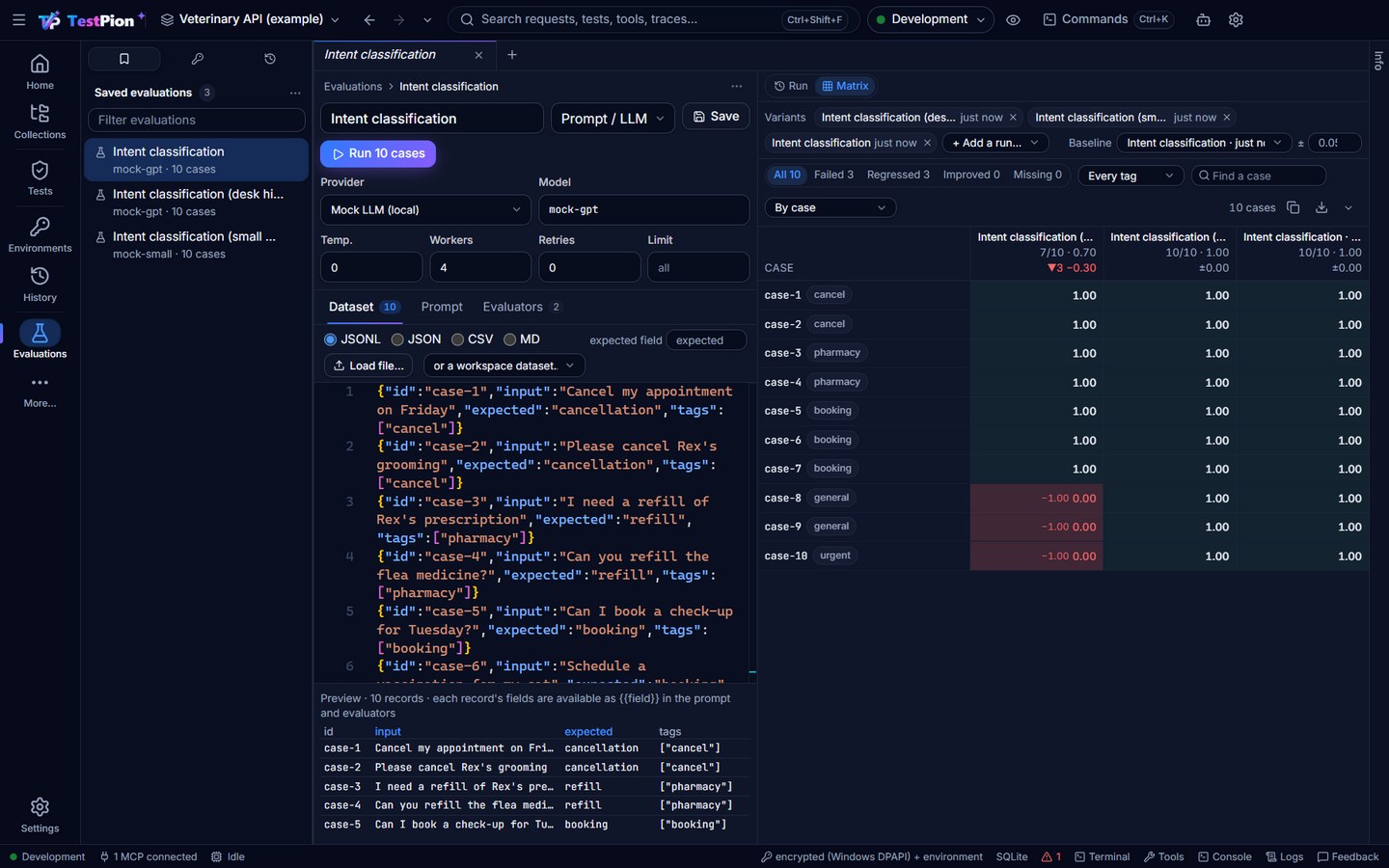
- Baseline: pick a run, and every cell is coloured against the baseline's cell of the same case: red when it regressed (it stopped passing, or its score dropped by more than the threshold, ±0.05 by default; a drop of exactly the threshold is not a regression), green when it improved, with the score change (
−0.12). A case only in the baseline is missing, one only in the variant new. Each column head shows its pass count, mean score, regressions ▼, improvements ▲ and mean score change. - Filter chips count what they show: All, Failed (a variant failed it), Regressed, Improved and Missing (with a baseline). Every tag narrows to the cases with a tag (a dataset record's
tags: a list or"billing, edge"), Find a case to an id or name. - Sort by case, lowest or highest score, biggest drop or gain, or most failures; clicking a column head sorts by that variant's score (again: the other way).
- A cell opens the case: its input, output, expected value and every check with the judge's reasoning (the same detail as a run's result), and Baseline shows the baseline's result for the same case beside it.
The backend keeps the matrix and the window asks for the rows on screen, so 5,000 cases × 10 variants scroll as fast as 50.
Save the matrix. The down arrow at the right end of the matrix's bar saves every case as it is filtered and sorted now (each variant's status, score and change) as CSV, JSON, Markdown or a self-contained HTML table; the backend writes the rows page by page, so a big matrix never passes through the window. A run's own results have the same arrow (HTML report, JSON, JUnit, Markdown, CSV, ZIP). See Save and export results.
From the terminal and CI, eval compare exits 1 when more cases regressed than allowed:
testpion eval compare "Intent classification" --baseline run-mv7c0rww1bdf50ac3b --json   # the newest run of that name
testpion eval compare last --baseline main-nightly --threshold 0.1 --max-regressions 3 --fail-on-missing
testpion eval matrix "Intent v1" "Intent v2" "Intent v3" --baseline "Intent v1" --filter regressed --tag billing --json
Runs are named by id, last (the newest finished evaluation run: a saved evaluation's or one with scored checks; a run still going, a stopped run, a collection run or a monitor's is passed by) or name (the newest finished run of that name). The report lists the regressions (a lost pass first, then the biggest drop), improvements, missing and new cases, and per variant the pass rate and mean score change; passed is what the exit code says. AI agents use the eval_compare and eval_matrix MCP tools (eval_matrix with run and result returns one cell's full result).
Regression
With no run open (or after Overview of all runs in the Runs list), the Evaluations view shows the earlier runs: pass rate and duration by run, and Scores by run, one small chart per evaluator with its mean score in each run (green from 0.7), to see whether a model, prompt or pipeline is getting better or worse. testpion history scores prints the same and agents use the score_trend MCP tool.
Save a run as a baseline, then compare later runs against it using thresholds for latency (+%), tokens (+%) and score drop. New failures, score drops and metric regressions are highlighted. In the app (Baselines on a finished run), Compare with also lists earlier runs, to see what changed since then without saving a baseline; AI agents do the same with the compare_runs MCP tool. In CI:
testpion test tests/ai --baseline main --fail-on-regression