Workspaces
A workspace is a folder that holds your collections, environments, tests, datasets, providers and MCP servers as plain JSON and YAML files, so it can live in git. Secret values are never in these files: they stay in your OS credential store.
The workspace switcher
Click the workspace name at the top left (or right-click it) to open the switcher.
- Find a workspace: type to filter by name or folder. Enter opens the first match.
- Each workspace shows its folder. The open one is marked current.
- Click a workspace to switch to it.
- New, Open folder, Import and Export are at the bottom. Open folder adds an existing workspace folder, such as a git checkout. Import takes a TestPion workspace export (it opens as a new workspace named … (imported), with exactly the export's environments), or a Postman, Insomnia, Bruno or Hoppscotch collection, OpenAPI, HAR or
.envfile (added to the open workspace). Export saves the open workspace (collections, environments, tests, providers, MCP servers and the files of specs/, datasets/, mocks/ and protos/) to one<name>.testpion.jsonfile and says where, which secrets it replaced by variables and which files it left out; cancelling the save dialog does nothing. Secret values are never exported (what an export holds).
Workspace actions
Hover a workspace and click ⋯, or right-click it:
| Action | What it does |
|---|---|
| Open | Switch to the workspace. |
| Rename | Rename it. This works for any workspace, not only the open one. |
| Duplicate… | Copy collections, environments, tests and settings into a new workspace and open it. Run history, traces and secret values are not copied. |
| Show in folder | Open the workspace folder in your file manager. |
| Export… | Save the workspace to one <name>.testpion.json file, with the files of specs/, datasets/, mocks/ and protos/ (what an export holds). Secret values are never exported: typed-in tokens and passwords become variables, and the message lists each one. |
| Delete… | See below. |
Deleting a workspace
Delete… opens a dialog that shows the workspace's folder and what it holds (collections, environments, test files). Type the workspace name to confirm; the case doesn't matter.
- A workspace TestPion created (in its data folder) is deleted from disk, with its run history and traces. This can't be undone, so export it first if you may need it.
- A folder you opened yourself (for example a git checkout) is only removed from the list. Its files stay, and Open folder brings it back.
- You can delete the open workspace: TestPion switches to another one first. Your only workspace can't be deleted; create another one first.
The File menu
The File menu gathers what you create and move in and out of a workspace:
| Item | What it does |
|---|---|
| New Request Tab (Ctrl/⌘+T) | A new REST request tab. |
| New ▸ HTTP Request, GraphQL Query, gRPC Request, WebSocket / Socket.IO Connection, MCP Server…, Collection…, Environment…, Monitor…, Workspace… | Starts each kind of work in its view. |
| Open Workspace Folder… | Opens a folder that contains workspace.json (e.g. inside a git repository). |
| Open Recent… | The items you opened lately in this workspace, of every kind (Quick Open with nothing typed). |
| Import… (Ctrl/⌘+O) | Postman collections and environments, Insomnia, Bruno and Hoppscotch collections, OpenAPI / Swagger (the document is kept beside any of the same name, and contract checks added), a GraphQL schema, HAR, TestPion exports, or a copied cURL / fetch / PowerShell request. What did not come over one to one is listed after the import (Import fidelity). |
| Export ▸ Collection (Postman v2.1)…, Current Environment…, Workspace… | Exports the selected collection, the active environment or the whole workspace (<name>.testpion.json). Secret values are never exported. |
| Save (Ctrl/⌘+S) | Saves what you're editing (request, test file …). |
| Close Tab (Ctrl/⌘+W), Close Other Tabs, Close All Tabs | Tabs of the view on screen (see REST). |
| Reopen Closed Tab (Ctrl/⌘+Shift+T) | The tab you closed last, in any tab bar. |
| Settings… (Ctrl/⌘+,) | App settings. |
The same commands are in the command palette (Ctrl/⌘+K, or > in Quick Open, Ctrl/⌘+P), which is also how to reach them in the browser version.
From the CLI and AI agents
testpion workspace list --json
testpion workspace create "Checkout API" --path ./api-tests    # a workspace inside a repo
testpion workspace rename "Checkout API" "Checkout API v2" --json
testpion workspace export "Checkout API v2"                     # writes "Checkout API v2.testpion.json"
testpion workspace export "Checkout API v2" -o checkout.testpion.json --json   # what it replaced and left out
testpion workspace delete "Checkout API v2" --yes --json       # --yes is required
workspace delete refuses to run without --yes and says what would be deleted. The MCP server gives agents one workspace's collections, requests and environments; creating and deleting workspaces stays with you and the CLI.
Recently deleted
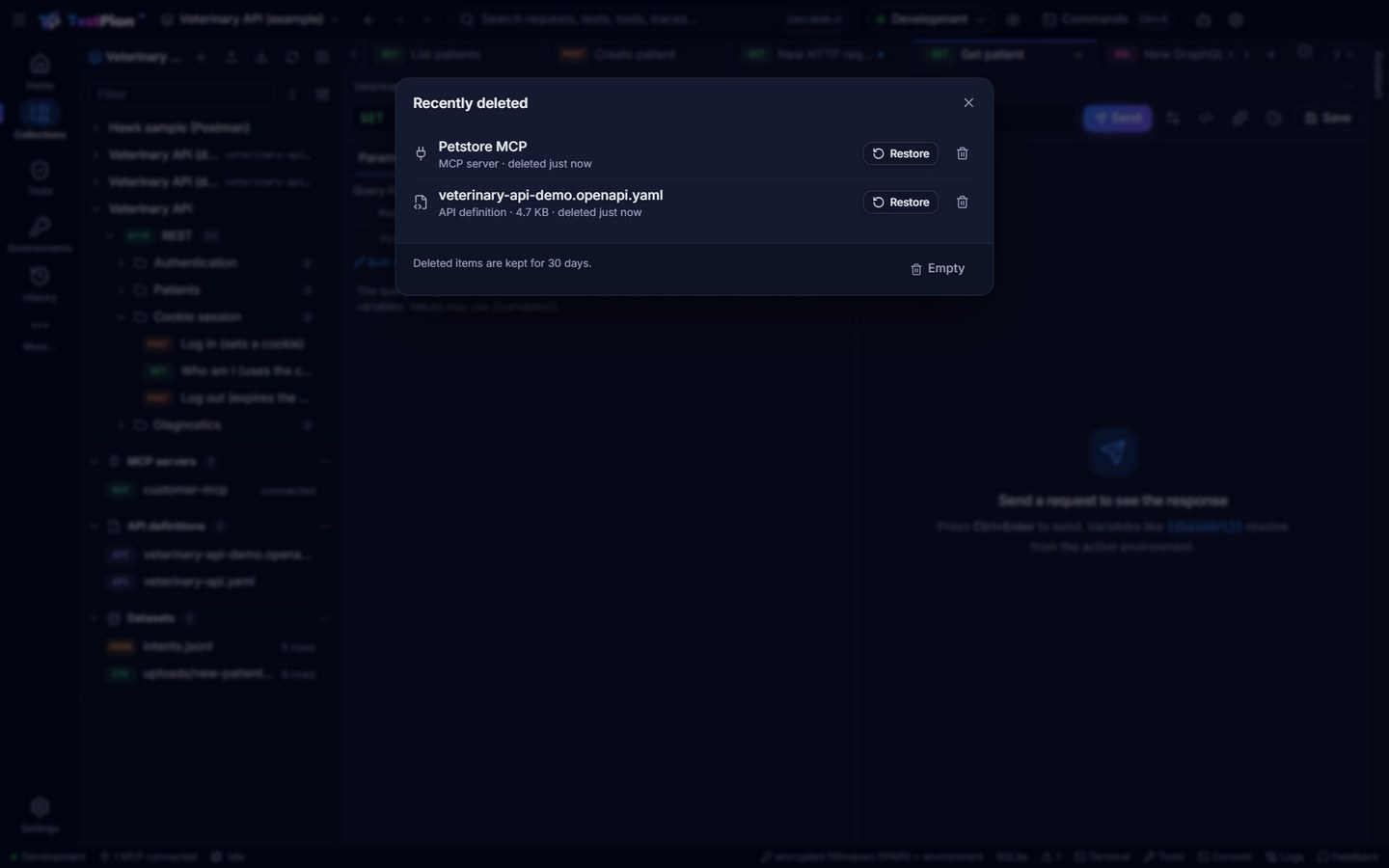
Deleting a collection, an environment, a dataset or an MCP server happens at once, with Undo in the message for 8 seconds (Ctrl+Z outside a text field does the same; see Deleting and Undo). After that they still aren't gone straight away. They stay in the workspace's trash/ folder for 30 days; that folder ignores itself in git, so it is never committed. Click the Recently deleted icon beside the Filter box of the Collections sidebar (collections, datasets, API definitions and MCP servers), or Recently deleted… in the ⋯ menu of the Environments list, to Restore an item or delete it for good. A restored environment keeps its secret values. If you've created another item with the same name meanwhile, the restored one is called Name (restored).
Deleted datasets and MCP servers, and API definitions an import replaced (Replace instead, testpion import --replace-spec), are kept in the trash the same way (an MCP server goes back to its place in the list, an API definition to its path). When the examples workspace is updated, a second copy of an example collection left by an older version is merged back into one, and the copy is kept here too. From the terminal: testpion trash list -w <workspace> [--json], testpion trash restore <id> -w <workspace>, testpion trash empty -w <workspace> --yes.