
AI testing
Your Claude API key
The quickest way to start is your own Anthropic API key. Anthropic bills your account for what you use.
- Create a key in the Anthropic Console (API keys → Create key).
- In TestPion, open Settings ▸ AI assistant and turn on the AI assistant.
- Choose Claude (Anthropic), with your API key, paste the key and choose Save key. TestPion checks it with Anthropic, then stores it in the OS secret store (Windows Credential Manager / DPAPI, the macOS Keychain, or the Linux secret service). It is never written to the settings file or to a workspace.
- Choose the model: Claude Opus 5.5 (most capable, the default), Claude Sonnet 5.5 (faster and cheaper) or Claude Haiku 4.5 (fastest and cheapest), then Save settings.
The key then powers the AI assistant: explaining errors and responses, where a request's time went (Timeline), why a test failed or keeps flipping between runs (a result's History), why a monitor is failing, drafting requests, GraphQL queries, MCP arguments, assertions and tests, and — on a failed run or a flaky test — explaining and fixing the failures and finding out why a test is flaky, with fixes it checks before you accept them. It also appears in every workspace's AI Lab and evaluations as the provider Claude (your API key), so tests can use model: { provider: claude-app, name: claude-sonnet-5-5 }. To stop using it, turn the assistant off or choose Remove key. You can also point the assistant at a provider of the workspace instead, such as a local Ollama model.
For the CLI and CI, set the key as the TESTPION_SECRET_APP_ANTHROPIC_APIKEY environment variable: claude-app is then available there too.
Rather keep everything on this computer? Choose A provider of this workspace with Ollama (local) or LM Studio (local), and turn on Local only. Below the provider, Settings ▸ AI assistant also sets a model for small and for large tasks, what is sent by default and the cost limits. How the AI features handle privacy, cost and review — What will be sent…, proposals you accept or discard, the usage view — is in AI features: privacy, cost and review.
Talking to the assistant
Open it with Ctrl/⌘+J (press it again to close), the robot button in the top bar, Ask AI Assistant in the command palette, or one of the AI buttons in a view (Explain with AI, How to fix (AI), Suggest assertions, …). Every AI button has the eye beside it, What will be sent…, which shows the exact messages first; the assistant's header has it too. It opens in the panel on the right edge of the window, beside Info (the Info panel); pin it to keep it docked. Before you type, it suggests questions that fit what is on screen, such as Why did this request fail? after an error or What can this server do? on an MCP server.
- A conversation. Follow-up questions remember what was asked and answered, so "and how do I fix it?" works. New conversation (↺) starts over; the task you opened it for runs again.
- What you are looking at goes with the question. With a request open (HTTP, GraphQL, gRPC, WebSocket/MQTT or an MCP server), a free question carries it and its latest result, shown as Context: GET …/pets · 404 above the field. Choose × to leave it out. Secret values (tokens, keys, passwords) are hidden before anything is sent.
- Use an answer where you asked for it. Generated checks, tests, flows and requests are proposals, checked by TestPion first and opened in a review: Suggest assertions offers Add to the checks (the request's Tests tab) for the checks you tick, Generate tests Add to the Post-response script; a generated GraphQL query has Use this query, and generated MCP arguments have Use these arguments. Review what was added before you save. See Proposals: review, accept, undo.
- Answers stream in as they are written, and Stop ends one early (what arrived so far is kept). They are formatted (headings, lists, code), and each code block has its own Copy.
- Every answer is labelled as an AI-generated suggestion, with the model that wrote it.
Saved prompts
The Playground's Saved prompts list keeps prompts with their model, parameters, system prompt, variables, structured output and evaluators, grouped in folders. Save stores the current prompt (or the changes to the opened one, shown as edited); open a prompt to run it again. Prompts open in tabs like requests: each tab keeps its own unsaved changes and last result, a single click in Saved prompts opens a preview tab that the next click replaces, and a double-click keeps it. Model comparison has a prompt of its own: changing it never changes the Playground's tabs, and the other way round. Folders work as in the REST collections: create them with the folder button, and move prompts with the ⋯ / right-click menu or by dragging. Saved prompts live in the workspace (library/ai-prompts.json).
Providers
| Kind | Notes |
|---|---|
| OpenAI-compatible | OpenAI, vLLM, LM Studio, OpenRouter and any /chat/completions server. |
| Azure OpenAI | Deployment URL plus api-version. |
| Anthropic | Messages API. |
| Google Gemini | generateContent / streamGenerateContent. |
| Amazon Bedrock | The Converse API, so every Bedrock model works the same way (text, system prompt, tools). The key is accessKeyId:secretAccessKey (add :sessionToken for temporary credentials), signed with AWS Signature V4, or a Bedrock API key. Set the region (or use a bedrock-runtime.<region> base URL). Answers arrive whole rather than streamed. Embeddings use Titan (default) or Cohere models. |
| Ollama | Local, OpenAI-compatible endpoint. LM Studio's local server is an OpenAI-compatible preset, LM Studio (local). |
| Mock | Offline and deterministic, with configurable rules. |
Providers support per-provider rate limits (requests per second or minute, tokens per minute, concurrency) and retries with exponential backoff that honour Retry-After.
API keys
A provider's key is kept in the operating system's secret store, never in the workspace: AI Lab ▸ Providers ▸ the provider ▸ API key. The list marks the cloud providers that still need an API key. In the CLI and in CI the key comes from an environment variable: TESTPION_SECRET_PROVIDER_OPENAI_APIKEY for a provider whose key is {{$secret.provider.openai.apiKey}}, or the variable a {{$env.NAME}} key names.
When the key has no value, nothing is sent: the run stops with No API key for OpenAI, says where to add it, and the app shows Add the key, which opens that provider with its key field ready. Errors from a provider say what to do by status: a key that was not accepted (401), no access to the model (403), no credit left or rate-limited (429), an unknown model or base URL (404), or a problem on the provider's side (5xx).
Metrics
Latency, time to first token, mean time between tokens, input, output and total tokens, and estimated cost. Cost comes from the price table you configure in Settings; no prices are built in, and each entry is versioned. A price set for a model also prices its dated versions (gpt-4o-mini covers gpt-4o-mini-2024-07-18). When a run has no price, Set a price… under the cost opens the price table with a row for that model. When a provider doesn't report usage, tokens are estimated and labelled as such.
Model comparison
Run the same prompt against several models and compare latency, tokens, cost, JSON and schema validity, and your evaluators side by side. The tool deliberately produces no universal ranking.
Each row of the comparison marks the fastest (latency, time to first token) and the cheapest model when they differ. A model whose provider still needs an API key says so under its picker, and if it is run anyway its column shows the error once, with Add the key.
Usage
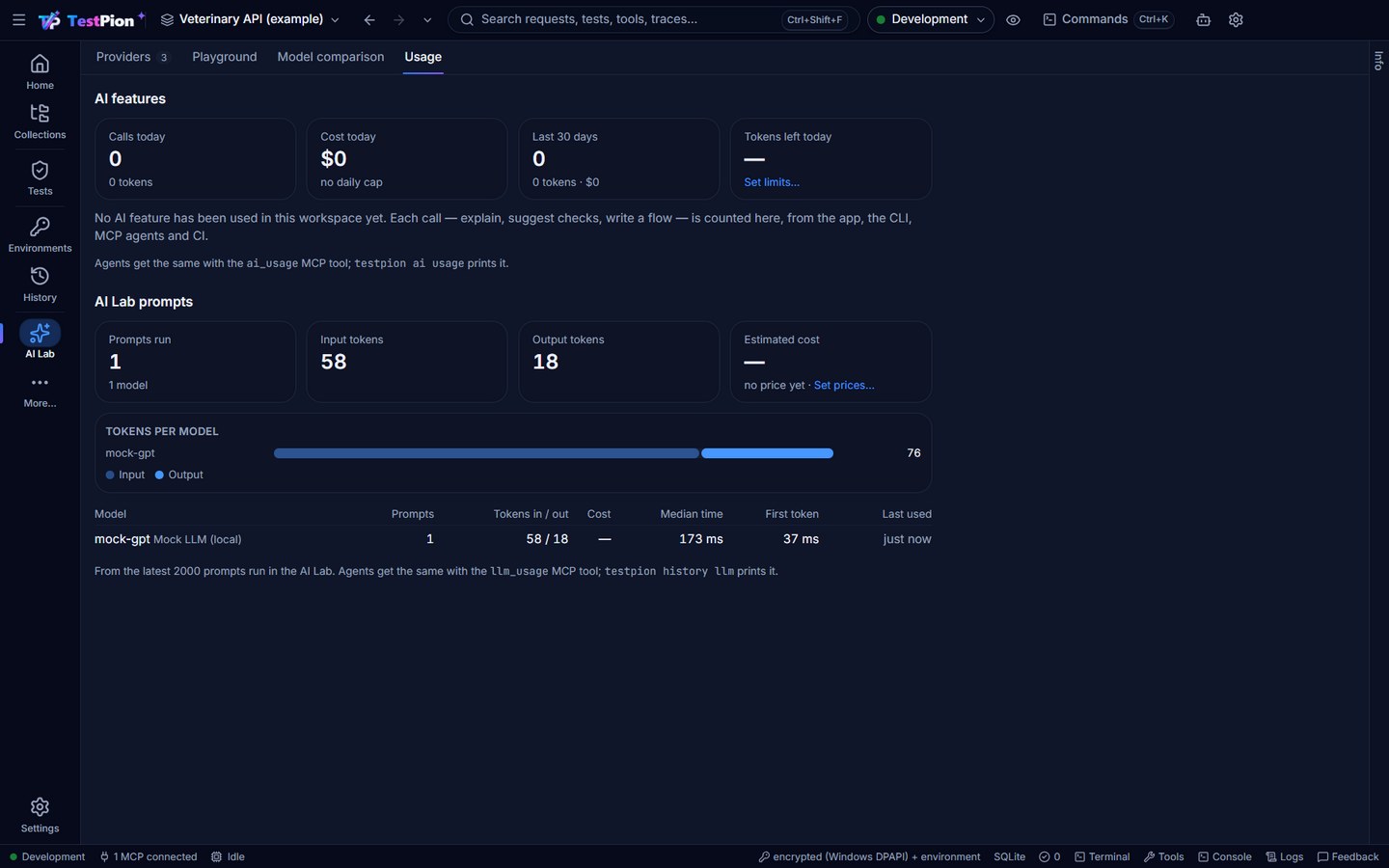
The AI Lab's Usage tab starts with AI features: what TestPion's own AI features used (calls, tokens and cost today and over 30 days, per task, model and surface, and what is left of your limits). Below it, AI Lab prompts adds up the prompts you ran: prompts, input and output tokens and estimated cost (from the price table) per model, with a bar per model and the median time and time to first token. testpion history llm prints the prompts, testpion ai usage the AI features; agents use the llm_usage and ai_usage MCP tools.
Next: AI features: privacy, cost and review, prompts, evaluations, RAG, agents, safety.