
Integration testing
An integration test exercises a real, running system through its API: sign in, create a record, read it back, change it, delete it, and check that every step behaves. TestPion runs such flows from YAML test files or from a collection, by hand from the app or the CLI, and in CI where it can also start the system under test and wait for it to be healthy. Results come back as console output, JUnit for the CI system, and an HTML report.
The examples workspace has a complete one: tests/rest/patient-lifecycle.yaml in the Veterinary API (example) workspace, against the demo API (node examples/servers/demo-servers.mjs).
Generate a flow
TestPion writes a first flow for every resource of an API: in a definition's Preview, Generate tests ▸ Integration flows; on a collection, Export ▸ Integration flows; from the terminal, testpion integration-suite specs/clinic.yaml (or a collection name); for agents, generate_flows. Each flow is the file described below (create, read back, update, listed, delete, gone), the login first. Review the generated bodies and set the variables it names, then run the suite. See the test runner.
Let AI write the flow
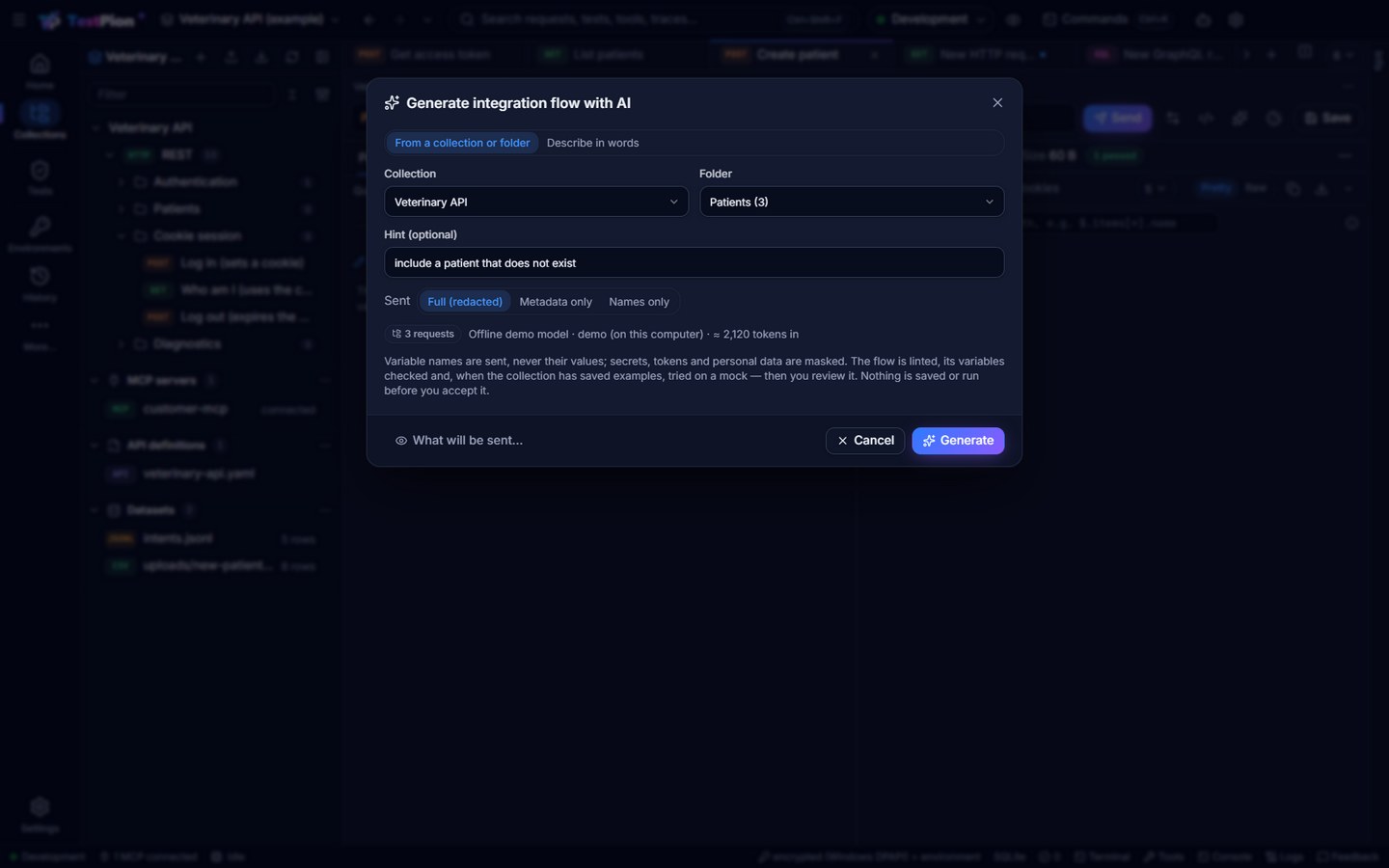
Name a collection or a folder and your model writes the integration flow: right-click it in the explorer ▸ Generate integration flow with AI… (also in a collection's Export menu, beside Integration flows; or, on an empty flow's canvas, Generate with AI ▸ From a collection or folder).
AI features need a model set up in Settings ▸ AI assistant (your Claude key, or a model on this computer such as Ollama); see AI features: privacy, cost and review.
- Choose the collection and folder (each with its number of requests), an optional hint (also test pagination, include the refund path) and what is sent: Full (redacted), Metadata only (methods, URLs, header names, the shape of bodies and saved examples, no body values) or Names only. The dialog shows the model, whether it stays on this computer and the token and cost estimate before anything is sent; What will be sent… shows the exact messages. Variable names are sent, never their values; secrets, tokens and personal data are masked. A folder of more than 60 requests is sampled (every endpoint once, the draft's requests first).
- Generate. The model starts from the flow TestPion builds without AI (the same as Integration flows above) and improves it: the order a client would use (log in, create, read back, update, list, delete, check it is gone), what each step extracts for the next (
orderId: $.id→{{orderId}}), the checks (the status the saved examples show, then the key fields — never a generated id or time), one or two error cases (an unknown id → 404, an invalid body → 400/422), and the assumptions it made. Every step uses one of the folder's saved requests by id: a step naming a request that is not there is dropped (the review says which), and a URL may only gain{{variables}}on the saved request's own host. A request's own or inherited auth is kept. - Checked before you see it: the file is linted (cycles, unknown
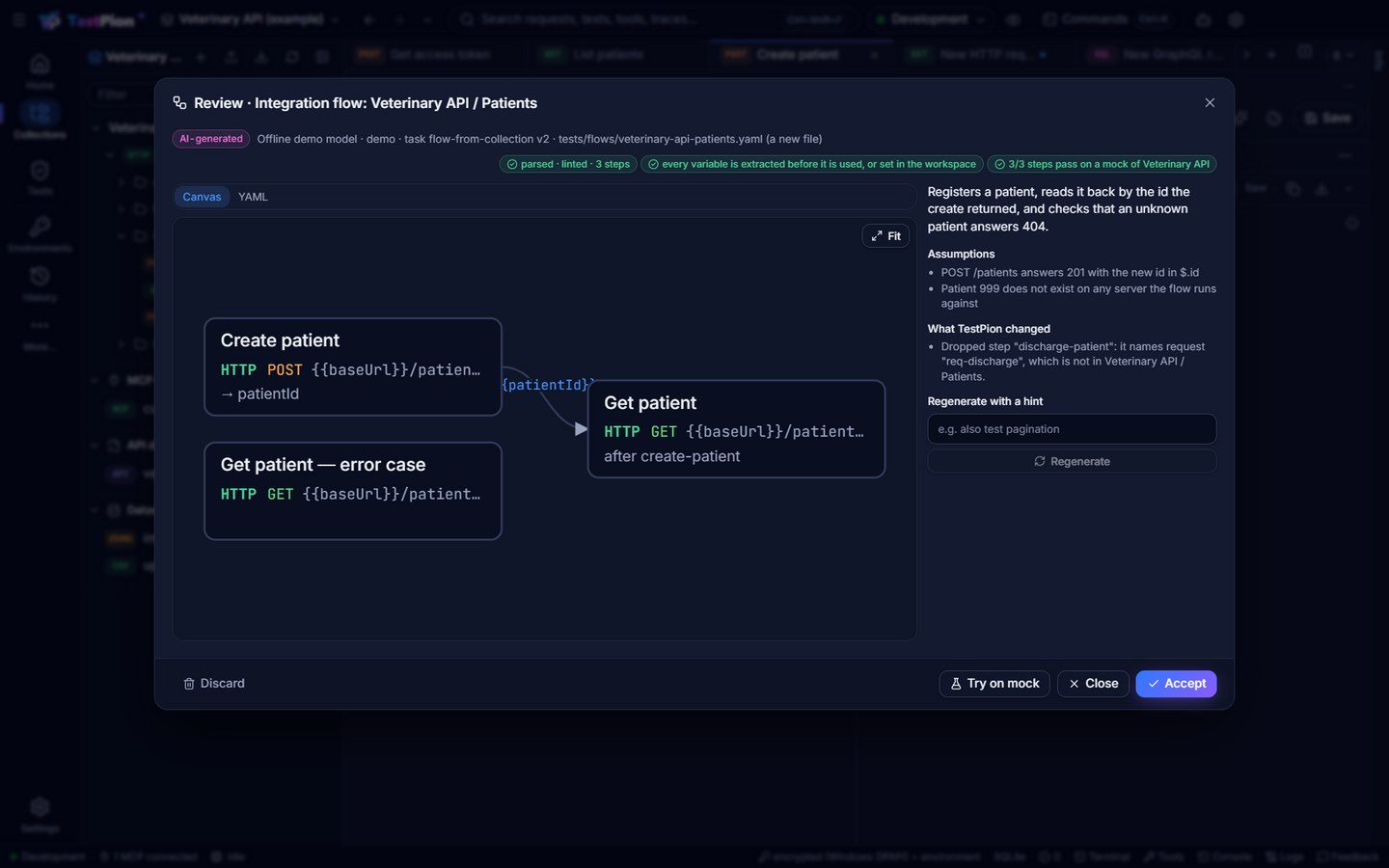
dependsOn), every{{variable}}must be extracted by a step it waits for (or be one your workspace already has), and the flow runs against a mock built from the collection's saved examples (every step pointed at the mock; no real server is called). A problem goes back to the model up to twice; what is still wrong is shown, never hidden. - Review on a canvas preview marked AI-generated: the steps and the values flowing between them, the summary, the assumptions, what TestPion changed, the verification badges, and the YAML (edit it there: Check again verifies the edit) — and, when it replaces a file, the Changes. Try on mock runs it on the mock again; Regenerate asks again with a hint; Discard drops it. A flow that failed its verification can still be accepted, after a question.
- Accept writes
tests/flows/<collection>-<folder>.yaml(from the canvas: the open file, one Undo step) and offers Run now, Open and Undo. Nothing is saved or run before Accept.
Without a model set up, the dialog offers Set up AI / Add the key, or Use the draft without AI (the deterministic flow, reviewed the same way).
Try on mock needs saved examples: the mock answers each step with the saved example of its request, so a step whose request has none fails there (a warning, not an error). Save as example on a real response of that request (the response's actions), then Try on mock again.
From the terminal and for agents — it only proposes until you apply (here in the examples workspace):
testpion flow generate --collection "Veterinary API" --folder Patients --dry-run           # what would be sent, the estimate
testpion flow generate --collection "Veterinary API" --folder Patients --hint "also test pagination"   # the proposal, verified
testpion flow generate --collection "Veterinary API" --folder Patients --apply --json      # write it when its checks pass
testpion ai apply ai-mvbu2qjg9a3b644187                                                    # or apply a proposal later
The proposal prints the flow, the assumptions and each verification:
Proposal ai-mvbu2qjg9a3b644187 · 1 item · Offline demo model/demo · AI-generated, review before applying
  Registers a patient, reads it back by the id the create returned, and checks that an unknown patient answers 404.
  assumed: POST /patients answers 201 with the new id in $.id
  [x] i1  tests/flows/veterinary-api-patients.yaml  tests/flows/veterinary-api-patients.yaml
        ✓ parsed · linted · 3 steps
        ✓ every variable is extracted before it is used, or set in the workspace
        ✓ 3/3 steps pass on a mock of Veterinary API

Apply: testpion ai apply ai-mvbu2qjg9a3b644187 · discard: testpion ai discard ai-mvbu2qjg9a3b644187
Agents call flow_generate (collection, folder, hint, privacy, dryRun) and apply the returned proposal with ai_apply_proposal after the user agrees. Without a model both return the deterministic draft with a note. See AI features: privacy, cost and review.
Write a flow
A flow is a test file whose steps depend on each other. Three things make it work:
dependsOnorders the steps and skips the rest when one fails (a step can depend on several).extractsaves parts of a response as variables for the steps after it:patientId: $.id.- Clean-up at the end, and checks that it worked, so the flow can run again and leaves nothing behind.
# tests/rest/patient-lifecycle.yaml (shortened)
defaults:
  type: http
  dependsOn: auth-token           # from tests/rest/auth.yaml: it saves {{accessToken}}
tests:
  - id: lifecycle-create
    name: Create a patient
    method: POST
    url: "{{baseUrl}}/patients"
    auth: { type: bearer, token: "{{accessToken}}" }
    body: { name: "Lifecycle {{$randomFirstName}}", species: cat }
    extract:
      patientId: $.id
    assertions:
      - { type: status, expected: 201 }
      - { type: header, header: location, expected: /patients/ }

  - id: lifecycle-read
    name: Read it back
    dependsOn: lifecycle-create
    method: GET
    url: "{{baseUrl}}/patients/{{patientId}}"
    auth: { type: bearer, token: "{{accessToken}}" }
    assertions:
      - { type: equals, path: $.id, expected: "{{patientId}}" }

  - id: lifecycle-delete
    name: Delete it (clean-up)
    dependsOn: [lifecycle-read]
    method: DELETE
    url: "{{baseUrl}}/patients/{{patientId}}"
    auth: { type: bearer, token: "{{accessToken}}" }
    assertions:
      - { type: status, expected: 204 }

  - id: lifecycle-gone
    name: It is gone afterwards
    dependsOn: lifecycle-delete
    method: GET
    url: "{{baseUrl}}/patients/{{patientId}}"
    auth: { type: bearer, token: "{{accessToken}}" }
    assertions:
      - { type: status, expected: 404 }
Dynamic values ({{$randomFirstName}}, {{$randomInt}}, {{$guid}}) keep records unique when flows run in parallel or again. A testScript with tp.test covers what assertions can't say in one line (see Assertions). GraphQL, gRPC, WebSocket and MCP steps mix into the same file (type: graphql …).
The same flow can live in a collection (requests with pre-request and post-response scripts, tp.variables.set to pass values along) and run with testpion run-collection; the collection runner in the app runs it with a data file for many iterations.
Group flows into a suite
A suite names the files that belong together and how to run them:
# tests/integration.suite.yaml
name: Integration
tests:
  - rest/auth.yaml
  - rest/patient-lifecycle.yaml
  - graphql
  - mcp
concurrency: 1      # flows that share records run one at a time
retries: 0          # a flow should pass as written
environment: Development
Run it by hand
node examples/servers/demo-servers.mjs &                          # the system under test
testpion wait-for http://127.0.0.1:4010/health                     # until it answers
testpion run -w examples/veterinary-workspace --suite integration -r console junit html -o test-results
In the app: Tests ▸ Runs ▸ Run suite, or open the file and Run. A failed step shows its request, response and the check that failed; Explain with AI says why.
See a flow
Open the file in Tests and pick the Flow tab: one node per step with its type, method and URL and the names it extracts, an arrow for every dependsOn, laid out left to right from the Start node (a step sits one column after the last step it waits for; steps that depend on nothing share the first column). Drag the background to pan, the wheel zooms, Fit shows the whole flow. After a run the nodes carry the latest result (passed, failed, error, skipped) with the step's duration; click a node to select it (Enter or Open in editor shows the step in the YAML), click its result to open it in the run. Problems (a dependency nobody defines, two steps that wait for each other, a variable nothing sets) are listed in a strip under the canvas. The Flow tab of a test file is the flow designer; a suite's Flow tab is a read-only diagram.
The same from the command line and for agents:
testpion flow rest/patient-lifecycle.yaml            # the steps in columns, with the latest run's results
testpion flow rest/patient-lifecycle.yaml --json     # steps, edges, layers, problems, the run
testpion flow rest/patient-lifecycle.yaml --dot | dot -Tsvg > flow.svg
The flow_graph MCP tool answers the same JSON (with the DOT) for a file, so an agent can read a flow before it changes one with flow_add_step, flow_connect and the other flow tools (below) or write_test_file.
Design a flow
The Flow tab of a test file is also where you build one, on a canvas (a suite stays a read-only diagram: it names other files). The YAML file stays the only source of truth: every change on the canvas is written to the file at once, keeping its comments, key order and line endings, and the Editor tab shows the same text. The CLI, CI, monitors and agents run it unchanged.
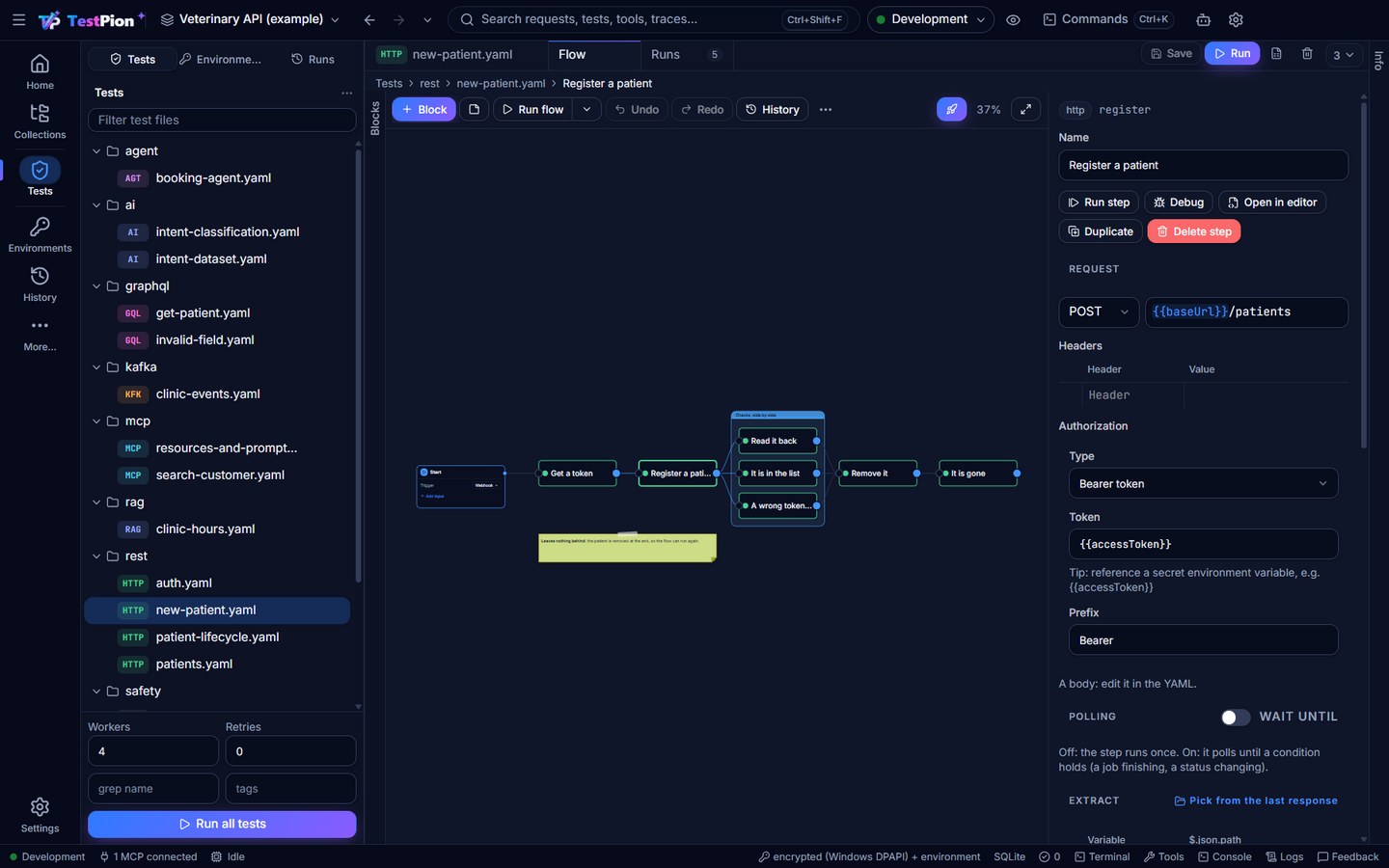
- Start: Tests ▸ + ▸ New flow (designer) creates
name: …withtests: []and opens the designer. An empty flow shows its Start node with the first choices on the canvas (Add blocks, API example, Create from collection, Record from the Debugger, Generate with AI; see step 9): Create from collection (one saved request, or a folder's requests in order, each waiting for the one before it, withextractsuggested for the ids and tokens in their saved example responses) and Generate with AI (from a collection or folder, or described in words: the flow is verified and opens in a review on a canvas preview; Accept replaces the file in one Undo step — see Let AI write the flow). - Add steps with Add step: an HTTP request, GraphQL, gRPC, WebSocket, an MCP tool call, an LLM prompt, a Delay (a pause,
type: delaywithms: 2000: for a search index or a queue to catch up; Wait (ms) in the inspector), a Condition (if / else), For each (loop), a Script, a Sub-flow, a Log, Wait until (poll) (a request run again until a condition holds), Set variable, Assert (checks only), Finally (clean-up), Parallel group (two requests in a frame), Flow output…, or From a collection…. With a step selected, the new one goes after it and waits for it (after a condition, on its true branch; on the false one when only that is still empty). - Connect two steps by dragging the dot on a step's right edge onto another step: that step gains a
dependsOnon the first and can use what it extracts as{{name}}. A condition has two dots, true and false: the step you drop one on runs only on that branch (when: trueorwhen: false), and its connection is labelled with it. A connection that would make a cycle is refused with a message. Click a connection and press Delete to remove it. - Edit the selected step in the inspector on the right: its name; for HTTP the method, URL, headers, authorization and body (the request view's editors); the values to Extract (variable → JSONPath, with Pick from the last response once the flow has run); its Checks (the same editor as a request's Tests tab); and the steps it Waits for. A step without auth of its own runs with the file's
defaults: auth:: its Authorization shows Inherit from defaults and what that is (for example Uses Bearer token: {{token}} (from defaults)); Override gives the step its own copy to change, No auth sends this step without it (auth: { type: none }), and Inherit from defaults removes the step's own auth again (testpion flow <file> --jsonand theflow_graphtool list the same asinheritedAuth; a step written with a nestedrequest:inherits it too). Under Runs: Only if (anif:expression), the Branch of the condition it waits for, and Repeat (once, a number of times, for each row of a list, or of a dataset); the node shows × 3. A condition edits its expression and lists its branches, a script its code, a sub-flow its Flow file and Inputs, a log its Message, a set variable its Variables and Scope, an assert what it Checks (the previous response or the variables) and its checks. Any request has Polling (Wait until: the expression, Every, Timeout, Backoff), and every step under Order its Parallel group and Finally; with no step selected, Output edits what the flow returns. Open in editor shows the step in the YAML. - See the data flow: a connection is labelled with the variables the first step extracts and the second reads (
{{token}}). A step that reads a variable no earlier step extracts and the active environment does not define is marked with !. - Run: Run flow runs the file; Run step runs the selected step with the steps it waits for. The steps light up as their results come in (the branch not taken shows as skipped); click a result to open it in Runs.
- Groups and the Finally lane: steps in a parallel group are drawn in a frame labelled parallel · name; drag the label to move the whole group, and drop a step into the frame to add it (select several and Run together (parallel group), Leave the group or Make finally do the same from the inspector). Finally steps sit in the Finally lane after every other step. Steps that wait for nothing already run side by side (see Parallel group): the frame says that the steps may run together even when the run goes one step at a time.
- Arrange: drag steps (their places are saved in the file under
layout:, which only the Flow tab reads), Auto-arrange lays them out in columns again, the wheel zooms and Fit shows everything. Shift+click selects several; Delete removes them (the steps that waited for them no longer do); Ctrl+D duplicates; Ctrl+C / Ctrl+V copy steps to this or another flow; Undo / Redo (Ctrl+Z / Ctrl+Y) take back any canvas change. - Start, blocks and Deploy: every flow starts at a Start node on the left (it is not a step: it is drawn from the file's header). Its Trigger says how the flow runs: Manual (the Run button), Schedule (a monitor), Webhook, MCP tool (the Expose as MCP tool dialog) or CI (the CI dialog); + Add input adds an input of the flow — a variable every step can use as
{{name}}with the value a run starts with (written asexpose.inputswhen the file is exposed as an MCP tool, else asdefaults.vars). Steps that wait for nothing hang off its output; dragging from its dot onto a step makes the step wait for nothing. An empty flow shows the Start node with its first choices: Add blocks, API example (a request to a public API with an extract and a check, so the first Run works), Create from collection, Record from the Debugger and Generate with AI. Click any output dot (or the + beside it, or drop a connection on the empty canvas, or + Block in the toolbar) for the block picker: type to search the blocks (Requests, Logic, Data, Flow), your Saved requests and the other flow files (Sub-flows); ↑ ↓ Enter adds the block after that step (on that branch of a condition), placed to its right. Text adds a sticky note; Run flow ▾ also offers Run with breakpoints, Run from selected and Run selected step. Deploy lists where the flow runs besides the Run button: Schedule (a monitor, with its last result), Webhook (Enable writes awebhook:block; the panel showsPOST http://127.0.0.1:4020/hooks/<name>, copies the URL or a curl command, and Start serving / Stop serving serve it from the app; the POSTed JSON body becomes the inputs and the answer is the flow'soutput:), MCP tool and CI. - Notes and frames: double-click the empty canvas ▸ Add note here (or Note in the toolbar) for a sticky note; double-click it to write Markdown (Ctrl+Enter or a click outside saves), drag it to move it, drag its corner to resize it, and right-click it for its Colour (yellow, blue, green, pink, purple, gray) or Delete note. Select steps and Frame selection to draw a coloured frame with a title around them: it only groups them on the canvas (a solid frame, unlike the dashed parallel frame, which changes how they run), moves with its steps, and its title drags them; right-click the title to rename, recolour or remove it. Both are kept in the file under
layout:asnotes:andframes:; the runner ignores them, and Auto-arrange keeps them. - Find your way: a flow of more than 8 steps shows a minimap in the corner (the whole flow, and the part on screen as a rectangle: click or drag in it to move there; Minimap turns it off). Ctrl+F on the canvas finds steps by name, id, URL, variable (
tokenor{{token}}) or type: the matches are highlighted, Enter jumps to the next one and selects it (Shift+Enter the previous one). Hover a step for a moment to see its last result: status, time, the request line and the first lines of the response, pretty (from the run on the canvas: the live one, the one picked in History, or the latest). - Problems as you edit: a strip under the canvas lists what is likely wrong, and the steps carry a mark: a variable nothing sets and the environment does not define (!), a step that can never run (it waits for a step in a cycle, a step no step of the file defines, a finally step, a step that never runs, or only for branches that are never taken, such as the false branch of
if: true), a cycle,when:without a condition to pick a branch of, and a step that waits for a finally step (its connection is drawn red). Click a problem to select its step.testpion lint(and the editor's markers) reports cycles and steps that can never run too,testpion flow <file> -e <environment>prints every check, andtestpion flow --jsonand theflow_graphMCP tool return them aschecks. - Command palette and arranging: Ctrl+K while the canvas has the focus lists the canvas's actions first (Add step: … for every block, Connect selected, Auto-arrange, Run flow, Debug flow, Show / Hide minimap, Find a step…, Add note, Frame selection…, Align left / top / centres, Distribute evenly, Snap to grid, Fit), then the app's commands. A dragged step lines up with the others: a dashed guide shows when its edge or centre matches another step's, and it snaps there; Snap puts dragged steps and notes on a 16 px grid. With several steps selected, the inspector offers Align left, Align top, Align centres and Distribute (three or more, spaced evenly along the way they spread). On a narrow canvas the toolbar keeps + Block, Text, Run flow ▾, Deploy and Fit and folds the rest into its ⋯ menu.
- Build a flow by drag and drop: drag a saved request (or a whole folder: its requests chained in order) from the Collections explorer (Ctrl+B shows it beside the Tests view), an entry of History, an exchange of the Debugger or a test from the Tests list onto the canvas, or a block from the Blocks panel on the left of the canvas. Where it lands decides where it goes: on a step it runs after that step, on a condition's dot on that branch, on a connection it is put in between, on the empty canvas it stands alone at that place; a dashed outline shows the place before you let go. Values a step reads that an earlier step's response holds become an
extract:there (from the latest run), and a toast says what was added, with Undo: the whole drop is one undo step. A step never lands on another one: it moves to the nearest free place. - Mouse and keyboard: click selects a step, Shift+click adds one, Shift+drag on the empty canvas draws a box that selects the steps and notes it touches, Ctrl+A selects everything and Esc clears the selection. A plain drag on the empty canvas pans, as do the middle button, a drag with Space held, and two fingers on a trackpad; the wheel (or a pinch) zooms around the pointer, and − / + beside Fit zoom too (click the percentage for 100%). A click on a note selects it, so Delete removes notes as well as steps and connections. Enter opens the selected step in the editor. Right-click a step for Run from here, Run to here, its breakpoint and pin, Open in editor, Copy, Rename…, Duplicate and Delete; a connection for Insert step here and Delete connection; the empty canvas for Add note here, Add step here, Paste, Select all, Auto-arrange and Fit; a parallel group's or the Finally lane's label for Select its steps and Ungroup / Move out of Finally. The keys work wherever the focus is in the designer (also on a toolbar button), except while you type in a field.
- Run it in CI: Deploy ▸ CI ▸ Set up… opens the CI dialog for this file alone. Under Run the flow pick once, once per data row (the file's own
data:or a dataset) or in several environments (compared step by step); tick Keep the run as an HTML timeline (test-results/timeline.html, also when the run fails) and, when an environment is marked production, Allow data-changing requests to the production environment. Try it here first shows the same run as a command on this computer, with Copy and Run in terminal. The same from a terminal:testpion ci github -w . --tests rest/checkout.yaml --data --timeline-html(or--env-matrix dev staging).
name: Health then echo
tests:
  - id: health
    name: Health
    type: http
    method: GET
    url: http://127.0.0.1:4010/health
    extract:
      status: $.status
    assertions:
      - type: status
        expected: 200
  - id: echo
    name: Echo the status
    type: http
    url: "http://127.0.0.1:4010/health?s={{status}}"
    dependsOn: [ health ]

layout:            # the designer's canvas; the runner ignores it
  health: [ 0, 0 ]   # where each step is drawn
  echo: [ 284, 0 ]
  notes:             # sticky notes (Markdown)
    - { id: note-1, x: 0, y: 120, w: 220, h: 100, color: yellow, text: "**Why**: the echo proves the status arrived" }
  frames:            # coloured frames around steps (visual only)
    - { id: frame-1, title: Smoke test, color: blue, steps: [ health, echo ] }
The other blocks, in one flow (each is described under test types):
name: Blocks
output:                       # what the flow returns (sub-flows, flows exposed as MCP tools)
  greeting: "{{greeting}}"
tests:
  - { id: health, name: Health, url: "http://127.0.0.1:4010/health" }
  - { id: up, name: Up?, type: condition, if: "status == 200", dependsOn: [ health ] }
  - { id: say-up, name: Say up, type: log, message: "up", dependsOn: [ up ], when: true }
  - { id: retry, name: Try again, url: "http://127.0.0.1:4010/health", dependsOn: [ up ], when: false }
  - { id: each, name: Each, url: "http://127.0.0.1:4010/health?i={{$index}}", forEach: [ { n: a }, { n: b }, { n: c } ] }
  - { id: calc, name: Calc, type: script, script: "tp.variables.set('greeting', 'hello')" }
  - { id: login, name: Log in, type: flow, file: auth/login.yaml, inputs: { user: "{{user}}" } }
Polling a job, values kept in the environment, a check, two requests that may run together and a clean-up:
name: Job
tests:
  - { id: start, name: Start a job, type: http, method: POST, url: "{{baseUrl}}/jobs", extract: { jobId: $.id } }
  - id: wait
    name: Wait for the job
    type: wait                       # a request with until: (any request may have until:)
    url: "{{baseUrl}}/jobs/{{jobId}}"
    until: { if: "$.status == 'done'", every: 2s, timeout: 60s, backoff: 1.5 }
    dependsOn: [ start ]
  - { id: keep, name: Keep the job, type: set, set: { lastJob: "{{jobId}}" }, scope: environment, dependsOn: [ wait ] }
  - { id: done, name: Done?, type: assert, assertions: [ { type: equals, path: $.status, expected: done } ], dependsOn: [ wait ] }
  - { id: a, name: Health, url: "{{baseUrl}}/health", parallel: checks, dependsOn: [ wait ] }
  - { id: b, name: Echo, url: "{{baseUrl}}/echo", parallel: checks, dependsOn: [ wait ] }
  - { id: clean, name: Clean up, method: DELETE, url: "{{baseUrl}}/jobs/{{jobId}}", finally: true }
The steps run one after another only where dependsOn says so: steps that wait for nothing (or for the same finished step) run side by side up to the run's concurrency (default 4). That default is kept, so existing suites run as fast as before; a parallel: group is the explicit way to mark steps that may run together (they share one worker, so they do even at --concurrency 1), and the designer draws it as a frame.
The same edits from the command line and for agents, on the same code (comments and line endings kept):
testpion flow edit rest/checkout.yaml --op '{"op":"addStep","step":{"name":"Health","type":"http","url":"{{baseUrl}}/health"}}'
testpion flow edit rest/checkout.yaml --connect health --to login          # login waits for health
testpion flow edit rest/checkout.yaml --op '{"op":"updateStep","id":"login","set":{"extract":{"token":"$.access_token"}}}' --json
testpion flow edit rest/checkout.yaml --op '{"op":"addFromCollection","collection":"Shop","items":["Checkout"]}'
testpion flow edit rest/checkout.yaml --remove health --dry-run            # print the new text, write nothing
--op takes one edit or a JSON list of them: addStep (step, after, at), addSteps (steps, chain), updateStep (id, set; null removes a key; name / id rename and every dependsOn follows), removeStep, renameStep, connect / disconnect (from, to; connect from a condition takes when: true | false), setOutput (output, or null), setWebhook (webhook: { path, secret }, or null; see Deploy a flow), setLayout (positions, or null to auto-arrange), duplicateStep, addFromCollection (collection, items) and pasteSteps (from, ids). group (ids, and parallel: <name> or null, or finally: true | false) puts steps in a parallel group or the Finally lane. addNote (note: x, y, w, h, color, text), updateNote / removeNote (id, set), addFrame (title, color, steps), updateFrame / removeFrame (id, set) edit the canvas's notes and frames; setInputs (inputs: [{ name, default, description }]) sets the Start node's inputs; a renamed step stays in its frame and a removed one leaves it. --connect up --to retry --when false, --output '{"token":"{{token}}"}', --parallel checks --steps a,b and --finally clean are shorthands. The MCP tools flow_add_step, flow_connect (with when), flow_disconnect, flow_update_step (with id a list and set: { parallel } or { finally } for several steps), flow_remove_step, flow_set_output and flow_annotate (notes and frames) do the same for an agent and answer the steps, edges, groups and problems after the change.
Record a flow
Click through your app with the HTTP Debugger capturing, and the requests become a flow that runs again.
- In the HTTP Debugger, select the exchanges (Ctrl/Shift+click) and pick Create flow from selection… in the row's right-click menu or the toolbar's Flow menu. Or pick Flow ▸ Record a flow… (or Record from the Debugger in an empty flow's designer): capturing starts with a Recording badge, you use your program, and Stop recording takes every exchange since.
- The dialog lists the steps it will make, in the order the requests were made, and the values it found passing between them, such as
{{accessToken}}from step 1 ($.access_token) → Authorization header in step 3. Untick a step to leave it out, name the file (tests/recorded/<name>.yaml) and pick the environment whose variables it should use. - Create writes the file and opens it in the Flow tab, with its steps and edges, ready to Run flow.
What the recording becomes:
- Origins become variables:
{{baseUrl}}for the most used one,{{authUrl}}(from the host) or{{baseUrl2}}for others. When the chosen environment has a variable with that address, its name is used; otherwise the address goes in the file'sdefaults: variables:. - Values that flow: a value in a request (a URL path segment, a query value, a header, a JSON or form body field) that first appeared in an earlier response (a JSON value, or a response header such as
Location) becomes{{variable}}. The producing step gets anextract(a JSONPath; a response header is read with atp.variables.set(…)line in itstestScript) and the using step adependsOnon it. Values that count are ids, tokens, uuids, numbers of 4 digits or more and strings of 8 characters or more (anidfield's value may be shorter, likejob-7);true,0,application/jsonand the like never do, and a value the client sent before is not taken as coming from a response. A number in a JSON body stays a number. A step that uses no such value waits for the step before it. - Checks: each step checks the status that was recorded.
- Noise is left out, and the dialog lists it: images, CSS, scripts, fonts, page loads, CORS preflights (
OPTIONS), HTTPS tunnels that were not decrypted, and requests to analytics hosts (Google Analytics, Segment, Sentry, Datadog …;--noise-hostand the MCP tool'snoise_hostsadd more). Keep static assets, preflights and analytics requests keeps them. - Headers: hop-by-hop headers,
User-Agent,Accept-Language,Sec-*,Origin,Refererand other browser fingerprints are dropped. Cookies a step's earlier response set go through the cookie jar (theCookieheader is dropped and the step waits for the one that set it); analytics cookies are dropped. - Secrets are never written: an
Authorizationheader (unless its token came from an earlier response), aCookienothing set, API-key and token headers, password and secret fields in bodies and query strings, and any value the redactor knows (an environment's secrets) become variables with no value. The comment at the top of the file and the dialog list them to set in an environment; a secret the chosen environment already holds is used by its name.
From the command line and for agents:
testpion flow from-har session.har -w .                       # tests/recorded/session.yaml
testpion flow from-har session.har -o tests/checkout.yaml -e Staging --json
testpion flow from-har session.har --dry-run                  # print the YAML
The MCP tool flow_from_exchanges does the same over what debugger_capture captured (ids, or since a time) or a HAR file in the workspace (har).
Debug a flow
The designer's toolbar has Debug and History, and each step a right-click menu (also Debug in the inspector) with Run from here, Run to here, Add breakpoint (F9) and Pin last response.
- History lists the file's runs, newest first: status, when, how long, steps passed and the first failing step. Selecting one colours the canvas with that run's results; selecting a step then shows its request and response (Input / output), checks, trace, timing and Variables for that run, and Back to latest returns to the latest results. Every run records the variables after each step (the ones the run made or changed; each value cut at 4 KB, secrets shown as
[REDACTED]). - The variables timeline under the result is a slider over the run's steps: at each, every variable's value after the step, the ones it changed highlighted. Moving it selects the step on the canvas.
- Breakpoints: a red dot on the step. Debug runs the flow one step at a time and pauses before each breakpoint: the canvas marks the step PAUSED and the inspector shows the current variables, which you can change for the rest of this run (the environment and the file stay as they are). Continue (F8) runs on to the next breakpoint, Step over (F10) runs the step and pauses before the next one, Stop ends the run. A paused step never times out: the pause is before it starts.
- Run from here runs the step and every step after it; the steps before it are taken from the run selected in History (or the latest run that has them): their variables, their responses (what an
if:reads), the conditions' branches. Run to here runs the step with only the steps it waits for. - Pin last response keeps the step's last response (status, headers and up to 1 MB of the body) and marks the node PINNED: runs from the designer answer the step with it instead of calling the API (its result says
pinned response), so later steps can be worked on without hitting a slow or rate-limited API. Unpin response calls the API again. The CLI, CI, monitors and agents never use pins. - Replay with this run's data on a failed run in History runs the flow as it is now from that run's first failing step, with the variables and responses it had before it: check a fix on the exact data that failed.
Breakpoints and pins are kept per computer in the workspace's .local/flows/ folder (git-ignored), never in the YAML. Secret values are not recorded, so a run from here or a replay takes them from the environment.
From the command line and for agents:
testpion flow runs rest/checkout.yaml                       # the history: status, when, how long, first failing step
testpion flow runs rest/checkout.yaml --run run-ab12 --json # one run's steps with the variables after each
testpion test tests/rest/checkout.yaml --from pay           # pay and the steps after it, seeded from the latest run
testpion run tests/rest/checkout.yaml --from pay --seed-run run-ab12
testpion test tests/rest/checkout.yaml --seed-run run-ab12  # replay run-ab12 from its first failing step
testpion test tests/rest/checkout.yaml --to pay             # pay with only the steps it waits for
The MCP tool flow_runs answers the history (and, with runId, one run's steps and variables); run_tests with one file in paths takes from and seedRunId the same way.
Run a flow at scale
One flow file, four ways to push it further: once per row of a data file, in several environments side by side, as the scenario of a load test, and as a timeline of where a run spent its time.
Once per data row
Right-click a flow's tab in Tests ▸ Run with data… (or the table icon next to Run), pick the rows and Run per row: a CSV, JSON or JSONL file from datasets/ or picked from disk, a SQLite database, or a PostgreSQL / MySQL URL ({{variables}} from the environment work, for the password) with a SELECT. Each row is one run of the whole flow: its columns are variables ({{email}}), the whole row is {{$row.email}} and {{$index}} is its number from 0. Rows at once runs several rows side by side (each with its own variables and cookies); Stop at the first failing row cancels the rest.
The Runs tab then shows the grid: one line per row with its status, time, the step it failed at and its values, live while it runs, Failed to see only the failures. Click a row for its steps and a step for its full result (request, response, checks, trace). The grid holds only the rows on screen, so 100,000 rows scroll like 100; full step results are kept for failing rows (the first 1,000) and the first 100 passing ones, every row's status and time always. Cancel stops the rows running and starts no more.
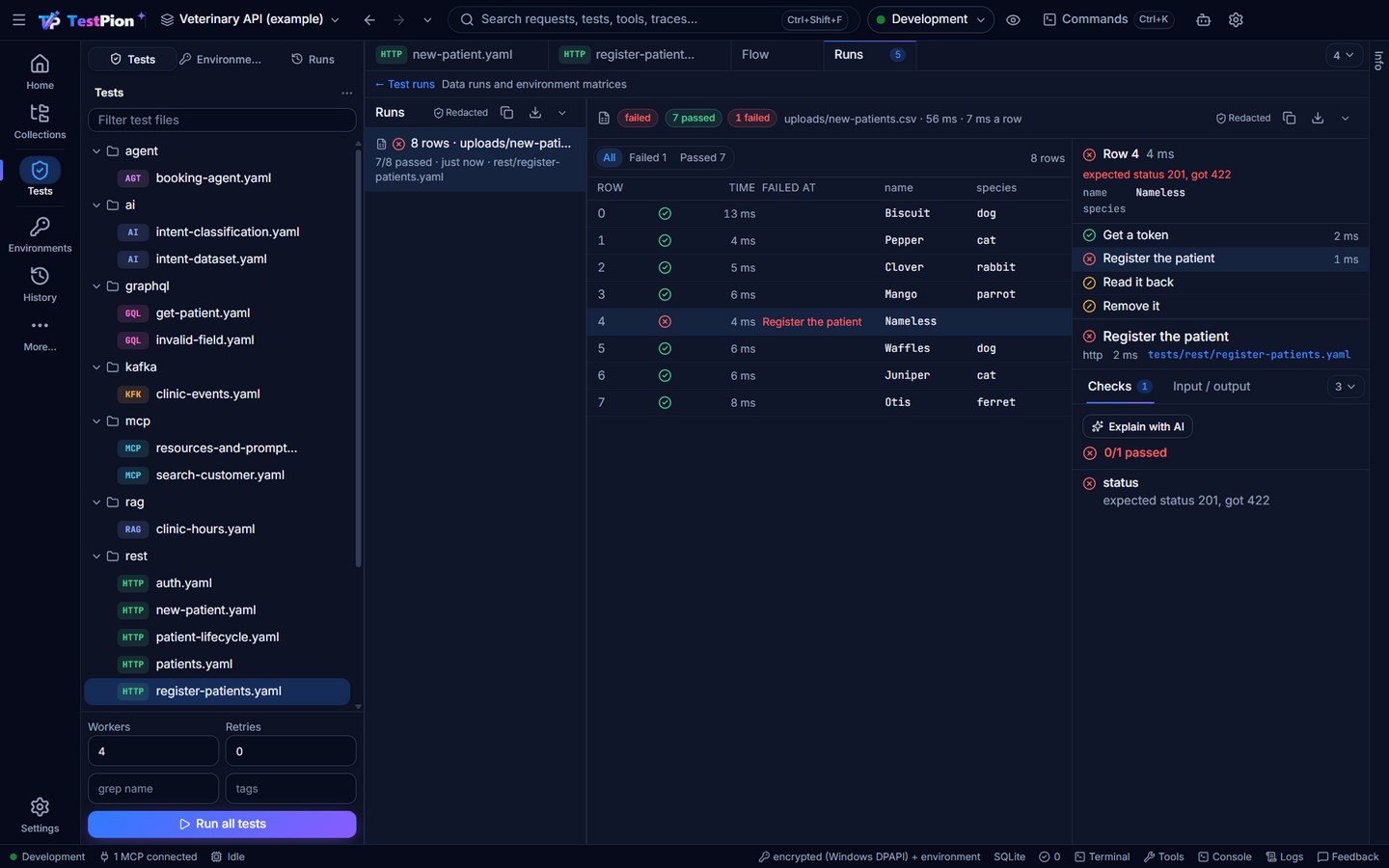
A flow can carry its own rows in its header, used when no data is given:
name: Sign up each user
data: datasets/users.csv          # or { path: datasets/app.db, query: "SELECT * FROM users" }, or a list of rows
tests:
  - { id: signup, name: Sign up, method: POST, url: "{{baseUrl}}/users", body: { json: { email: "{{email}}", plan: "{{$row.plan}}" } }, extract: { userId: $.id } }
- { id: read, name: Read back, url: "{{baseUrl}}/users/{{userId}}", dependsOn: [signup] }testpion test tests/signup.yaml --data datasets/users.csv -e Staging # a line per row, exit 1 when a row failed
testpion test tests/signup.yaml --data --data-concurrency 8 --bail # the file's data:, 8 rows at once
testpion test tests/signup.yaml --data postgres://… --data-query "SELECT email, plan FROM users LIMIT 500" --json--json streams { "rows": [ … ], "summary": { status, total, passed, failed, skipped, failedRows, … } } as rows finish. Runs are kept in the workspace (runs/scale/, the newest 50).
A row where nothing ran (every step was skipped, e.g. the steps wait for a step in another file) is skipped, and a data run or matrix whose rows or environments all skipped is skipped, not passed: in the grid, flow runs, the MCP tools and the CLI, which exits 1 for it (--allow-skipped: 0).
Save the grid. The down arrow at the right end of the grid's bar saves every row (its status, time, failing step, error and values) as CSV, JSON or a self-contained HTML table; the rows are written page by page from the run, so a 10,000-row data run never passes through the window, and its values are masked like the rest of the run. The environment matrix and the list of data runs have the same arrow. See Save and export results.
In several environments
Run in several environments… (same menu, or the In several environments choice of the dialog) runs the flow once in each environment you tick and shows a matrix: a column per environment with its status and time, a row per step with its status and milliseconds in each, steps whose status differs marked ≠, and under it every value the flow extracted (or its output:) per environment, the ones that differ highlighted. Click a cell for that step's result in that environment.
testpion test tests/checkout.yaml --env-matrix dev,staging,prod
testpion test tests/checkout.yaml -e dev -e staging --json
As a load-test scenario
In the Load view pick Test file (a flow) as the target (testpion load --test-file checkout.yaml): every virtual user runs the whole flow again and again (dependencies, extracts, checks and blocks included, with its own variables and cookies), with the load view's users, duration, ramp up / down, rate and think time, safeguards (every host of the flow is checked) and pass/fail rules. The results are per step (requests, errors, p50 / p95 / p99) and per run of the flow (how many, how many failed, how long one took); the run joins the load history like any other. See Load testing.
Run timeline and critical path
Every run has a Timeline tab next to Charts: one bar per step from its start to its end, the wait before it (dashed, from the step that held it up), lanes L1, L2 … for steps that ran at the same time, and the critical path outlined: the chain of steps, each held up by the one before, that decided when the run ended. Hover a bar for its numbers, click it to open its result. The header gives the total, the critical path's running and waiting time, how many steps ran at once and the slowest step. The down arrow at the right end of its bar saves the same picture as one self-contained HTML file (no scripts, nothing from the network; light and dark) to attach to a ticket or a pull request, or the timeline's data as JSON (Save and export results).
testpion flow report rest/checkout.yaml                          # the latest run as text, critical path marked
testpion flow report rest/checkout.yaml --run run-ab12 --html checkout-timeline.html
testpion flow report rest/checkout.yaml --json                   # bars, lanes, criticalPath, slowest
Agents use the MCP tools flow_data_run, flow_env_matrix, flow_scale_result (a data run's rows a page at a time, a row's steps, a matrix), flow_timeline (html writes the report into the workspace) and load_test with test_file.
Arazzo workflows: import and export
Arazzo is the OpenAPI Initiative's format for API workflows: steps that call OpenAPI operations, pass values from one response to the next and say what success means. TestPion reads and writes Arazzo 1.0, so a workflow written for another tool runs as a flow here, and a flow you built here can be handed to tools that read Arazzo.
Import. Import in the app (or testpion import adopt-pet.arazzo.yaml -w my-api) recognises an Arazzo document by its arazzo: key and writes one flow file per workflow under tests/arazzo/ (never replacing a file: a second import of the same workflow gets -2). The OpenAPI documents its sourceDescriptions name are looked up next to the Arazzo file and in the workspace (by path, by file name in specs/, or as specs/<source name>.json|yaml); --fetch-sources also downloads the ones given as http(s) links. What becomes what:
| Arazzo | Flow file |
|---|---|
| a workflow | a file tests/arazzo/<workflowId>.yaml; its summary is the name: |
steps, in order | steps, each with dependsOn on the one before |
operationId / operationPath | method and url from the OpenAPI document: {{baseUrl}} + the path (a second source gets {{<name>_baseUrl}}); the document's server URL is noted at the top of the file |
parameters (in: path / query / header / cookie) | the path, params, headers, cookies |
requestBody (payload, contentType, JSON Pointer replacements) | body (JSON, form fields, or text with its Content-Type) |
$inputs.petName | {{petName}} |
$steps.login.outputs.token | {{login_token}}, with extract: { login_token: $.access_token } on step login |
outputs: { id: $response.body#/id } | extract ($statusCode → $status; a $response.header.X output → a testScript line that sets the variable) |
successCriteria: $statusCode == 200, $statusCode >= 200 && $statusCode < 300, $response.body#/name == 'Rex', != null, > < >= <=, header conditions, jsonpath and regex criteria | checks: status (2xx), equals, exists, not-equals, greater-than, less-than, threshold, header, regex |
onFailure: [{ type: retry, retryLimit: 2 }] | retries: 2 |
a step with workflowId | a sub-flow step (type: flow, file:, inputs:) |
workflow inputs (JSON Schema) | expose.inputs (with default and required), so the flow is also an MCP tool |
workflow outputs | output: |
What a flow file cannot say (a goto action, || conditions, xpath criteria, retryAfter, a cross-workflow dependsOn) is kept as a # Arazzo, not imported: … comment on the step and listed in the import summary. An operationId whose OpenAPI document was not found becomes a skipped step (skip: true) to fill in.
Export. Right-click a flow in the Tests tree ▸ Export as Arazzo…, or:
testpion flow export arazzo/adoptpet.yaml --arazzo -o adopt-pet.arazzo.yaml -w my-api
testpion flow export checkout.yaml --spec specs/shop.openapi.yaml --json       # { file, document, notes, sources }
Each HTTP step is matched by method and path against the OpenAPI document (--spec, else the sources an import noted at the top of the file, else the workspace spec that describes most of the flow's requests) and becomes an operationId (or an operationPath when the operation has none); a request no document describes keeps its request under x-testpion-request. extract becomes outputs, {{variables}} become $steps.<step>.outputs.<name> or $inputs.<name> (and the inputs are listed in the workflow's inputs; a dynamic value such as {{$randomFirstName}} or {{$timestamp}} is never an input: it stays {{$randomFirstName}}, resolved by TestPion when the step runs, and is listed in the notes), status, body and header checks become successCriteria, retries a retry action, and dependsOn the step order. Other checks, if, forEach, scripts and non-HTTP steps go under x-testpion-* keys and into the notes. An imported Arazzo document exports back to an equivalent one.
Agents use the MCP tools import_arazzo (text, file or url; fetch_sources; dry_run returns the files without writing them) and export_arazzo (file, spec, workflow_id).
Deploy a flow
A flow you designed does not have to wait for someone to press Run. It can run on a schedule, when something calls a URL, when an AI agent calls it as a tool, or on every push. tests.deployStatus in the app, flow_deploy_status for agents, says which of these a flow has:
| Way | What it is | Set it up |
|---|---|---|
| Schedule | A monitor runs the file every few minutes and alerts a Slack / Teams / Discord webhook when it starts failing. | testpion monitor add <name> --test-file <file> --every 15m, save_monitor (testFile), or Monitors ▸ New monitor ▸ A test file or flow in the app |
| Webhook | testpion serve flows (or the app) runs it when something POSTs to its path; the answer is the flow's output:. | webhook: in the file: testpion flow edit <file> --webhook /hooks/x or flow_webhook_set |
| MCP tool | Agents call it by name with its inputs (see Your flows as tools). | expose: in the file |
| CI | A pipeline runs it on every push and pull request. | testpion ci github … (Run it in CI/CD) |
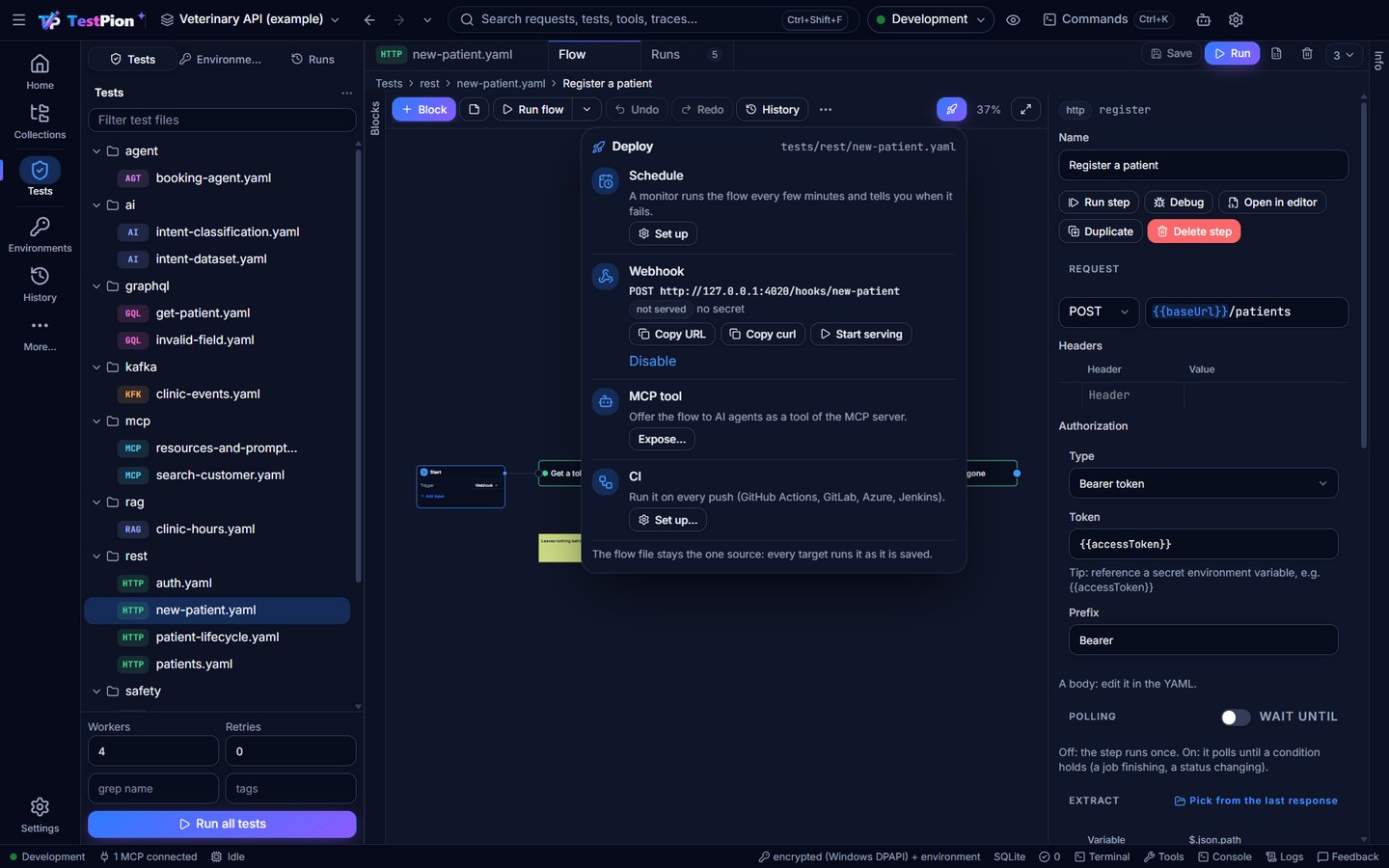
Behind a webhook
Give the file a webhook: block. path is where it listens (default /hooks/<file name>); secret is what callers must send, best a {{VARIABLE}} kept as a secret of the environment:
name: New order
webhook:
  path: /hooks/new-order
  secret: "{{ORDER_HOOK_SECRET}}"
expose:
  tool: new_order
  inputs:
    - { name: customerId }
    - { name: qty, default: 1 }
output:
  orderId: "{{orderId}}"
  total: "{{total}}"
tests:
  - id: create
    name: Create the order
    method: POST
    url: "{{baseUrl}}/orders"
    json: { customer: "{{customerId}}", qty: "{{qty}}" }
    extract: { orderId: $.id, total: $.total }
Then serve every flow of the workspace that has one:
testpion flow edit orders/new-order.yaml --webhook /hooks/new-order --webhook-secret '{{ORDER_HOOK_SECRET}}' -w my-api
testpion serve flows -w my-api -e Staging              # http://127.0.0.1:4020, until Ctrl+C
curl -X POST http://127.0.0.1:4020/hooks/new-order \
  -H 'content-type: application/json' -H 'authorization: Bearer <the secret>' \
  -d '{"customerId":"c-42","qty":2}'
# {"ok":true,"output":{"orderId":"o-981","total":"39.80"},"steps":[{"name":"Create the order","status":"passed","ms":84}],"runId":"run-…"}- Inputs. The JSON body's fields are the flow's inputs. When the file declares
expose.inputs, those are read (defaults filled in, a missing required one is400) and other fields are ignored; without them every field is a variable. A GET with a query string works too; a form body (application/x-www-form-urlencoded) is read as fields. - The answer.
200 { ok: true, output, steps: [{ name, status, ms }], runId }, withoutputthe file'soutput:map resolved after the run (sensitive names masked). A failing step answers422withok: falseandfailedStep(its error and failed checks). The run is recorded like any other: the flow's History andtestpion flow runsshow it. - Secrets. With
secret:, callers send it asX-TestPion-Secret: <secret>orAuthorization: Bearer <secret>(compared in constant time); anything else is401.{{VAR}}is read from the environment or the secrets: in the CLI and CI fromTESTPION_SECRET_*environment variables or{{$env.NAME}}, in the app from its secret store. A secret that resolves to nothing answers500rather than letting everyone in. - Limits. Bodies over 1 MB are
413, more than--max-concurrentruns at once (default 4)429withRetry-After, a run longer than--timeoutseconds (default 120) is cancelled with504. An unknown path is404(listing the paths served), another method405, a body that is not a JSON object400. - Network. It listens on
127.0.0.1only;--host 0.0.0.0serves the network (then use a secret, and put it behind your HTTPS proxy). New and changed flows are picked up without a restart. Two files on one path: the first (in path order) is served, and the lint (testpion lint-tests, the editor) flags both.
--jsonl prints a JSON line per event for scripts and agents: first { "type": "listening", "data": { url, port, hooks } }, then one { "type": "call", "data": { path, method, status, durationMs, file, runId } } per call (each line also carries schema_version and command). In the app, the backend starts the same server (flows.webhooks.start) with the app's secrets and current values; it stops when you switch workspace or quit.
Run it in CI/CD
Integration tests need the system up first. testpion ci writes a pipeline that installs the CLI, starts the system under test, waits for its health URL, runs the suite, fails the build on a failed test and publishes the JUnit and HTML reports:
testpion ci github -w . --suite integration -e Staging --start "npm start" --wait-for http://127.0.0.1:3000/health -o .github/workflows/api-tests.yml
testpion ci gitlab  -w api-tests --suite integration --start "docker compose up -d" --wait-for http://localhost:8080/health --workspace-dir api-tests
testpion ci azure   -w . --suite integration --start "dotnet run --project src/Api" --wait-for http://localhost:5000/health
testpion ci jenkins -w . --suite integration --start "./gradlew bootRun" --wait-for http://localhost:8080/actuator/health
One flow file can go to CI on its own, run once per data row, in several environments, or with its timeline kept (the designer's Deploy ▸ CI ▸ Set up… writes the same), and a run you just made in the app can go as it ran (its ⋯ ▸ Run in CI…):
testpion ci github -w . --tests rest/checkout.yaml --data datasets/users.csv -e Staging --timeline-html -o .github/workflows/checkout.yml
testpion ci github -w . --tests rest/checkout.yaml --env-matrix dev staging
testpion ci github -w . --run last -o .github/workflows/api-tests.yml    # what the latest run ran, in its environment
A data run keeps test-results/data-run.json (an environment matrix env-matrix.json): the CLI's JSON envelope, the rows or the matrix in its data; --timeline-html adds test-results/timeline.html, also when the run fails.
Secret values never go into the file: the command lists the CI secrets to create (for example TESTPION_SECRET_ENV_STAGING_APIKEY for the Staging environment's secret apiKey), and the pipeline passes them to the CLI. AI agents get the same file from the ci_config MCP tool.
GitHub Actions in five lines
The repository is also a reusable action:
jobs:
  api-tests:
    runs-on: ubuntu-latest
    steps:
      - uses: actions/checkout@v4
      - uses: nasimuddin-dev/testpion@v0.51.0
        with:
          workspace: api-tests
          suite: integration
          environment: Staging
          start: npm start
          wait-for: http://127.0.0.1:3000/health
        env:
          TESTPION_SECRET_ENV_STAGING_APIKEY: ${{ secrets.STAGING_API_KEY }}
Inputs: workspace, one of suite / collection (+ folder) / tests, environment, allow-production, start, wait-for, wait-seconds, out, upload, node-version. allow-production: true lets data-changing steps run against an environment marked as production (it adds --allow-production to the run). The reports are uploaded as the testpion-results artifact; junit.xml works with any test-report step.
What a CI run gives you
File in test-results/ | For |
|---|---|
junit.xml | The CI system's test tab (GitHub test reporters, GitLab's Tests, Azure PublishTestResults, Jenkins junit) |
report.html | People: every step with its request, response, checks and timing |
results.jsonl, summary.json | Scripts and agents; testpion report re-generates the other formats from it |
data-run.json, env-matrix.json | A flow run once per data row or in several environments: the CLI's JSON envelope, with the rows (or the matrix) and the summary in .data (jq '.data.summary' test-results/data-run.json) |
triage.md, triage.json | With --triage, after a failed run: the failures grouped by likely cause and, with a model, explained with verified fixes (below) |
Exit codes: 0 all passed, 1 a test failed, 2 a configuration problem, 3 the run could not execute (the system never answered, for example).
Explain the failures in the job
Add --triage to the run line (testpion test, run or run-collection, in a workspace): after a run with failures, TestPion groups them by likely cause — the same failed check, status and endpoint — and, with an AI model set up for the job, explains each cause with its evidence and a fix it verified against the failing and the last passing response. The job log gets a Triage section, triage.md and triage.json are written beside the reports, and the JUnit (<system-out>), HTML and Markdown reports get a Triage (AI) section when a model answered. Nothing is changed in your tests (a fix is a proposal to apply on your computer: testpion ai apply <id>, or the app's review), and the exit code stays the run's: a failed test still fails the build, and a triage that cannot be made is only a warning.
- run: npx testpion@0.51.0 run -w . --suite integration -e Staging -r console junit html -o test-results --triage
  env:
    TESTPION_AI_PROVIDER: anthropic                     # or ollama on the runner; without a model: the grouping only
    TESTPION_AI_MODEL_LARGE: claude-sonnet-5-5
    ANTHROPIC_API_KEY: ${{ secrets.ANTHROPIC_API_KEY }}
Failure bodies are masked before anything is sent (secrets, tokens, personal data); to send no body values at all, run npx testpion@0.51.0 ai triage --run last --privacy metadata as a step after the tests instead (if: failure()). See Explain and fix failures for what you get, the privacy levels and the cost caps.
The reusable GitHub Action above has no triage input yet and writes no job summary, so triage.md is not shown on the run's page. To triage with the Action, add a step after it (the Action records the run in the workspace, so --run last finds it):
- if: failure()
  run: npx testpion@0.51.0 ai triage -w api-tests --run last > triage.md; cat triage.md >> "$GITHUB_STEP_SUMMARY"
  env:
    TESTPION_AI_PROVIDER: anthropic
    TESTPION_AI_MODEL_LARGE: claude-sonnet-5-5
    ANTHROPIC_API_KEY: ${{ secrets.ANTHROPIC_API_KEY }}
Pull requests: tests plus what changed
With the workspace in git, the same job can comment on a pull request with what the branch changes in the tests, by meaning (testpion diff origin/main HEAD --markdown): for a flow, the steps added, removed, renamed or changed (and which parts), the connections added or removed, and "rearranged" when only the layout moved; see Keep your workspace in git. An OpenAPI document in the repository adds a breaking-change check (--openapi).
Patterns
- Per-environment data: keep base URLs and credentials in environments;
-e Stagingin CI, Development on a laptop. Secrets are never in the files. - Independent flows: every flow creates what it needs and deletes it at the end; use dynamic values for names so two runs never collide. A
concurrencyof 1 for flows that share records. - Contract + integration:
testpion coverageafter the run says which operations of the OpenAPI document the flows exercised, with--minas a gate. - Flaky steps:
retriesin the suite masks them;flaky_tests(the app's Runs view and Problems panel, the MCP tool) finds them, and Why is this flaky? names the pattern and a fix (a wait withuntil:, a stable check, isolated data) that Attempt to fix proves by running the test 5 times. - Data-driven: a dataset (CSV, JSON, JSONL, SQLite) runs a flow once per row (
testpion test <file> --data, see Once per data row) or a collection once per row (testpion run-collection -d), for many accounts or inputs. - Production: a pipeline whose environment is marked as production needs
--allow-productionon the run line for its data-changing steps (reads run without it); see Production.