
Preview
The preview renders your Markdown as you type, in a style close to GitHub's. It supports GitHub Flavored Markdown, Mermaid diagrams, math, and front matter, alerts and footnotes.
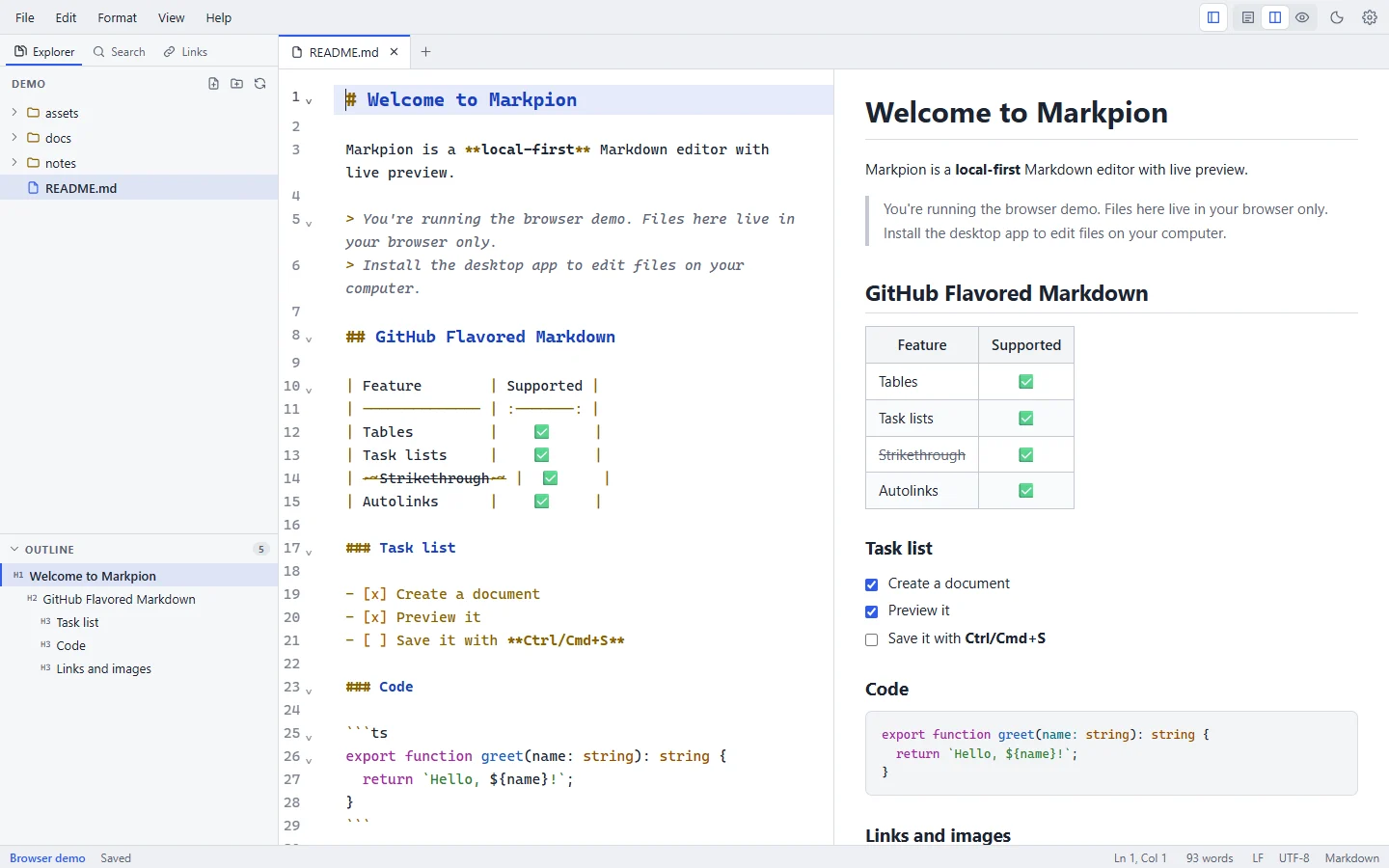
Views
Choose Editor Only (Ctrl+1), Split View (Ctrl+2) or Preview Only (Ctrl+3) from the View menu or the buttons at the top right. Ctrl+\ cycles through them. On macOS, use Cmd.
Updates and scrolling
- The preview updates shortly after you stop typing. The delay is set by Settings → Preview → Update delay after typing (instant to 1 second; 150 ms by default).
- In split view, the editor and preview scroll together, line by line: the paragraph, heading, table or code block at the top of one is at the top of the other, even when pictures, diagrams or long source lines make one side much taller. Turn this off with Sync editor and preview scrolling.
- Click a picture in the preview to see it at full size (pictures inside links follow the link instead).
- Hover a heading in the preview and click the link icon beside it to copy its
#anchor, ready to paste into a link. (From the keyboard, right-click the heading in the Outline → Copy Link to Heading.) - Ctrl+F (Cmd+F) finds text in the preview when it's shown alone or has focus; see Find in the preview.
- In split view, double-click a block in the preview to put the cursor on its first line in the editor, at the same height on screen.
Interacting with the preview
- Links: web links (
http,https,mailto) open in your browser.#headinglinks scroll to the heading. Links to other Markdown files open them in a new tab, at the heading when the link names one (guide.md#setup). Other link types are blocked for safety. - Task checkboxes: click a checkbox (or focus it and press Space) to check or uncheck the task in the source. It's a normal edit, so Ctrl+Z undoes it.
- Code blocks: hover over a code block (or Tab to it) and click Copy to put its code on the clipboard.
- Images: local images are loaded relative to the document. They only show once the document is saved, because a relative path needs a location. See Images.
Safe HTML
Raw HTML in Markdown is rendered, then sanitized with GitHub's allow-list. Scripts, event handlers, iframes, forms, styles and javascript: links are removed, and a strict Content Security Policy blocks inline scripts. So a document you download can't run code in Markpion.
Large documents
Long documents (from about 150 paragraphs, headings, lists and other blocks) are rendered in parts: the parts near what you're looking at are built first, and the rest as you scroll to them. Jumping from the outline or following a #link builds the whole preview first. On macOS the preview can shift slightly while a part above the visible area is built.
A long document (over 100 KB, unless it uses footnotes) is prepared section by section, at its headings: the part you're looking at appears right away, and the rest is prepared as you scroll toward it, so a long document shows up in about a second instead of many. Jumping to a heading, finding text in the preview and printing prepare the rest first. Headings, links, tasks and scroll sync work as for any document.
Above 1 MB of text, the live preview pauses so typing stays fast. A bar at the top of the preview offers Render Now (and then Refresh Preview) to render on demand. The Markdown checks, the Git change markers and the live word count also stop running on every keystroke at that size (the status bar's counts settle a couple of seconds after you stop typing). The editor handles large files normally, and files up to 50 MB can be opened.
Presenting as slides
View → Slides → Present as Slides (also in the command palette) shows the current document as slides that fill the window. Press F11 first for full screen.
- Put a line with just
---between slides, with a blank line before it (a---directly under a line of text makes that line a heading instead). A document without any---gets a slide for each#and##heading. - →, ↓, Space or Page Down, or a click on the slide, go to the next slide; ←, ↑, Shift+Space or Page Up go back; Home and End go to the first and last slide.
- Esc ends the show.
- Print Slides (View → Slides) prints each slide on its own landscape page with page numbers, without the speaker notes; choose Save as PDF in the print dialog for a PDF of the slides.
- Speaker notes: on a slide, a line starting with
Note:begins notes the audience doesn't see. Press N (or Notes in the bar) to show them below the slide, for example on a screen only you can see. - Slides show everything the preview does: images, tables, code, formulas and diagrams. Links open in your browser. Front matter isn't shown.
# Quarterly review

---

## Agenda

- Results
- Roadmap
Printing and exporting
What you see in the preview is what Export as HTML, Export as PDF, Export as Word and Print / Save as PDF produce, without the front matter table. See Import & export. To change how documents look (colours, fonts, spacing), add custom CSS in Settings.