
Your first document
This walkthrough takes about five minutes. The shortcuts are shown for Windows and Linux; on macOS use Cmd instead of Ctrl.
1. Launch Markpion
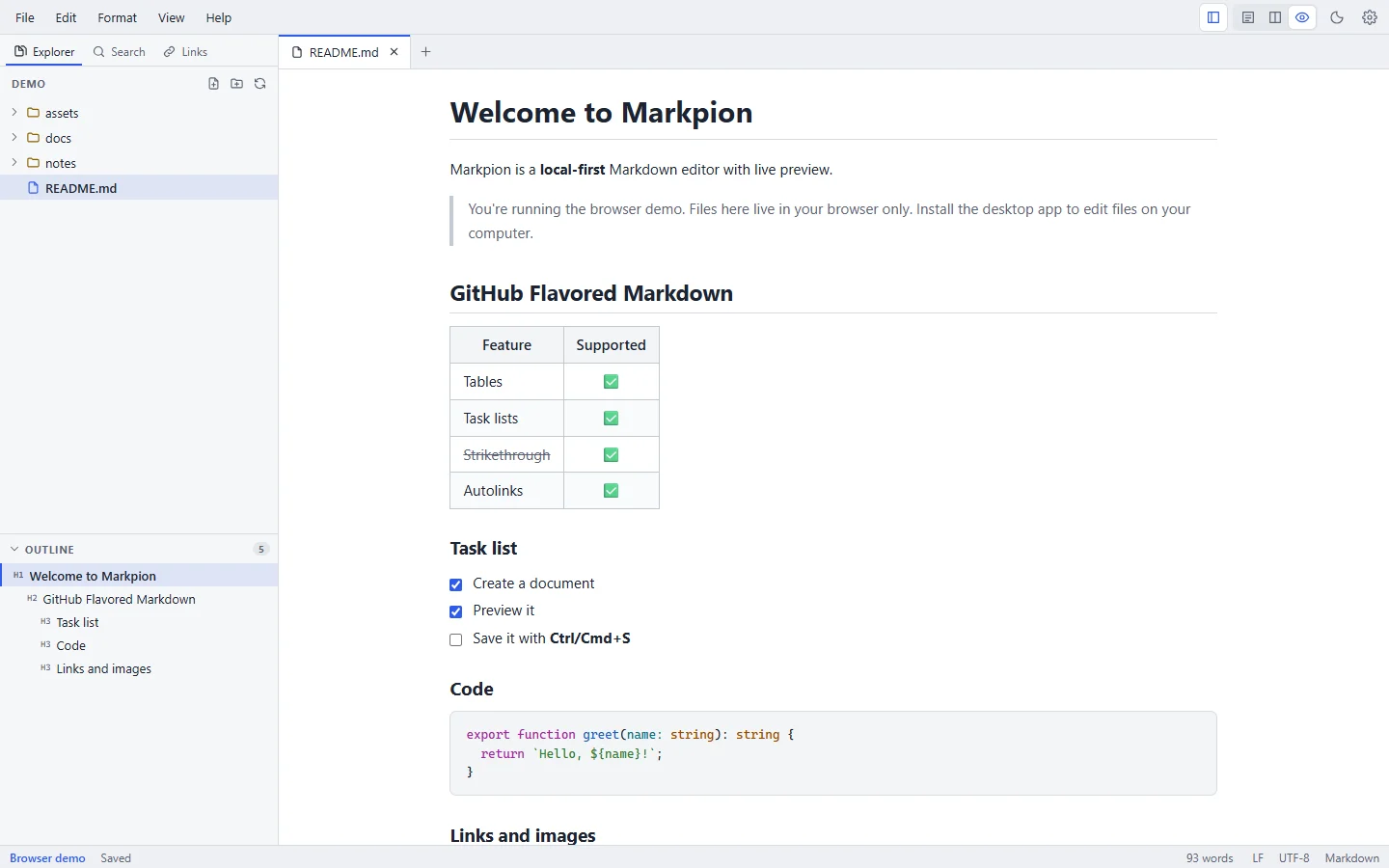
Start it from the Start menu (Windows), Applications (macOS) or your applications menu (Linux). The first time, you see the welcome screen with New File, Open File and Open Folder, plus your recent files once you have some.
2. Open a folder
Choose Open Folder (Ctrl+Shift+O) and pick the folder where you keep your notes or documentation. It becomes your workspace:
- The Explorer in the sidebar shows its folders and Markdown files (
.md,.markdown). Hidden folders and folders such asnode_modulesare skipped. - Markpion can only access folders and files that you open this way. See Privacy.
You can also open a single file with Open File (Ctrl+O), double-click a .md file in your file manager, or drag one onto the window.
3. Create a document
Choose File → New File (Ctrl+N) to start an untitled document, or right-click a folder in the Explorer and choose New File to create it in that folder straight away. To start from a ready-made structure, use File → New from Template… (see Writing tools).
4. Write
Type some Markdown:
# Project notes

Markpion shows the **preview** as you type.

## To do

- [x] Install Markpion
- [ ] Write the first page

| Step | Status |
| --- | --- |
| Draft | Done |
| Review | Next |
Use the Format menu or shortcuts such as Ctrl+B (bold), Ctrl+I (italic) and Ctrl+K (link) instead of typing the syntax. The Markdown basics page covers the syntax.
5. Use the live preview
The preview on the right updates as you type, and scrolling stays in sync. Switch views with Ctrl+1 (editor only), Ctrl+2 (split) and Ctrl+3 (preview only), or cycle through them with Ctrl+\. You can tick task checkboxes directly in the preview.
6. Save
Press Ctrl+S. For a new document you choose a name and location; after that, Ctrl+S saves in place. The tab's dot and the status bar show unsaved changes, and Markpion asks before closing a document with unsaved changes. See Saving, history & recovery for auto save and file history.
Next steps
- Explore the editor and writing tools.
- Try Mermaid diagrams and math.
- Export your document as PDF or Word.