
File explorer
The file explorer shows the folder you're working in, your workspace. Open it with File → Open Folder… (Ctrl+Shift+O, or Cmd+Shift+O on macOS). Show or hide the sidebar with Ctrl+Shift+E.
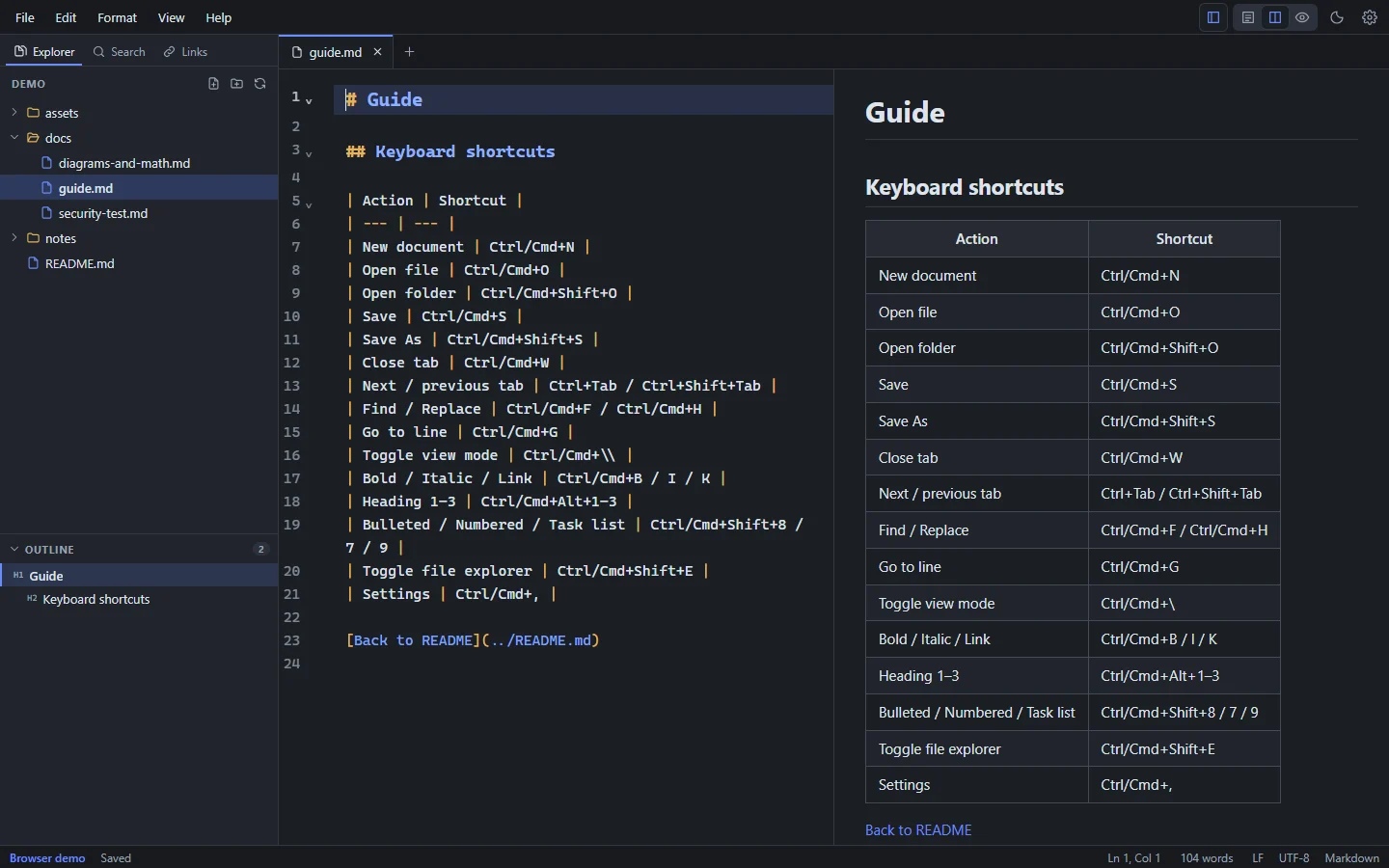
Without a folder
When no folder is open, the Explorer lists your open files, and below them your recent files and folders that aren't open (click one to open it, or its × to remove it from the list; nothing is deleted). Click one to switch to it, press F2 to rename it, or right-click it for Rename…, Open Containing Folder…, Copy Path, Reveal in File Explorer and Close. Below the list, Open Folder opens a folder; the dialog starts in the current file's folder, so opening the folder your file is in takes one click.
What's shown
- Folders, Markdown files (
.mdand.markdown) and pictures, sorted with folders first. Pictures have a picture icon; clicking one shows it (see Pictures below). To list only Markdown files, turn off Settings → Files → Show pictures in the Explorer. - Hidden folders (starting with
.) and dependency or build folders such asnode_modules,target,distandbuildare skipped. - Folders load when you expand them, so large folders open quickly.
- The file in the active tab is highlighted.
Filter files
Type in Filter files at the top of the Explorer to list only the files whose name or path matches, from every folder, best matches first (up to 200). The letters don't need to be next to each other: setgd finds docs/setup-guide.md. Click a file, or press Enter for the first one, to open it; Down moves into the list. Escape clears the filter and shows the tree again.
Create, rename and delete
| Action | How |
|---|---|
| New file | The New file button at the top of the Explorer, or right-click a folder → New File… |
| New folder | The New folder button, or right-click a folder → New Folder… |
| Duplicate | Right-click a file → Duplicate. The copy is named like notes copy.md (or notes copy 2.md, … if that exists), keeps the original's line endings, and opens. It copies the saved file, so unsaved changes in an open tab aren't included |
| Rename | Select an item and press F2, or right-click → Rename…. Open tabs follow the rename, and links to it can be updated (see below) |
| Move | Drag a file or folder onto another folder, or onto the empty space below the tree for the top level; Esc cancels. From the keyboard: right-click (or Shift+F10) → Move To… and type the folder, relative to the open folder (/ for the top level). Nothing is replaced: moving onto a name that already exists is refused. Open tabs follow the move, and links to it can be updated (see below) |
| Split a document | Select text, such as a whole section, and choose File → Move Selection to New File…. The text goes into a new Markdown file in the same folder, named after its first heading, and a link to that file takes its place. Ctrl+Z in the document brings the text back (the new file stays) |
| Link to a file | Drag a file from the Explorer into the editor: a link to it goes where you drop it, relative to the document ([guide](docs/guide.md)). A picture gets an image link (). The file isn't moved. The document must be saved first, so the link has a place to start from |
| Pictures | The Explorer lists pictures (PNG, JPEG, GIF, WebP, SVG, BMP, AVIF) as well as Markdown files; turn that off with Settings → Files → Show pictures in the Explorer. Click a picture to see it, with Insert Link in Document to link it at the cursor; drag it into the editor to link it where you drop it. Rename, move and delete work as for documents, and renaming or moving offers to update the links that show it |
| Delete | Right-click → Delete…. After you confirm, the item goes to the Trash or Recycle Bin, so it can be restored |
| Collapse folders | The Collapse folders button closes every expanded folder |
| Refresh | The Refresh button |
| Close the folder | The × button at the top of the Explorer, or File → Close Folder. The folder leaves the Explorer; nothing is deleted, and open tabs stay open |
When the sidebar is narrow, the buttons at the top of the Explorer (New file, New folder, Collapse folders, Refresh, ×) make room for the folder name: point at the header, or press Tab to reach them, and they appear.
Other right-click actions: Open, Reveal in File Explorer (Reveal in Finder on macOS, Open Containing Folder on Linux), Copy Path and Copy Relative Path.
Links follow renamed and moved files
When you rename or move a file or folder, Markpion looks through the Markdown files in the open folder for relative links and images that would stop working: links in other documents that point to it, and the moved documents' own links to files that stayed where they were. If it finds any, it asks Update links? with the number of links and files; Update Links rewrites them, Don't Update leaves every file as it is.
- Anchors (
#section), a leading./and<…>brackets are kept; spaces and brackets in new names are written as%20,%28and%29. - Files open with unsaved changes are skipped (the dialog names them). Open tabs without changes reload with the new links.
- The previous version of each rewritten file is kept in File History.
- Inline links and images (
[text](path),), reference-style link definitions ([id]: path), wiki links ([[path]]) and HTML<a href>and<img src>tags are updated. Absolute paths (/home/me/notes/a.md,C:\notes\a.md) are updated too when the file they name moves, and stay absolute with the same kind of slashes. Links in files outside the folder aren't updated; Check Links in Folder finds any that broke. - Renaming or moving files outside Markpion (in your file manager or with Git) doesn't update links.
Changes made by other programs
Markpion watches the workspace folder. When another program (Git, a script, another editor) adds, removes or changes files, the Explorer updates straight away.
If a file that's open in a tab changes on disk:
- If the tab has no unsaved changes, it reloads automatically.
- If it has unsaved changes, a banner offers Reload (discard mine), Compare or Keep Mine, so nothing is overwritten without you deciding. See Saving & recovery.
Workspace access
Markpion can read and write only inside folders and files you've opened yourself (or reopened from the recent list). That keeps the app from reaching anything else on your computer. See Privacy.
Go to File
File → Go to File… (Ctrl+Alt+O, Cmd+Option+O on macOS) opens any Markdown file in the folder by typing part of its name or path, for example guide or docs/inst. The letters don't have to be next to each other: dm finds diagrams-and-math.md. Files that are already open are listed first. Press Enter to open the highlighted file.
Recent files and folders
The File menu and the welcome screen list recently opened files and folders. By default, the next start reopens your last folder and files; turn this off with Settings → Startup → Reopen last folder and files.
To tidy the list, point at an entry on the welcome screen and click its ×, or clear the whole list with Clear (on the welcome screen) or File → Open Recent → Clear Recent. Only the list changes; the files and folders stay where they are.
Explorer and Outline size
The Outline sits below the Explorer. Drag the line between them to give either more room; the size is remembered. Click the Outline heading to collapse it to a single line, and again to expand it.
Git status
When the open folder is in a Git repository, the Explorer marks changed files with a letter: M modified, A added, D deleted, R renamed, U untracked, C conflict. Folders that contain changes get a dot. The status bar shows the branch, with ↑ commits to push and ↓ commits to pull.
Changed lines in the editor
For a file that's committed to Git, the editor shows a thin bar next to the lines you've changed since the last commit, as code editors do: green for added lines, amber for changed lines, and a small red triangle where lines were deleted. Hover over a bar to see what it means.
- Click a bar (or use Edit → Git Changes → Show Change Since Last Commit) to see the committed lines. Revert Change puts them back (Ctrl+Z undoes it); Escape closes the pop-up.
- Alt+F5 and Shift+Alt+F5 move the cursor to the next and previous change. Edit → Git Changes → Revert Change to Last Commit reverts the change at the cursor.
The status bar sums up the file's changes (for example +3 ~1 −2: added, changed and deleted lines); click it to go to the next change. The bars update as you type and after you commit (when you come back to the window). Untracked files and documents over 1 MB have no bars. In Windows High Contrast, added lines get a solid bar and changed lines a dashed one.
Staging and committing
The Git tab in the sidebar (the branch icon) is Source Control for the open folder:
- Changes lists the files you've changed, added or deleted since the last commit, with their letter (M, A, D, U untracked). Click a file to open it. + stages a file; + in the heading stages them all.
- Staged Changes lists what the next commit will contain. − unstages a file (its changes stay in it); − in the heading unstages them all.
- Write a commit message and choose Commit (or press Ctrl+Enter in the message). Markpion commits with your own Git: your name and email, and the repository's hooks, apply as they do on the command line. If Git refuses, for example because a hook fails, its message is shown.
After a commit the Explorer markers and the editor's change bars update. Only files inside the open folder are listed, even when the repository is bigger.
Branches, pull and push
Above the commit message:
- The branch button shows the current branch. Choose it to switch to another branch, or New Branch… to create one from the current commit and switch to it. Git refuses to switch when your uncommitted changes would be overwritten, and says so.
- ↓ Pull brings in the commits on the branch's upstream (the number shows how many). It only pulls when no merge is needed; when both sides have new commits, Markpion says so and leaves merging or rebasing to your Git tool.
- ↑ Push sends your commits (the number shows how many). The first push of a new branch sets its upstream on the repository's remote.
Pull and push use your Git credentials as on the command line (for example Git Credential Manager on Windows, which may show its own sign-in window). They stop after two minutes without an answer.
Requirements and privacy
This needs Git installed. Markpion runs git status in the open folder (and git show for the file in the editor) when the folder opens, when files change, and when you come back to the window. It changes the repository only when you stage, unstage, commit, switch or create a branch in the Git tab, and it contacts a remote only when you choose Pull or Push. As with any Git tool, opening a repository runs Git with that repository's configuration (Markpion turns off Git's file-system monitor hook). Turn it off with Settings → Files → Show Git branch and changed files.
Search, links and tags across the folder
The sidebar has three more views for the whole workspace:
- Search (Ctrl+Shift+F) finds text in every Markdown file. See Search & replace.
- Links checks every link in every file. See Checking documents.
- Tags lists the
#tagsused in the folder. See Tags.
When the sidebar is narrow, its tabs show only their icons; hover one for its name.